2. ENGINE DISPLAY
2-17
2.4.2 How to view QR Code logs
Standard operation
1. Open the home screen, then tap the [Settings] - [Engine Setup].
2. Swipe the Sub menus screen.
3. Tap the [View QR Code Logs].
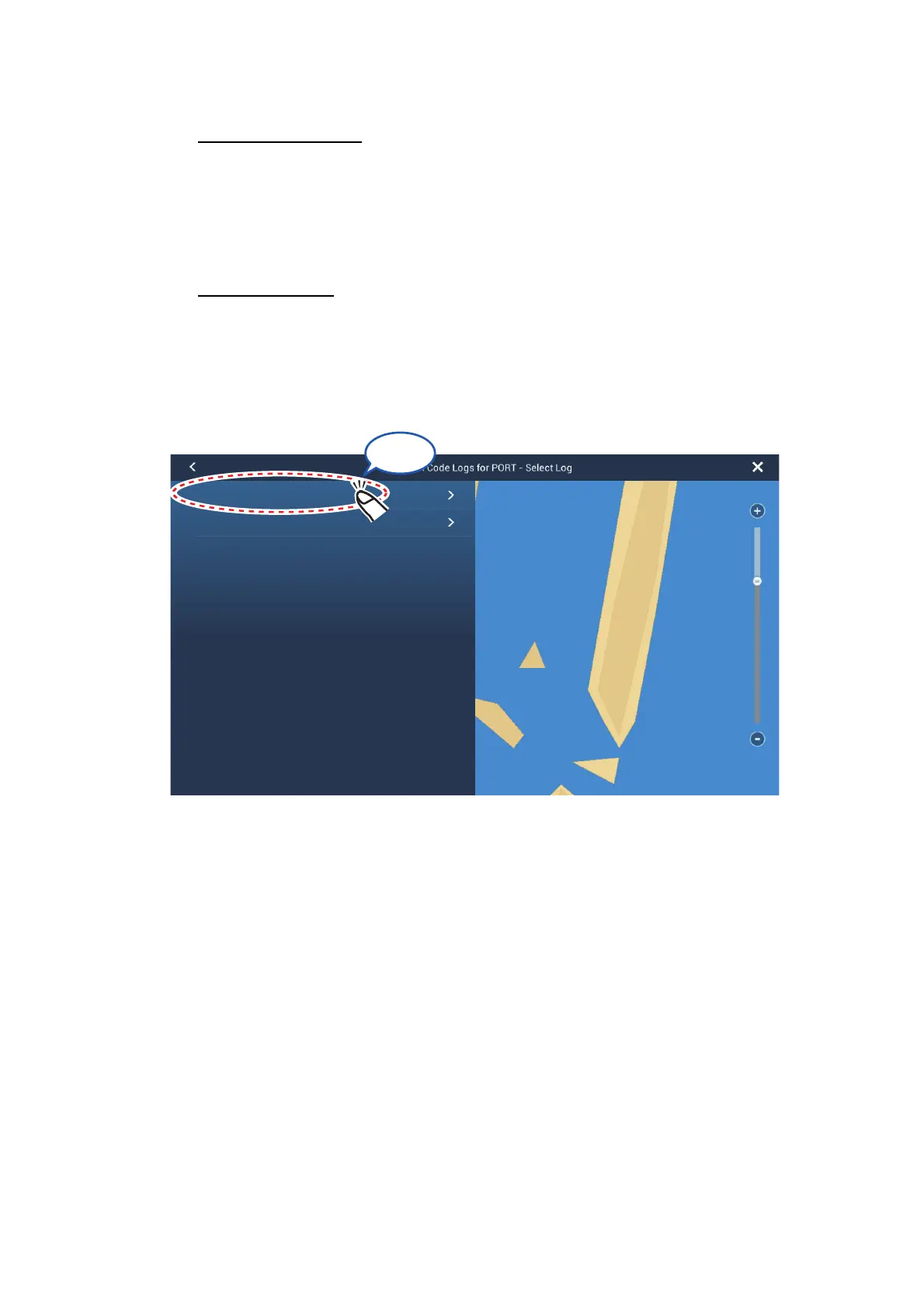
4. Tap selected Log.
Quick operation
1. Swipe leftward from the right edge.
2. Tap the [Engine Setup].
3. Tap the [View QR Code Logs].
4. Tap selected Log.
The recorded data can be read out.
The stored QR codes appear in list in date/time order, with the latest file at the top
of the list. Each QR code files is named in the following format: year_month_day-
hours_minutes_seconds.
Above this example, a QR code with the name "20180912-095041" means the QR
code was created on September 12, 2018 at 09:50:41.
2.4.3 Emailing the QR codes
Note: This procedure takes into account the following:
• The QR codes are already created, scanned and saved in the S.D.S.M application.
If you have not created and scanned the QR codes, do the procedure in
section 2.4.1 beforehand.
• The procedure covers how to send the engine data via email. For other from the
application, see the application's "HOW TO USE".
Tap
20180912-095041
20180912-094830


 To Next Page