26
The program timer switches the unit on and off to record a TV prog-
ram at a preset time.
Use programmed recording to automatically start and stop recording
at a later date. The DVD recorder will switch to the right program
number and begin recording at the correct time.
1. Set the record program(s) first.
1. Insert a DVD+/-RW or DVD+/-R disc ( label facing up ) to be
recorded on the disc tray.
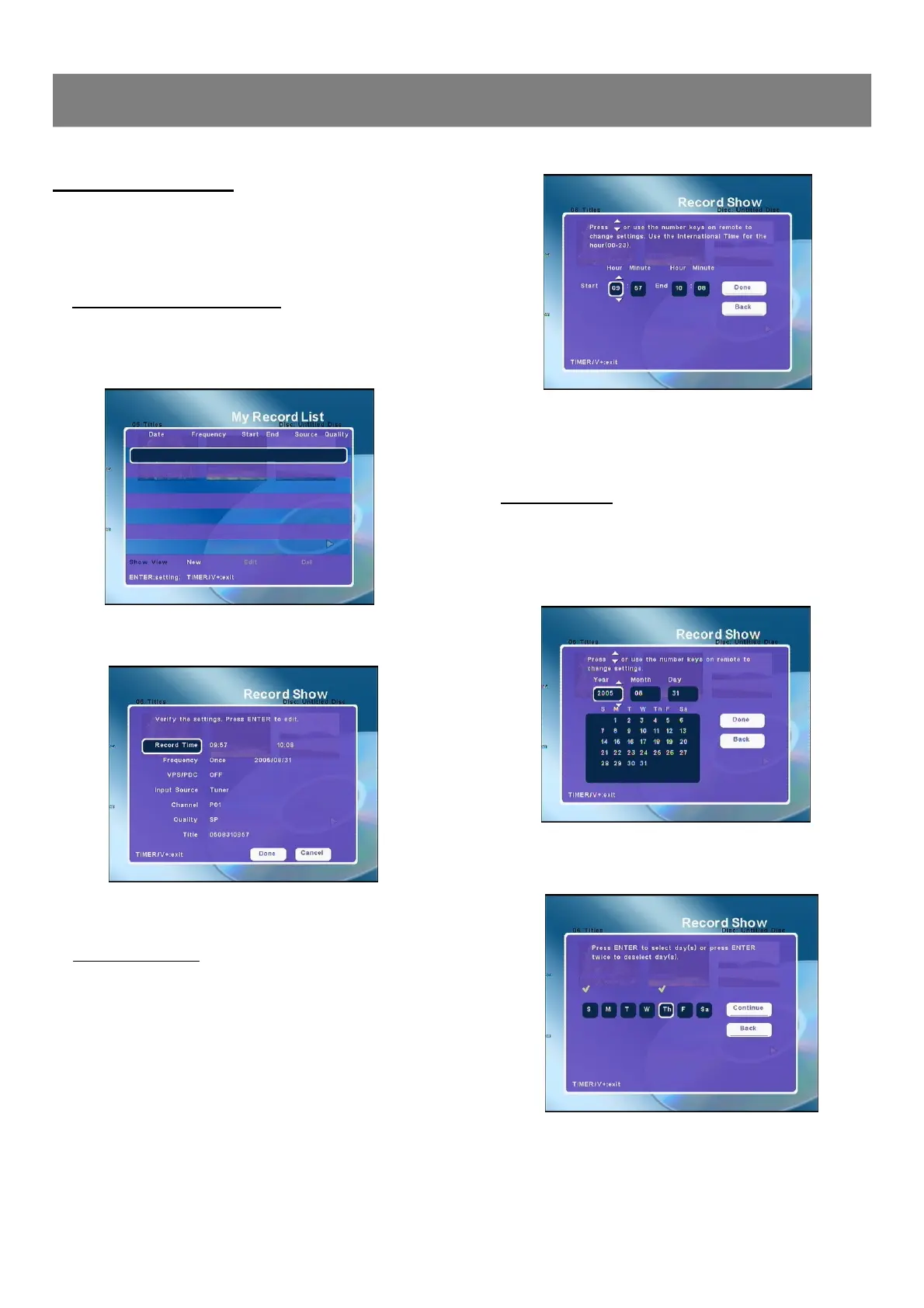
2. Press Timer/V+, “My Record List ”screen appears.
3. Press Enter ,“Record Show ”screen appears on the TV
screen.
4. Press 5/6 to select the item ( Record Time, Frequency,
VPS/PDC, Input Source, Channel, Quality & Title)
Setting Record Time
1. Select “Record Time ”.
2. Press Enter , the start and end time screen appears.
3. Press 5/6 ( or the number buttons on the remote control ) to
set the start and end times and press 3/4to move the cursor.
4. Press 4to select “DONE ”, then press Enter, the record time
is set. The “Record Show ”screen returns.
Setting Frequency
1. Select “Frequency ”.
2. Press Enter, the Record Show screen appears.
3. Press 5/6 to selec the “Once ” or “Repeat ”.
4. If select “Once ”, Press Enter or4 to select “Continue ”
then press Enter , the calendar screen appears.
5. Press 5/6 ( or the number buttons on the remote control ) to
set the record date and press3/4to move the cursor.
6. If select “Repeat ”, Press Enter , then the week screen
appears.
Timer Recording
2-2 Recording (continued)
7. Press 4to select “DONE ”, then press Enter, the record date
is set. The “Record Show ”screen returns.


 To Next Page