- 7 -
Semi-Integrated Terminal
Home screen and icons
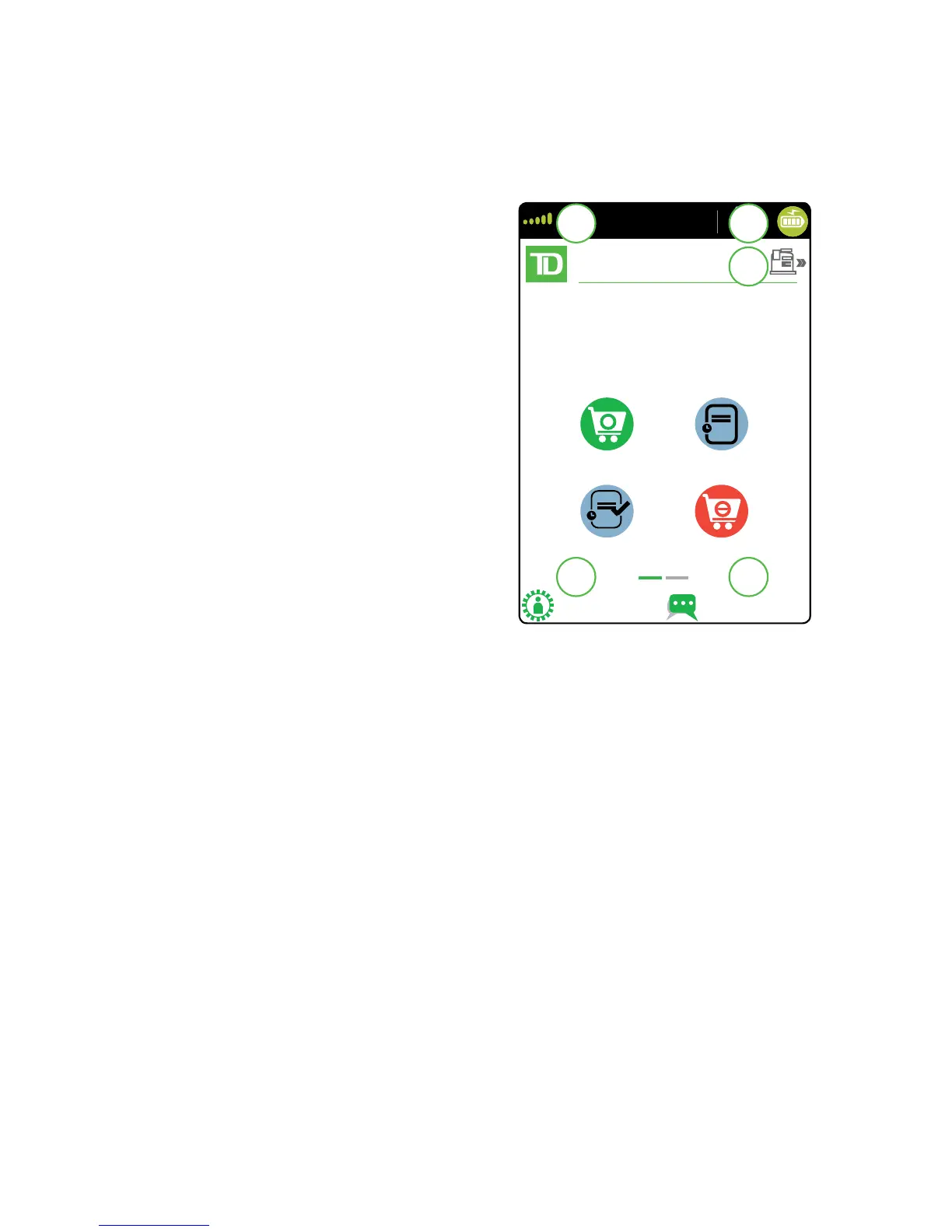
The default screen is called the Home
screen. It displays important information,
icons and dierent ways to access your
terminal’s functionality. They are:
1. Communication icons
The icons on this bar will be
dierent depending on which setup
or comms method is chosen.
2. Power
The battery icon in the top-right
corner indicates that the terminal
battery level. When the lightning
bolt appears on top of the battery
icon, it means it is charging.
3. Mode
This icon switches the mode that
the semi-integrated terminal is in
(standalone or semi-integrated).
4. Admin
This icon opens the Admin Menu.
5. Language
This icon opens the Language
Menu.
Software
Applications on the TD Move 5000
The TD Move 5000 can accept a wide range of third-party applications to meet your business
needs. These applications are very similar in idea to the applications on your smart phone.
For example, if you want to accept gift cards after your initial terminal setup, you would have to:
1. Sign up for the appropriate program with the application provider.
2. Contact TD Merchant Solutions to enable it and have the application
downloaded to your terminal.
3. To learn more about which applications are accepted, review the application
creator’s documentation.
Once downloaded to your terminal, these applications are accessed outside the standard
TD Move 5000 menus.
Note: If you accept gift cards it will appear as a payment option during a Sale.


 To Next Page