- 5 -
WiFi communication mode
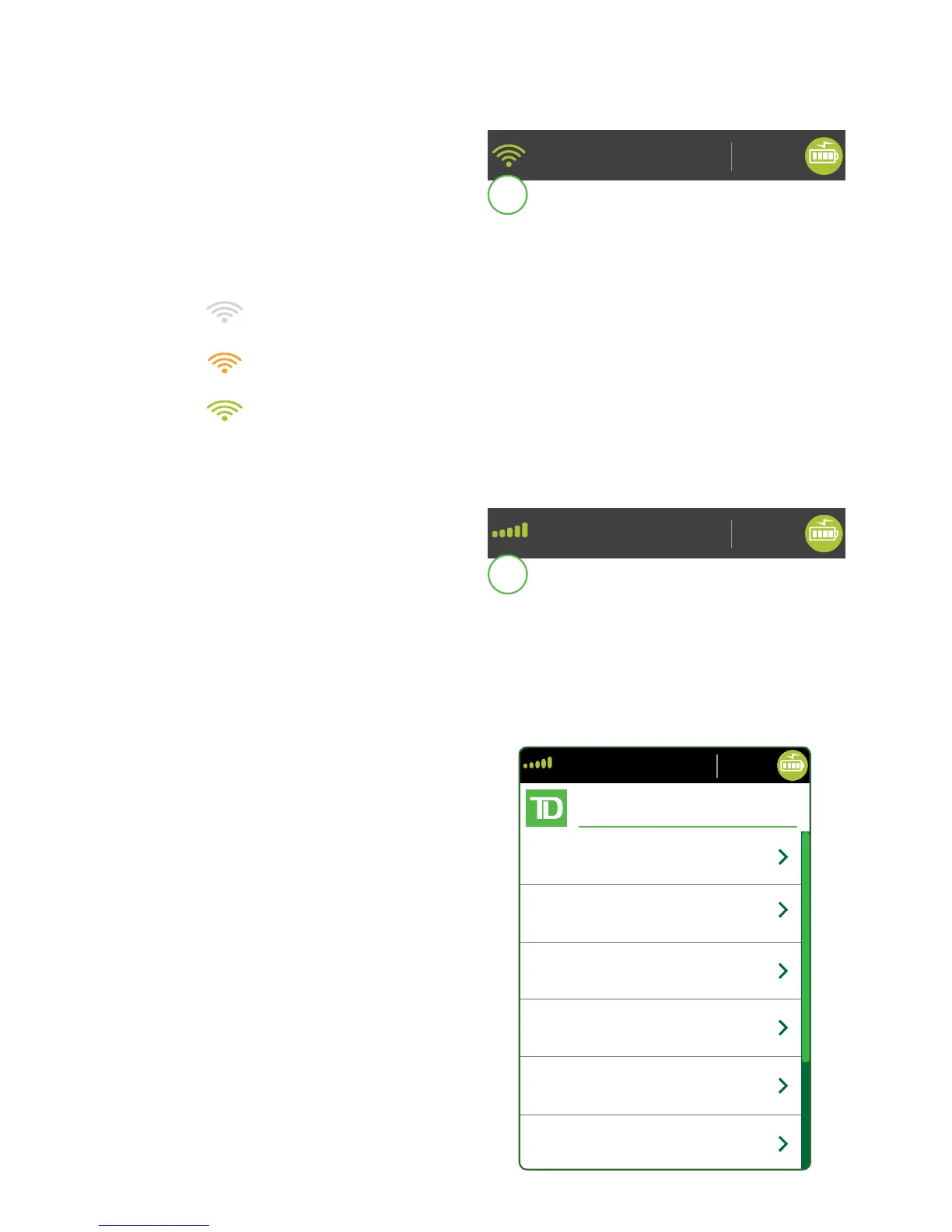
1. WiFi signal strength icon
The WiFi icon in the top-left
corner indicates the terminal’s
connection to a WiFi network. It
will be one of three colours: grey
(disconnected), orange (searching for connection) or green (connected). When
connected, it will display the WiFi signal strength with zero to three bands with
three being the best signal strength.
The grey icon indicates that WiFi is present but not activated on the
terminal.
The orange icon indicates that the terminal is connecting to a router /
modem.
The green icon indicates that the terminal is connected to a router /
modem.
4G communication mode
1. 4G signal strength icon
This icon in the top-left corner
indicates the terminal’s
connection and signal strength
to a 4G network. It will be one of
two colours: green (connected)
or grey (disconnected). When connected, it will display the 4G wireless signal
strength with zero to ive bars with ive being the best connection. It can display,
and connect to, a 3G or a 2G signal if 4G is not currently available. Below the icon
is the 4G carrier name.
Main menu screen
From the Home screen, press the OK key
and the Main Menu screen appears. The
Main Menu screen displays the following
transactions:
• Sale
• Return
• Void
• Force
• Pre-Auth
• Pre-Auth Completion
• Settlement
• Reprint Menu
• Reports Menu / Log In


 To Next Page