15
ENGLISH
Getting Started (Setup Navigator) 1
< Also turn on your TV and set its input to the correct position for
DVD viewing (VIDEO, etc.).
<
If a disc is set, press the OPEN/CLOSE button and remove the
disc.
The language for audio and subtitle is also set to the language
you selected here. If you want to select other language for
audio and subtitle, see 44 page later.
< If you don't want to use the Setup Navigator, select "Auto Start
Off" by pressing the DOWN button and the ENTER button.
<
If you want to return to the previous screen, press the LEFT
button.
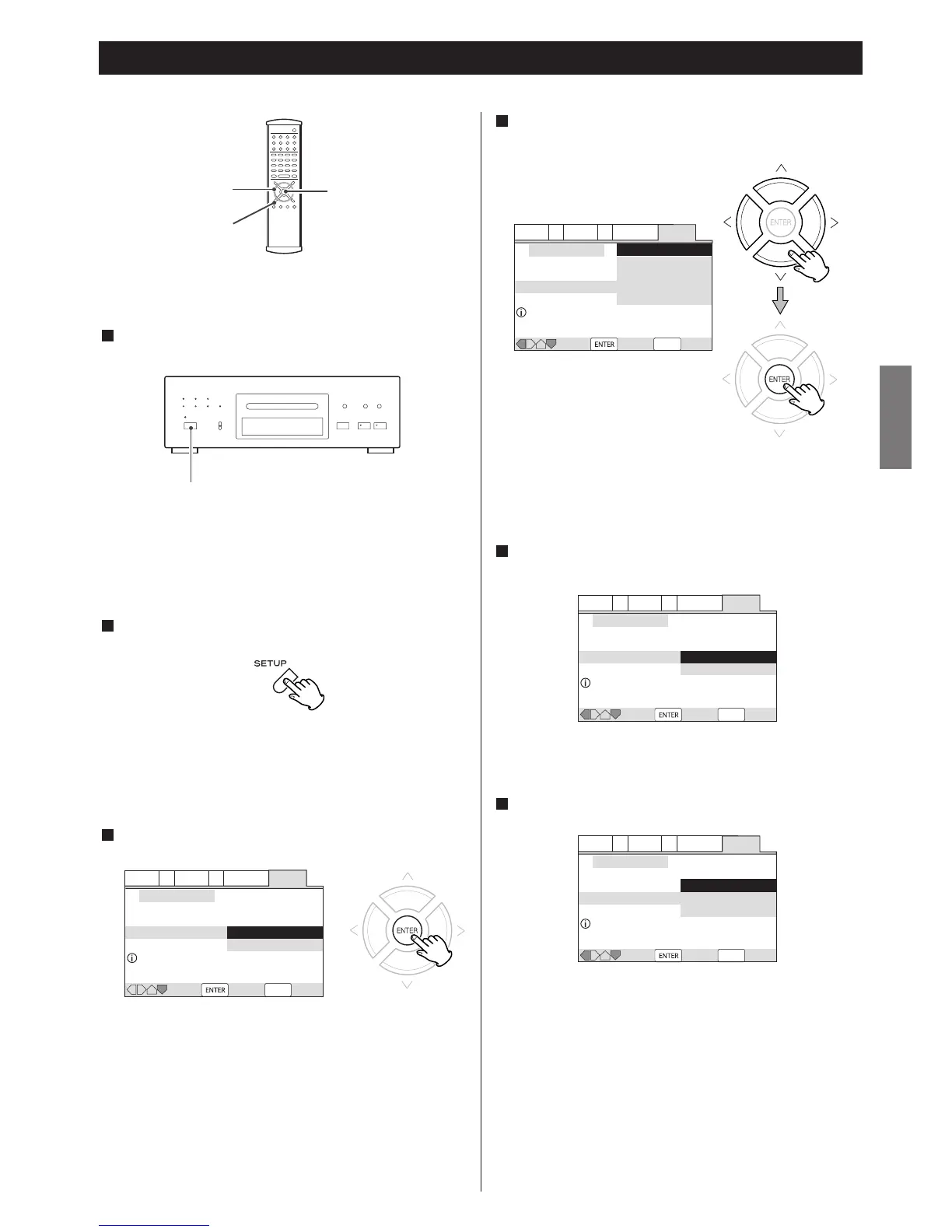
The Setup Navigator appears on the screen.
<
Buttons which can be used in the OSD menu are shown at the
bottom of the screen.
The Setup Navigator will help you to make the basic settings.
Press the POWER switch to turn the unit on.
1
Press the SETUP button.
2
Press the ENTER button to start the Setup Navigator.
3
Select a language for OSD (On Screen Display) by pressing
the UP/DOWN buttons, and press the ENTER button.
4
Select 16:9 when a wide-screen TV is connected. Otherwise
select 4:3.
2 Channel:
Select this when the amplifier is connected via the 2CH
AUDIO OUT jack.
5.1 Channel:
Select this when the amplifier is connected via the 5.1CH
AUDIO OUT jack.
Not Connected:
Select this when you don't use analog audio output.
Select the type of TV by pressing the UP/DOWN buttons and
the ENTER button.
5
Select the type of analog audio connections.
6


 To Next Page