9
3.1.1 Program Settings
The Program Settings menu provides options to edit programs, view the Electronic
Program Guide, and sort the channels according to your liking. Use the UP/DOWN,
and LEFT /RIGHT keys to navigate through the menu. Press EXIT button once settings
are completed to exit the menu.
3.1.1.1 Program Edit
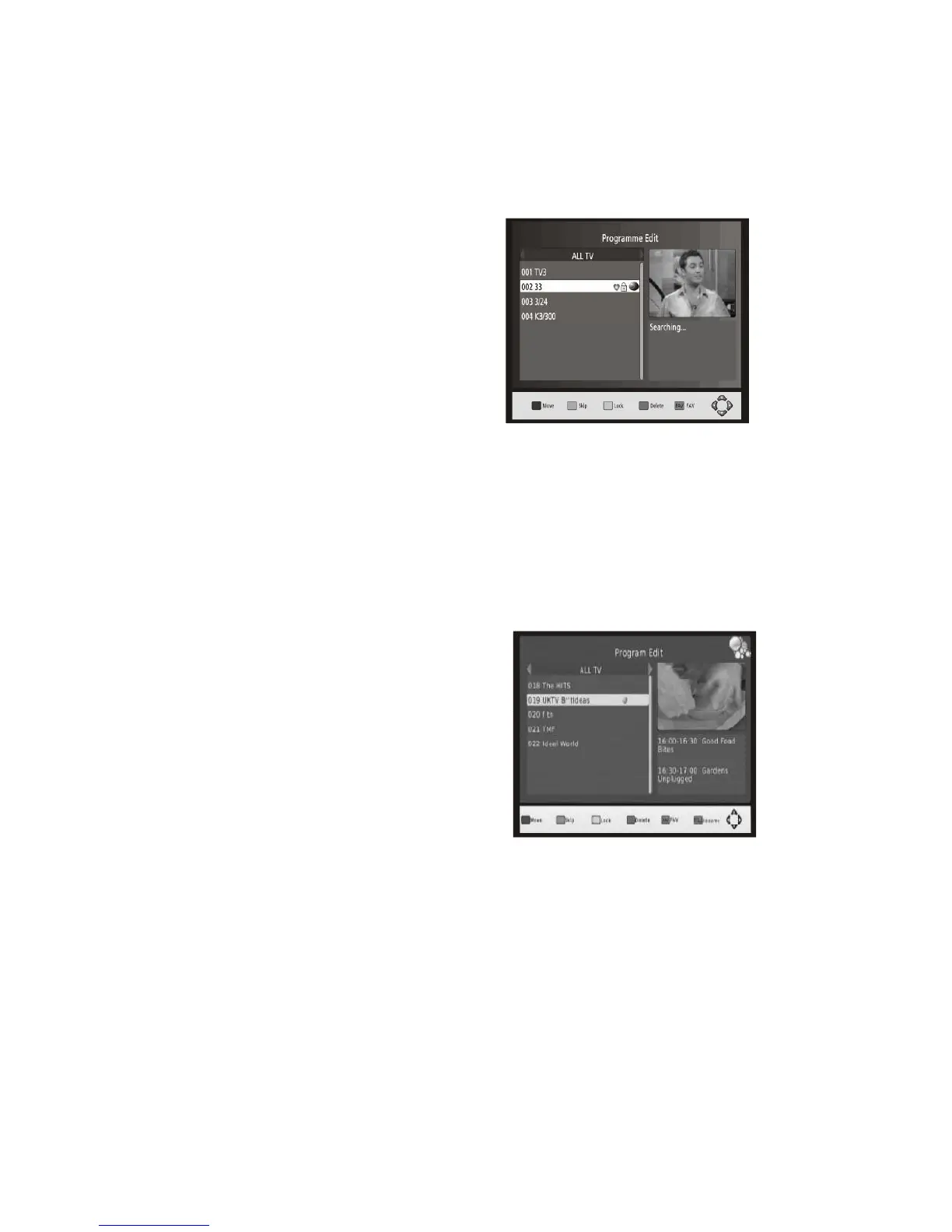
To edit your program preferences (lock,
skip, favourite, move or delete), you will
need to enter the Program Edit Menu.
This Menu requires a password to
access. Enter the default password
'000000'. The master unlock password is
'888888'.
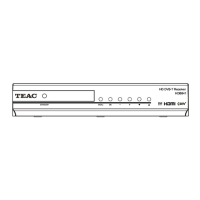
There are several functions in the Program Edit menu. The user can categorize
channels into favourites, Delete a Channel, Skip a channel while browsing, Move
a channel location, Lock a program, and Rename a program. The following
instructions are applicable when in the Program Edit Menu.
3.1.1.1a Set Favourite Channels
You can create a shortlist of favourite programs that you can easily access.
Set Favourite TV or Radio program:
1. Select then press the
button.
2. A heart-shaped symbol will
appear and the channel is
marked as a favourite
channel.
Repeat the previous step to select more Favourite channels.
To disable the selection, select the favourite channel and press the FAV
button on the remote control to cancel.
To confirm and exit the Menu, press the EXIT key.
To view the list of favourite programs:
1. While in normal viewing mode, press the FAV button and the ‘Favourite
Menu’ will appear.
2. Press UP/DOWN to browse through your Favourite Channels.
3. Press OK to select your favourite channel.


 To Next Page