15
a. Set Password
Set or change the password for your System. Enter the default password ‘000000’ or
if you have previously set a password, please enter your numerical code. A prompt
will appear requesting for a new password input. Press OK button to confirm your
new password.
In the event that you forgot or misplaced your password, the master unlock
password is ‘888888’.
b. Restore Factory Default
Reset your Set Top Box to the Default Factory Settings.
In the Main Menu, select [Restore Factory Default] sing the RIGHT/LEFT keys and
press OK or RIGHT to select. Enter your password or the default password ‘000000’
and press OK to confirm. Use this function with caution as it will erase all previous
channel scans and settings. The master unlock password is ‘888888’.
c. Information
View model, hardware, and software information.
d. Software Update
If the status is set to ‘ON’, it will scan new software from the broadcasters according
your preferred time in ‘Start Time’.
e. Start Time
This is the time that the unit will scan for software updates.
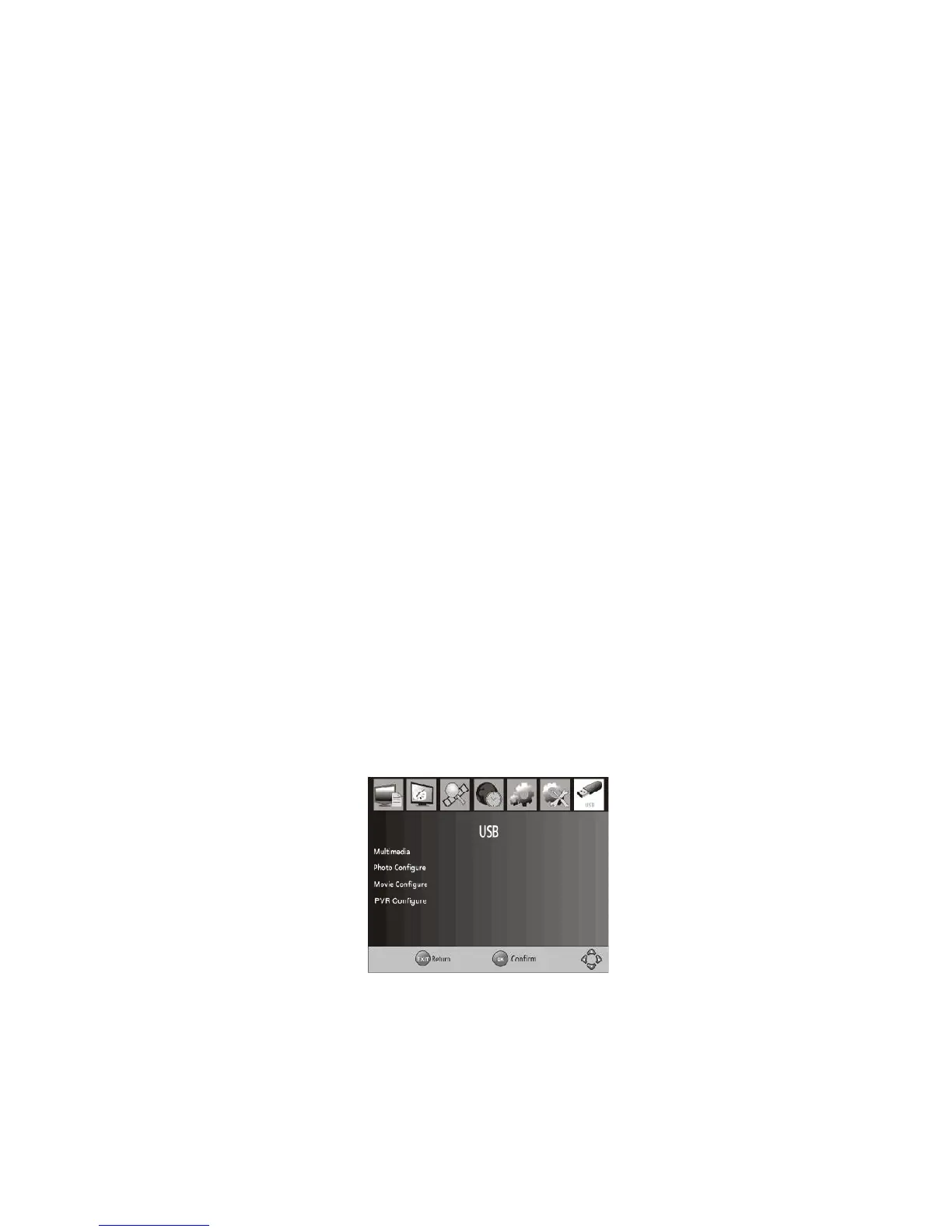
3.1.7 USB
To access the Menu, press the MENU button and select [USB] using the RIGHT/LEFT
keys. The menu provides options to playback Music, Photo files and multimedia files. It
can support AVI, MP3, WMA, JPEG and BMP formats. The unit will only support a USB
device with a FAT32 file system. It will not support NTFS file system. Press EXIT to exit
the menu.
3.1.7.1 Multimedia
When a USB device is attached, you can select from the Music, Photo, Movie, or PVR
options in this menu using the RIGHT/LEFT keys, and press OK to select and RECALL
to go to the previous folder. If a USB device is not connected to the unit, the
following prompt will appear: ‘No USB device is Found’ will appear. Press EXIT to exit
the menu.


 To Next Page