4. Connect the upgrade USB key to the PC as soon as synchronised (with PC Synch):
• Open the “Skillmill” folder on the synchronised USB key (for the details, see “9.2 PC Synch folder
structure”).
• Drag the SW (le with the .bin extension) to the equipment folder.
• Wait for the le to copy (approx. 10 seconds).
• Disconnect the MINI USB connector from the console.
• Repeat the operations described above for all the software to be installed.
TIP: Skillmill Connect version: you are advised to always update all 4 les (High_Kit -
Wi-Fi - Low Kit - Table). Skillmill Console version: you are advised to always update all
3 les (High_Kit - Low Kit - Table).
5. Reposition the guard of the console's MINI USB connector.
6. Connect the power supply cable (Connect version) or turn on the baery (Console version).
9.2 PC SYNCH FOLDER STRUCTURE
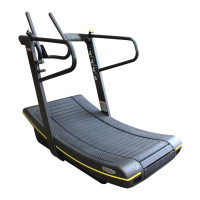
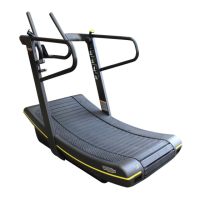
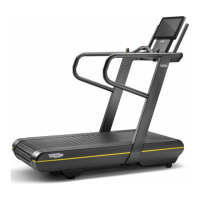
The “Skillmill” folder contains two sub-folders:
• DJKX3: contains 4 les and applies to the Skillmill Connect version. The SW is structured as
follows:
high_kit_WFW----BA-----version;
wi_WFW----CA-----version;
low kit-----version;
table -----version.
• DJKX4: contains 3 les and applies to the Skillmill Console version. The SW is structured as
follows:
high_kit_WFW----BA-----version;
low kit-----version;
table -----version.
Skillmill
Technical Service Guide - Rev. 3.5
Page 124
email: support@technogym.com



 To Next Page