[1] CHECKING THE DATE / TIME:
1. Use the command from the terminal, @GETDATE#, to check the date and time are correct.
There are two possible cases:
▪ If the date and time are correct, replace the display.
▪ If the date and time are not correct, proceed as described below.
2. Launch the following commands from the terminal without disconnecting the USB - MINI
USB cable:
3. Initialise the RTC (Real Time Clock) using the command @RTCINIT#
4. CongurethedateandtimeintheRTCusingthecommand
@SETDATEddmmyyyyhhmnss#
Enter the following information:
▪ dd: day of the month
▪ mm: month
▪ yyyy: year
▪ hh: hours
▪ mn: minutes
▪ ss: seconds
▪ :timezone;theminutesofdeviationfromUTCmustbeentered.Ifyouarelocatedeast
of Greenwich, the value will be positive, otherwise it will be negative. As a reference
forItaly,whenStandardTimeisbeingused,thedeviationis+60minutes,whereasitis
+120minutesduringDaylightSavingTime.Ifyouenterthetime,setUTCto0.
5. Check if the date and time are coherent using the command @GETDATE#. The time should
beafewsecondsahead(timepassedbetweenseingandthenreadingthedateandtime).
6. DisconnecttheUSB-MINIUSBcablefromtheconsole.Wait10seconds.ReconnectthePC
to the console using the USB - MINI USB cable. From the terminal, launch the read date and
time command @GETDATE#. The date and time must be coherent with what is set. The time
shouldbeafewsecondsahead(timepassedbetweenseingandreadingthedateandtime).
(*) For the details, see “6.1 Procedure for replacing components”.
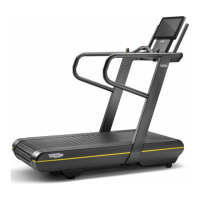
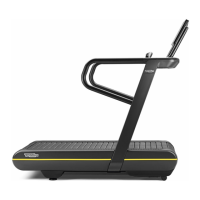
Skillmill
Technical Service Guide - Rev. 3.5
Page 78
email: support@technogym.com






 To Next Page