IPCAM User Manual
32
7 Other setting
7.1 Network Setting
7.11 Basic Network Settings
If the router that the IP camera connect has DHCP function, you can choice “Obain IP
from DHCP Server”else fill in the network parameters manually.
Http Port: In most cases, you can leave this value as 80, however, if your Internet
Service Provider blocks this port, you may switch to another port number such as, 85,8080,8888,9000 Etcs.
(
Range from 0 to 65535, pay attention to the same segment of multiple devices must set up different port. The
port t can’t have any conflict with other software or equipment
a.
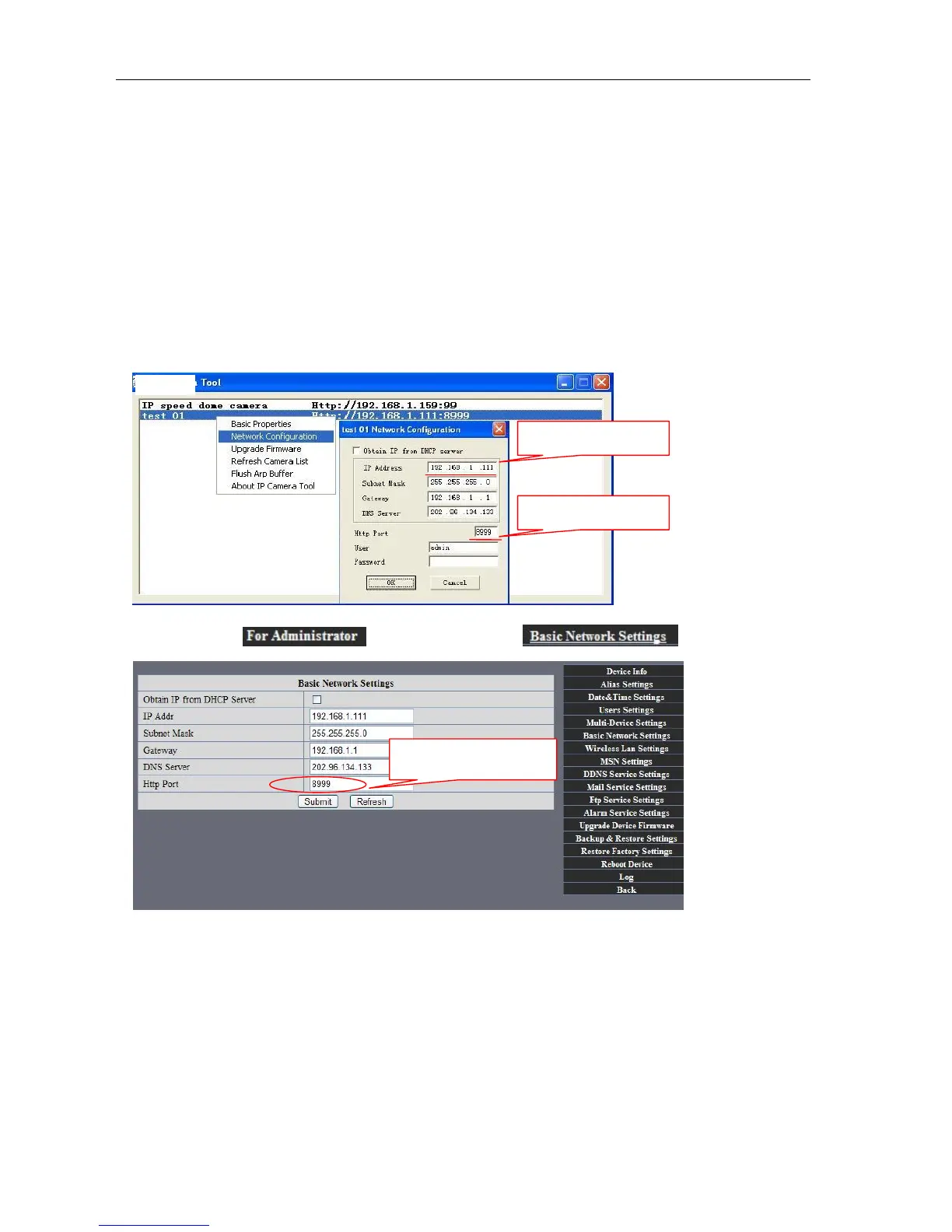
Search tools modification in LAN
b.”
For administor”
“Basic network setting”
-Change the port
Figure52
l 7.12 WIFI Setting
1) Please enter the wireless net setting page of the wireless Router to find out SSID,
Channel(less than 10), Encryption Authentication as below:
Select IP Camera, clickright mouse button choice network configuration
Set port number
Set Network IP
Set Http Port Number


 To Next Page