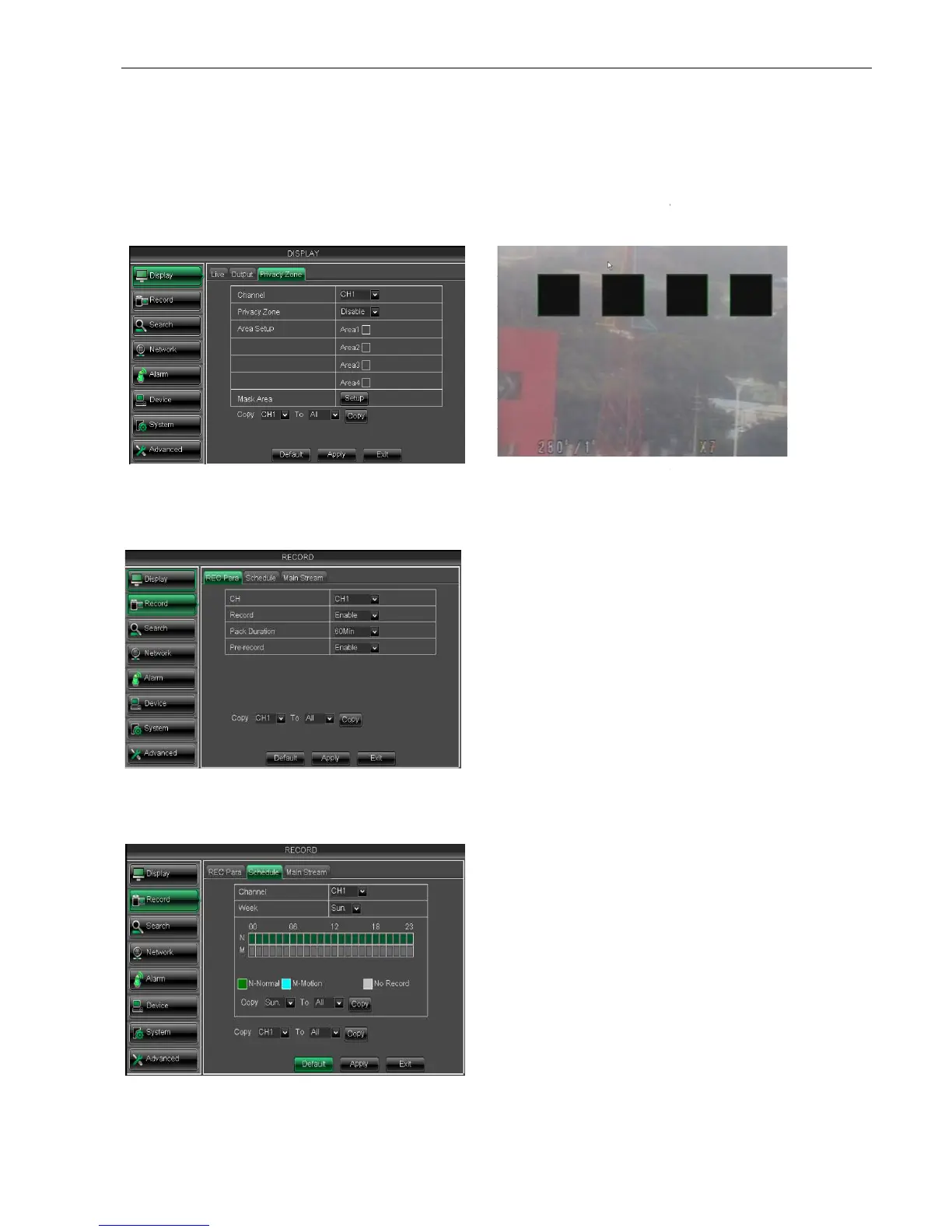
The function Allow you setup privacy zone
up to four privacy zones, and please follow below steps to set:
Click [Setup] to adjust position of mask area;
After finishing position adjust, click right key
Click [Apply] to save the above setting.
5.2.2 Record set
5.2.2.1 Record parameters
5.2.2.2 Schedule
The function Allow you setup privacy zone
parameters according to Picture 5
up to four privacy zones, and please follow below steps to set:
Click [Setup] to adjust position of mask area;
After finishing position adjust, click right key
of mouse to return back [Privacy zone] interface;
Click [Apply] to save the above setting.
the interface shown as Picture 5
allows you select one channel
record status you want (Alarm, General, or No Record)
and then click on each box in the schedule time line that
you want this method to apply to. You can use the [Copy
down menus and Copy button to copy sett
from one day to another day or all days.
into the interface shown as
allow you setup the channel you
indicates maximum continuous
record time (15, 30, 45 and 60 min).
parameters according to Picture 5
-12. Each channel could set
of mouse to return back [Privacy zone] interface;
the interface shown as Picture 5
allows you select one channel
record status you want (Alarm, General, or No Record)
and then click on each box in the schedule time line that
you want this method to apply to. You can use the [Copy
down menus and Copy button to copy sett
from one day to another day or all days.
into the interface shown as
allow you setup the channel you
indicates maximum continuous
record time (15, 30, 45 and 60 min).


 To Next Page