Or click the right key of mouse on each <Live> window to pop up the interface shown as Picture 6
click the Preview window and tick
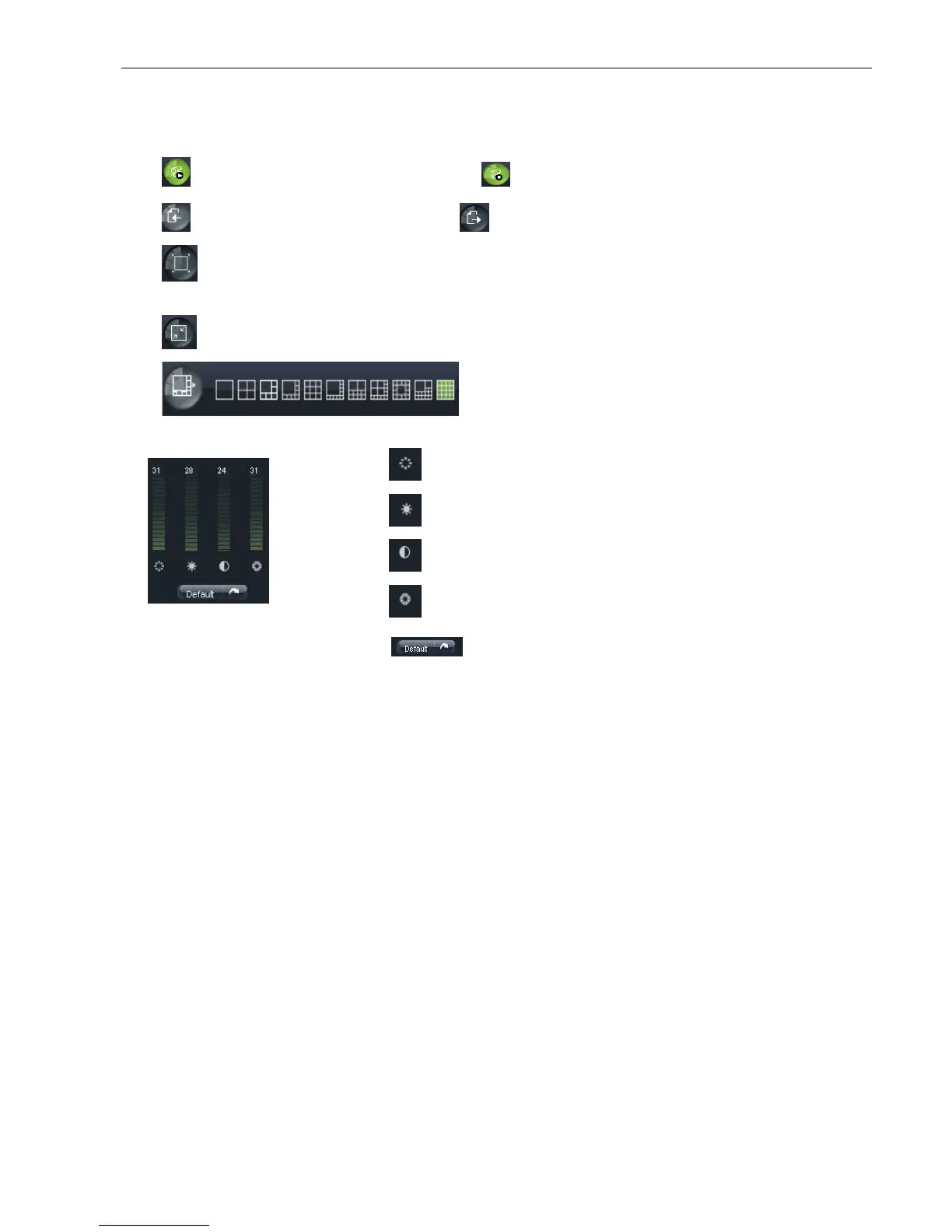
Display previous group of channels
Click the icon to enlarge current window to full screen; right
allow you select <Exit full
Toggle between original proportions and
Or click the right key of mouse on each <Live> window to pop up the interface shown as Picture 6
click the Preview window and tick
select the option to show current bit rate;
Allow you close all the <live> channels.
Display previous group of channels
Display next group of channels
Click the icon to enlarge current window to full screen; right
Toggle between original proportions and
Adaptive Screen Resolution.
:CH Split mode
:Adjust video Hue;
:Adjust video brightness;
:Adjust video Contrast;
:Adjust video saturation;
:Recover ex-
Or click the right key of mouse on each <Live> window to pop up the interface shown as Picture 6
select the option to show current bit rate;
Allow you close all the <live> channels.
Display next group of channels
Adaptive Screen Resolution.


 To Next Page