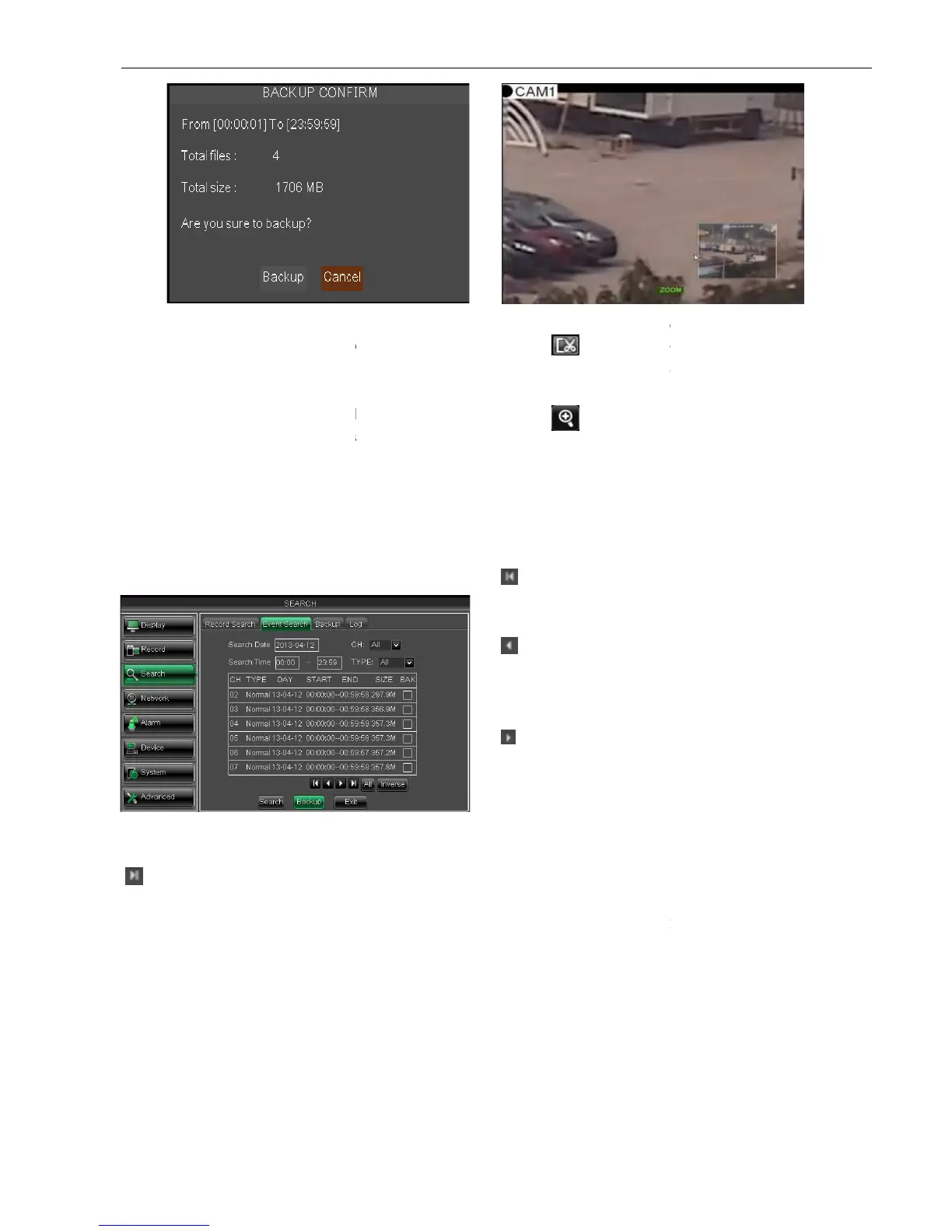
Clip and backup: When one channel is playing
. Click the icon to start video clip function, click it again to end the function and
dialog shown as Picture 5
Zoom Function: When one channel is playing
Click the icon to zoom in one area of the pl
5.2.3.4Event Search
Click [Main MenuSearch
Event Search] to enter into the interface shown as Picture 5
You could highlight and double
you want to view based on date, time, and channel
and record mode search.
(Last page):
go to the last page. Clicking the [last] button will make you enter into last page quickly.
: Allows you to select all the events on the current page.
selected.
Backup:
::
:
You can back-
Clip and backup: When one channel is playing
will appear in the [Play con
. Click the icon to start video clip function, click it again to end the function and
dialog shown as Picture 5
ow, allow you select if you will save the clipped video file.
Zoom Function: When one channel is playing
back, the [ ] icon will appear in the [Play control] bar.
Click the icon to zoom in one area of the pl
ayback screen shown as Picture
Event Search] to enter into the interface shown as Picture 5
You could highlight and double
click the desired record for playback. And you also can filter the records
you want to view based on date, time, and channel
go to the last page. Clicking the [last] button will make you enter into last page quickly.
: Allows you to select all the events on the current page.
select other events on the current page except those you have currently
go to the first page on the list.
When you view other pages, clicking [First] button
brings you back to Page one.
go to the previous ones of
current page. Clicking [Pre] button will take you
back the previous ones of current page
first page).
(Next page):
go to the next ones of current page.
] button will take you to the next
will appear in the [Play con
. Click the icon to start video clip function, click it again to end the function and
ow, allow you select if you will save the clipped video file.
back, the [ ] icon will appear in the [Play control] bar.
Event Search] to enter into the interface shown as Picture 5
click the desired record for playback. And you also can filter the records
go to the last page. Clicking the [last] button will make you enter into last page quickly.
select other events on the current page except those you have currently
go to the first page on the list.
When you view other pages, clicking [First] button
brings you back to Page one.
go to the previous ones of
current page. Clicking [Pre] button will take you
back the previous ones of current page
go to the next ones of current page.
] button will take you to the next


 To Next Page