Available options:
• Reading the users from the device:
To read the users stored in the device, click on the “Read users” button. This will
read all entries in all menus in the “Users” menu group. Additionally, if you haven’t
read the device settings yet separately, it will also read all entries in the
“Device settings” menu group. If you want to read a specific user or users only,
use the “Search” option.
• Writing the users into the device:
After changing the settings or adding new entries, to take effect in the system,
it is necessary to write the users into the device by clicking on the
“Write users” button. This will write into the device all entries in all menus in the
“Users” menu group. Additionally, if you have changed the device settings but
haven’t written the them yet separately into the device the, it will also write all
entries in the “Device settings” menu group.
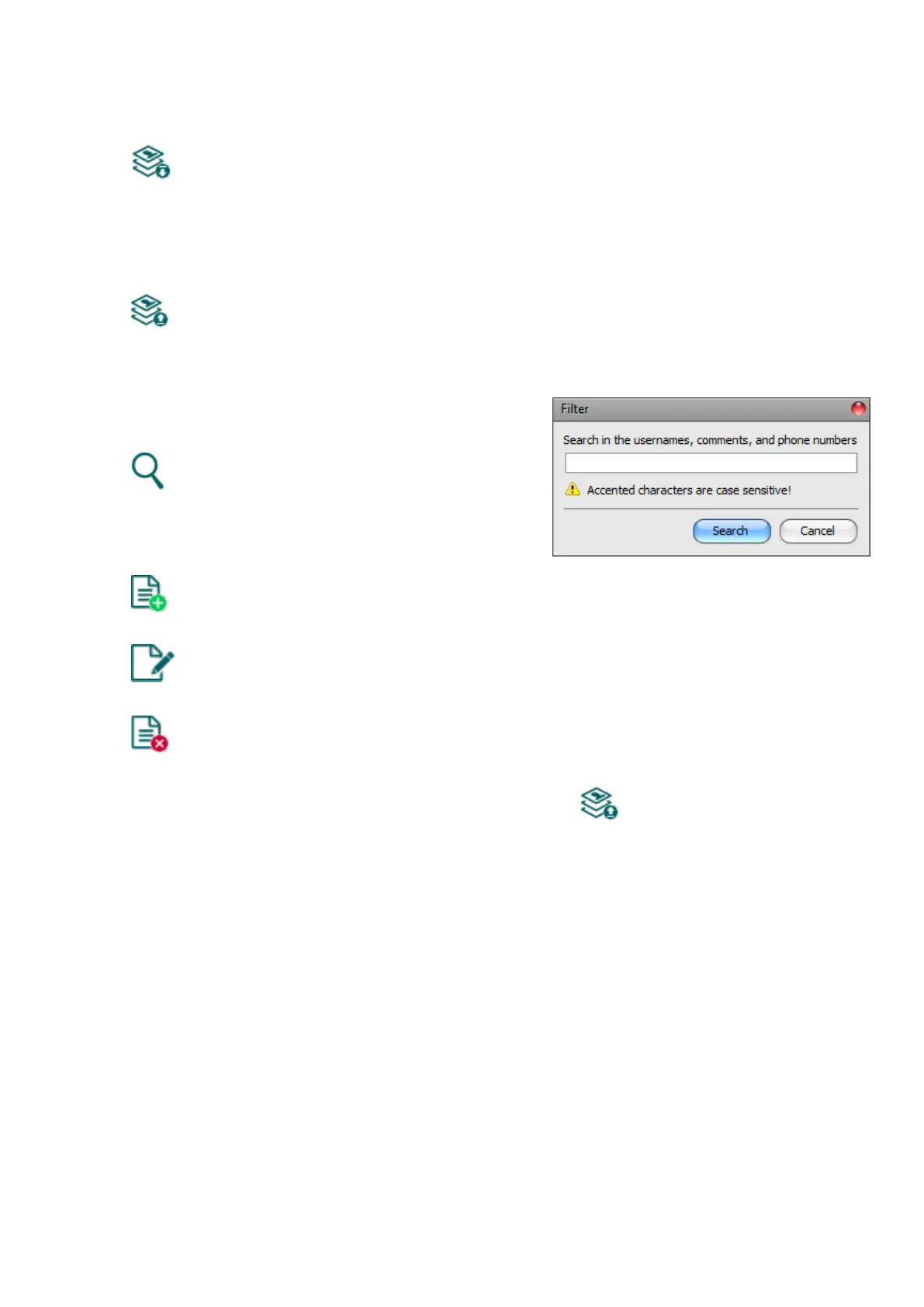
• Search users:
To search users, click on the “Search”
button, and enter the searched name or
phone number. The search engine can
search for a piece of text in usernames,
comments, and phone numbers.
The program will list the results in the table.
• Adding a new remote access:
Click on the “Add new” button to add a new remote access.
• Editing the settings of an existing remote access:
To edit the settings of the selected remote access, click on the “Edit” button.
• Deleting a remote access:
To delete the selected remote access, click on the “Delete” button.
Please note that after you make changes, you must write the users into the device
to apply the changes. For this, click on the “Write users” button.



 To Next Page