- The update process will start automatically as soon as you click on the “Open” button.
Once the firmware is loaded, the progress window will close automatically, and the device
will restart a few seconds later running on the new firmware.
Using this option, you can also update devices with a lower major firmware version
(e.g., v8), which are not compatible basically with the latest software, but can be made
compatible by updating.
7.2 Updating remotely over the Internet
It is also possible to remotely update the firmware of the Gate Control BASE device over the
Internet, using the programming software. After establishing the remote connection, the steps for
remote update are the same as the steps for updating through USB, as specified above.
8 Restoring the factory default settings
The factory reset process will delete all settings, users, and the event logs in the device, and will
restore the factory default values, including the USB password! Create a system backup if
needed, before performing the factory reset.
The factory default settings cannot be restored if the device has been locked in the
“Advanced settings” menu. If you have forgotten the USB password of the device and the
device is locked, only the manufacturer can restore the factory default settings in the service
center.
You can perform a factory reset using the programming software, or the reset button found on
the device.
8.1 Restoring the factory default settings using the programming software
To restore the factory default settings, click on the “Restore factory default settings”
button in the “Connection type” menu. The reset process may take more than 1 minute, and it
will restart the device. Wait until the device restarts and the status LED on the device shows
activity again. The option of restoring the factory default settings is also available without
entering the USB password of the device, but the settings cannot be restored if the device lock
option has been enabled in the settings.
8.2 Restoring the factory default settings using the reset button
• Power up the device.
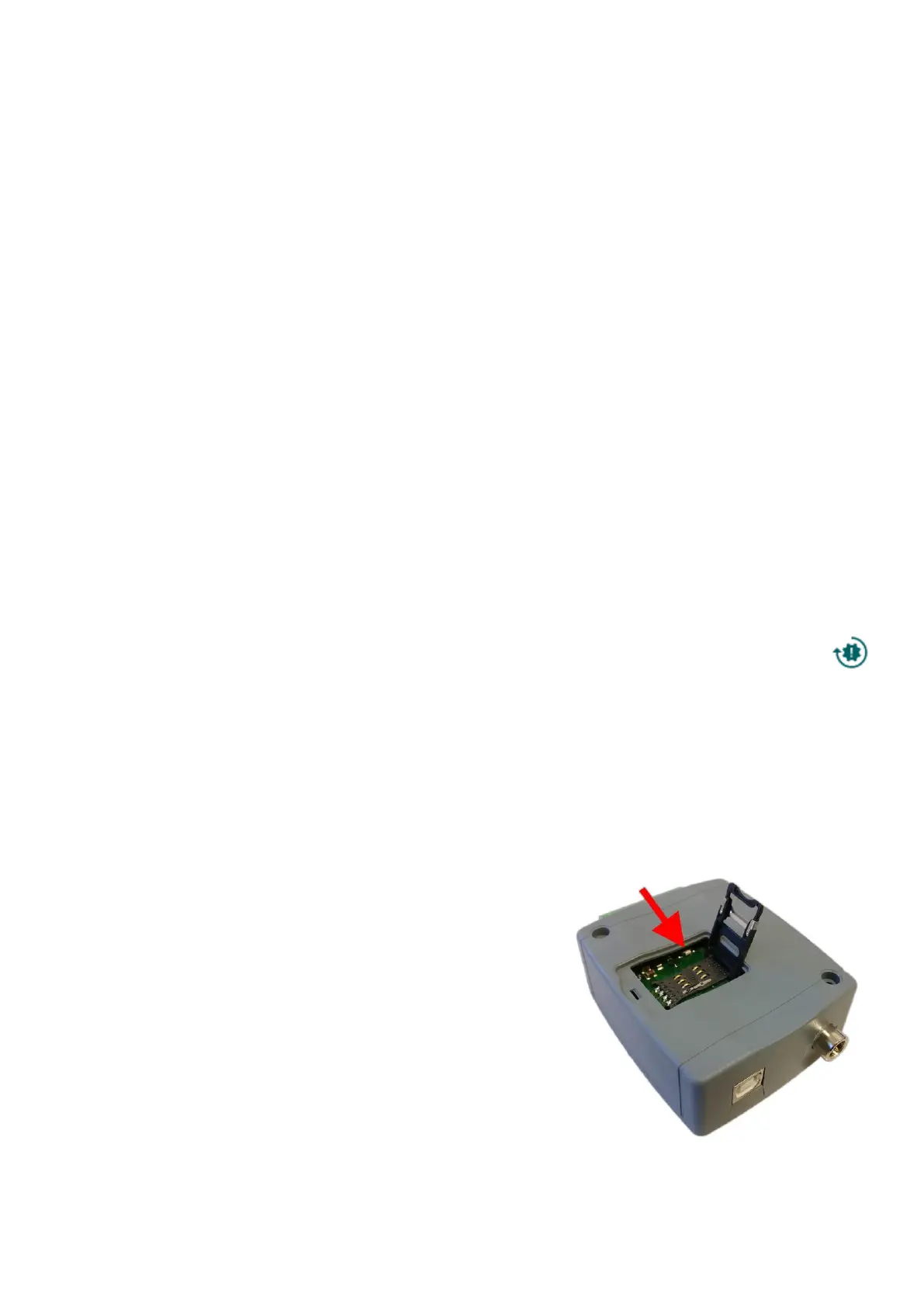
• Long press the reset button for at least 8 seconds,
and then release. The reset button is placed on the
electronic board, near the corner of the SIM card
holder, closed to the status LED (see the picture on
the right-hand side). It is easier to access the button if
you open the SIM card holder.
• After releasing the button, the status LED will show
permanent red light first, and then flashing red light,
until the device creates the clean configuration.
This process may take up to 3 minutes.
• In the meantime, you can install the SIM card and
close back the SIM card holder.
• The reset process has completed when the device has connected to the mobile network and
the status LED shows a flashing green light.



 To Next Page