Helpline No. UK/ North Ireland 0871 37 61 020 Rep. Ireland 1-800-992 508
Web Support www.medion.co.uk
Model Number: 82663
21
Deleting commands for all mode keys
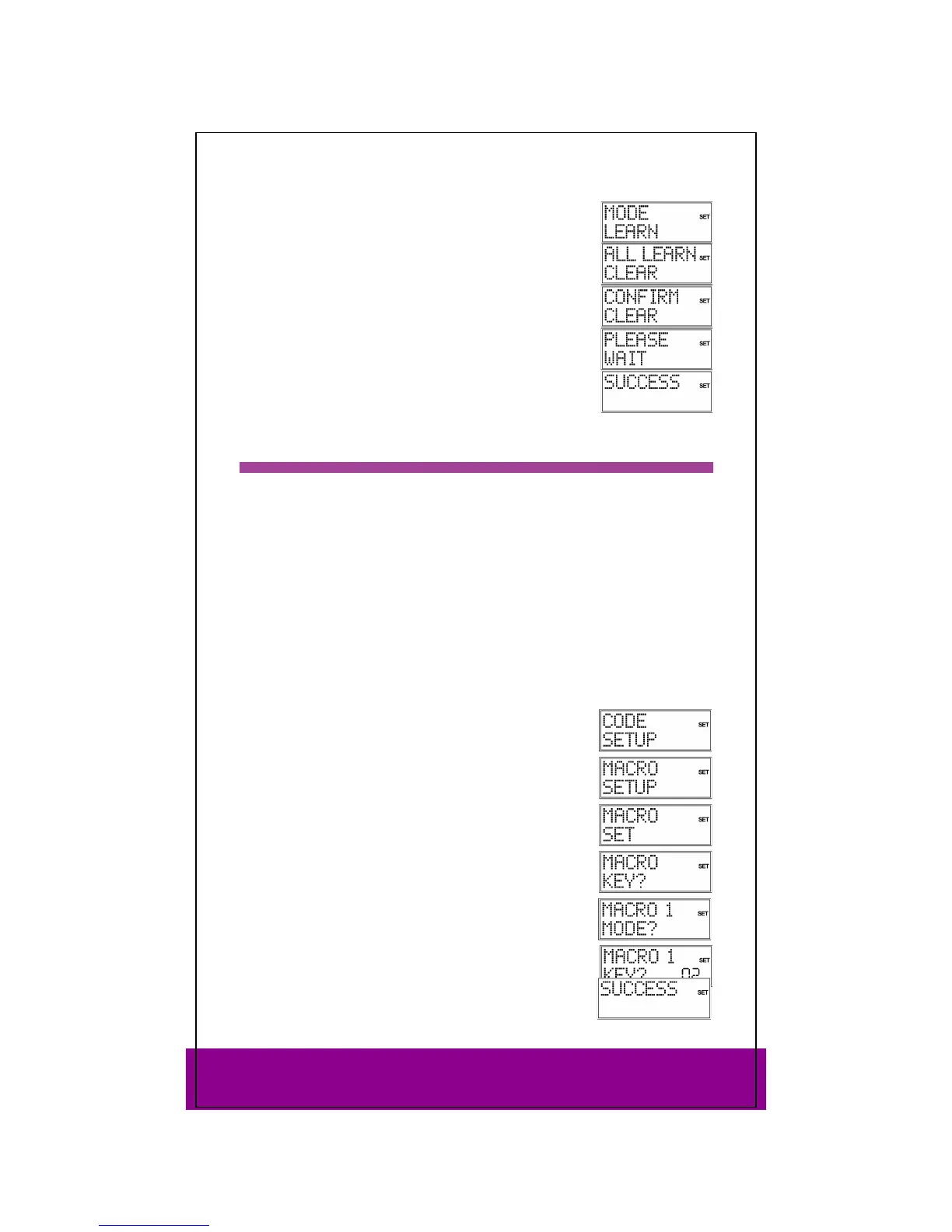
Open the learn mode as described in the section above,
starting from the second step. Proceed as follows:
Use the arrows (press twice) to select the
ALL LEARN CLEAR
mode.
Press OK. The
CONFIRM CLEAR prompt appears.
Confirm once again with OK.
PLEASE WAIT appears again in the
display, followed by the confirmation message SUCCESS.
The remote control returns to normal operation.
Macros 15
Using a macro, you can save a chain of commands, meaning that several functions can
be executed consecutively. You can program three macros and store them on the
number keys 1, 2 and 3.
These three number keys have the additional labels TV, VCR, DVD, so that you can
assign macros accordingly.
Each macro can include up to ten key commands. A macro can include different
devices. In this way you could, for example, switch on the TV set, the desired channel,
the video recorder and the recording function by simply pressing the MACRO key
and the selected number key 1, 2 or 3.
The Setup and MACRO keys cannot be used for a macro.
If you would like to interrupt macro programming prematurely, press SETUP. In this
case, the macro is not saved.
Programming macros
Keep the SETUP key pressed for approx. 3 seconds, until CODE
SETUP
appears.
Press SETUP briefly four more times to open the
MACRO
SETUP
menu.
Press OK to open the
MACRO SET mode.
Confirm once again with OK.
Now select the number key 1, 2 or 3 where the macro is to be
saved.
The query
MACRO 1 MODE? appears. (The number corresponds
to the previously selected number key.) Press a mode key for
the device where the command is to start.
The input query MACRO 1 KEY? appears with the step number
(
02 for the second step). Now carry out the function that you
would like to save as a macro. You can press up to 9 other keys
and you can also change devices via the mode keys.
When the series of steps is finished, press the MACRO key to
save the macro.
The macro is saved automatically after step 10.
The
SUCCESS confirmation message appears.



 To Next Page