3-6
User Manual PN 84469 Rev B
Option B: Via (PC, Mac or Linux) Ethernet connection
1. Power on the VesseLINK
™
BDU and let it boot up (may take a few minutes)
2. Via the network settings on your computer’s operating system, enable the VesseLINK
connection.
3. Open a web browser and type: http://portal.thaleslink (do not type .com or any other
extension)
4. As a default, no changes to setup are necessary, but advanced users may want to
configure their preferred system settings.
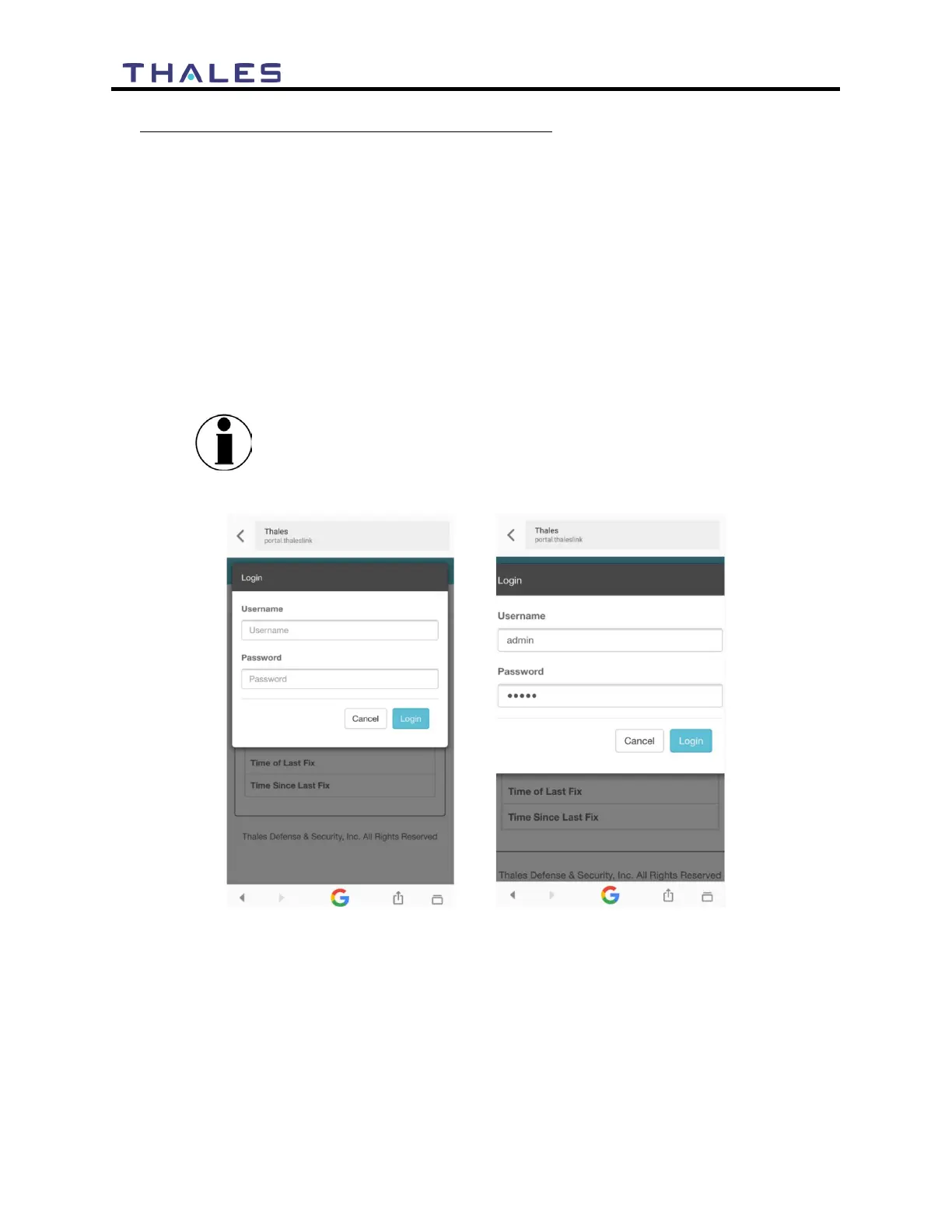
5. Once the Management Portal opens, click LOGIN button. Enter “admin” for the Login
ID and Password.
6. At this time it is advised that you change the Management Portal admin password. To
change password: Go to SETTINGS GENERAL and change the password for the
“Admin” user.
If you forget the password, press and hold the reset pin on the
back of the box (while powered on) in order to reset the system
to factory settings. All custom configuration settings will be lost.
Figure 3-7 VesseLINK
™
User Interface Login


 To Next Page