4-16
User Manual PN 84469 Rev B
Sending a DISTRESS MESSAGE:
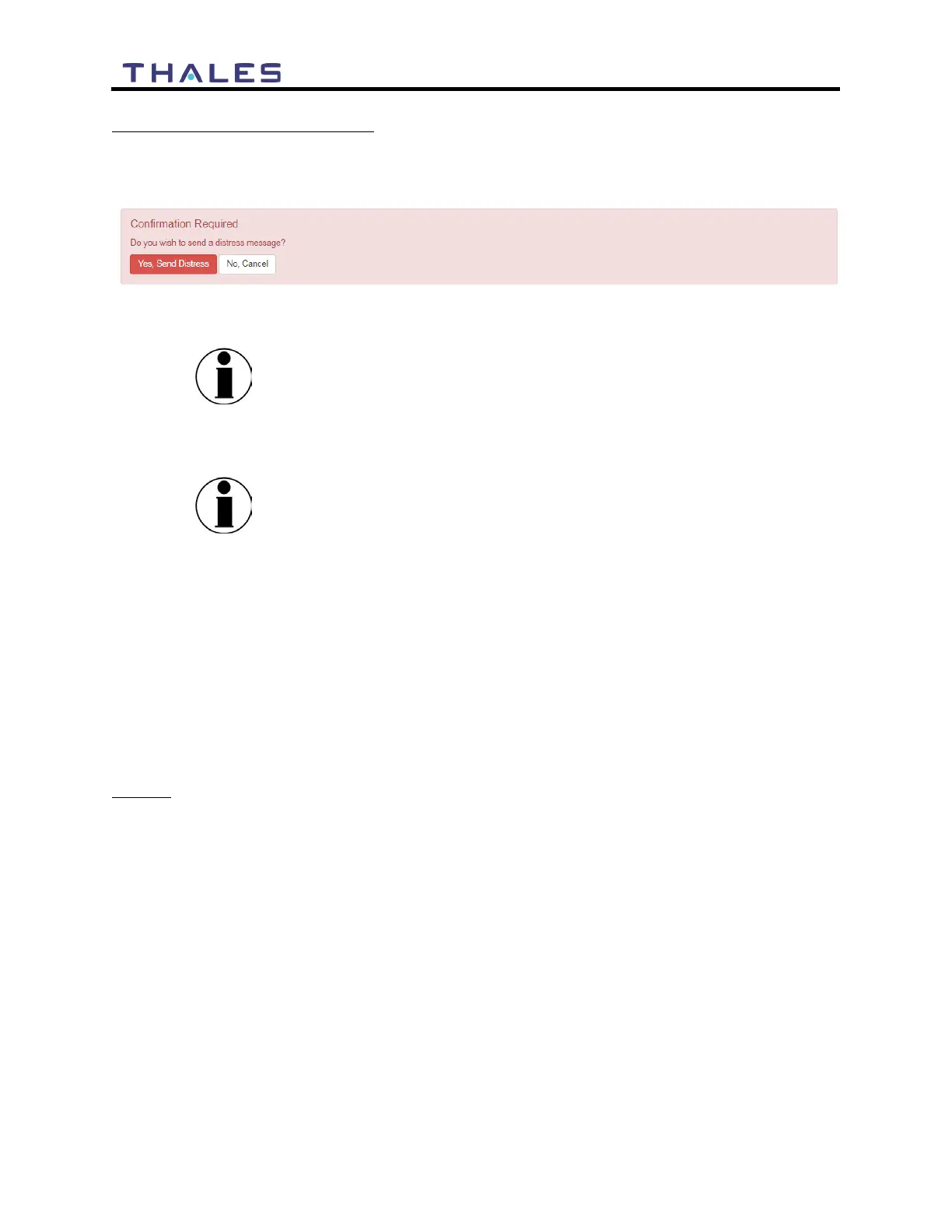
To send a DISTRESS MESSAGE, press SEND DISTRESS. A pop-up screen will appear asking
you to confirm that you want the message to be sent. Select YES, SEND DISTRESS to send or
NO CANCEL to abort the message.
Figure 4-20 Confirmation Required – Send a Distress Message
NOTE
No external indication is given when distress is activated. This
discretion is for user safety in emergency situation. The only
indication of distress will be in management portal under
Distress menu item.
NOTE
A distress phone call can be made by using the optional Thales
SureLINK IP Handset. Configuration of the phone number to be
called, as well as, the activation and cancellation of the call takes
place on the handset itself. Nothing is set up for the phone call
through the Management Portal.
Settings
The Settings tab of the portal is the most important section for customizing user configurations
and feature settings. It is also advised that only experienced personnel change these settings as
they may adversely affect functionality if not set correctly. These settings are under password
control to prevent unauthorized personnel from making changes to the system.
General
From the General page, change passwords and enable (or disable) external API access, as shown
in Figure 4-21 and Table 4-3.
There are four access levels to the system. Three of them are under password control. The
passwords are managed in the Change Password section:
• GUEST: User only account, no password, read only access.
• WAN USER: Password capability, read only access to some API data remotely via WAN
port or over the Iridium network.
• WAN ADMIN: Password capability, FULL access to all data and settings remotely via
WAN port or over the Iridium network.
• ADMIN: Password capability, FULL access through the Thales Management Portal via
local LAN (or wireless) connection.


 To Next Page