4-5
User Manual PN 84469 Rev B
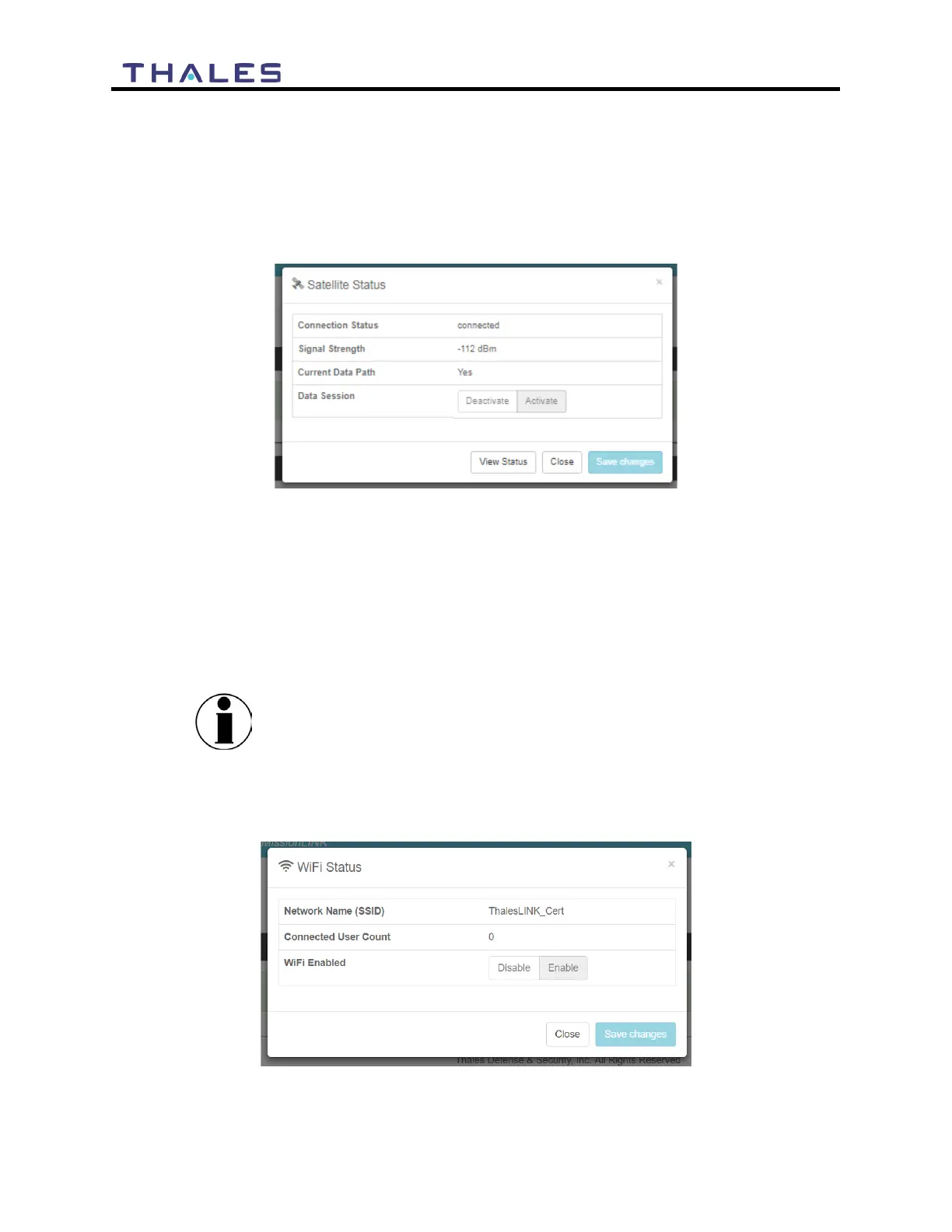
• Satellite Status – The Satellite Status icon provides a quick view of the Satellite Status. It
mirrors the status of the Satellite LED on the BDU. Selecting the Satellite Status icon
displays the information in Figure 4-3, showing “Connection Status”, “Signal Strength”
and the “Current Data Path”. Selecting ACTIVATE / DEACTIVATE enables and
disables data sessions. Changes will take effect once SAVE CHANGES is selected.
Selecting VIEW STATUS will open the STATUS SERVICES Window.
Figure 4-3 Quick Link – Satellite Status
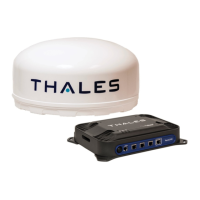
• Wi-Fi Status – The Wi-Fi Status icon provides a quick view of the Wi-Fi status. It
mirrors the Wi-Fi LED on the BDU. Selecting the Wi-Fi Status icon displays the
“Connected User Count” (number of users connected to the VesseLINK
™
Wi-Fi) and
allows an administrator to ENABLE / DISABLE the Wi-Fi connection. Changes will
only take effect once SAVE CHANGES is selected.
NOTE
If connected to the terminal through a Wi-Fi connection,
disabling the Wi-Fi causes loss of the Wi-Fi signal and removal
from the wireless device’s Wi-Fi menu. To regain use of the Wi-
Fi, connect a computer via supplied Ethernet cable to the BDU,
open the Management Portal, select the Wi-Fi Status icon and
Figure 4-4 Quick Link – Wi-Fi Status


 To Next Page