Youalsocandefinewhatthepowerbuttondoes.Forexample,bypressingthepowerbutton,youcanturn
offthecomputerorputthecomputerintosleeporhibernationmode.Tochangewhatthepowerbutton
does,dothefollowing:
1.GotoControlPanel,andthenchangetheviewofControlPanelfromCategorytoLargeiconsorSmall
icons.
2.ClickPowerOptions➙Choosewhatthepowerbuttonsdo.
3.Followtheinstructionsonthescreen.
4Fingerprintreader(availableonsomemodels)
Fingerprintauthenticationprovidessimpleandsecureuseraccessbyassociatingyourfingerprintwitha
password.Formoreinformation,see“Usingthefingerprintreader”onpage40.
ThinkPad
®
pointingdevice
5Trackpad
6TrackPointbuttons
7TrackPointpointingstick
YourcomputerisequippedwiththeLenovo-uniqueThinkPadpointingdevice.Formoreinformation,see
“UsingtheThinkPadpointingdevice”onpage16.
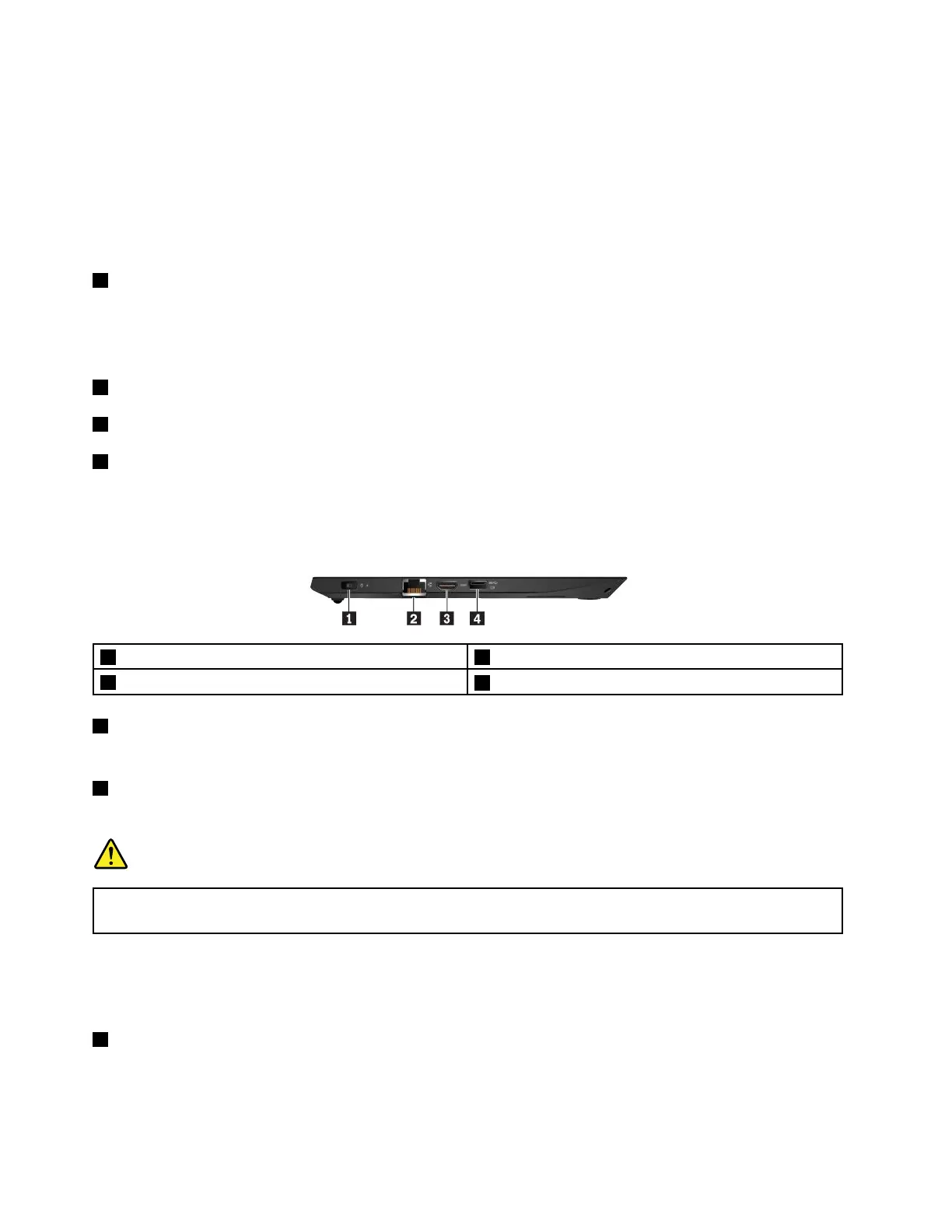
Left-sideview
1Powerconnector2Ethernetconnector
3HDMI
TM
connector
4AlwaysOnUSB3.0connector
1Powerconnector
Thepowerconnectorenablesyoutoconnectthecomputertoacpower.
2Ethernetconnector
Connectthecomputertoalocalareanetwork(LAN)withtheEthernetconnector.
DANGER
Toavoidtheriskofelectricalshock,donotconnectthetelephonecabletotheEthernetconnector.
YoucanonlyconnectanEthernetcabletothisconnector.
TheEthernetconnectorhastwoindicatorsthatshowthestatusofthenetworkconnection.Whenthe
greenindicatorison,thecomputerisconnectedtoaLAN.Whentheyellowindicatorblinks,dataisbeing
transmitted.
3HDMIconnector
TheHigh-DefinitionMultimediaInterface(HDMI)connectorisadigitalaudioandvideointerface.Itenables
youtoconnectyourcomputertoacompatibledigitalaudiodeviceorvideomonitor,suchasaDVDplayer
oranHDTV.
2E470,E470c,andE475UserGuide



 To Next Page