4.Movetoanitemyouwanttosetbyusingthedirectionalkeys.Whentheitemishighlighted,pressEnter.
5.Setotheritemsthatyouwanttoset.
6.PressF10.ASetupConfirmationwindowisdisplayed.SelectYestosavetheconfigurationchanges
andexit.
Notes:
•EnsurethatthesupervisorpasswordhasbeensetinThinkPadSetup.Otherwiseanyonecanchangethe
settingsforthesecuritychip.
•Whenyouclearthesecuritychip,turnoffyourcomputerandthenturnitonagainafteryousetthe
securitychiptoActive.Otherwise,theClearSecurityChipoptionisnotdisplayed.
Usingthefingerprintreader
Dependingonthemodel,yourcomputermighthaveafingerprintreader.Fingerprintauthenticationcan
replaceyourWindowspassword.Inthisway,youcanlogintoyourcomputersimplyandsecurely.To
enablefingerprintauthentication,enrollyourfingerprintsfirst.
Youcansetthefingerprintreaderinthefingerprintprogramifavailable.Youalsocanchangethefollowing
settingsintheThinkPadSetupprogram.TochangethesettingsintheThinkPadSetupprogram,see“Using
theThinkPadSetupprogram”onpage45
.
Enrollingyourfingerprints
Toenablefingerprintauthentication,enrollyourfingerprintsfirst.Itisrecommendedthatyouenrollmore
thanonefingerprintincaseofanyinjuriestoyourfingers.
Toenrollyourfingerprints,dothefollowing:
1.OpentheStartmenuandthenclickSettings➙Accounts➙Sign-inoptions.
2.Followtheinstructionsonthescreentofinishtheenrollment.
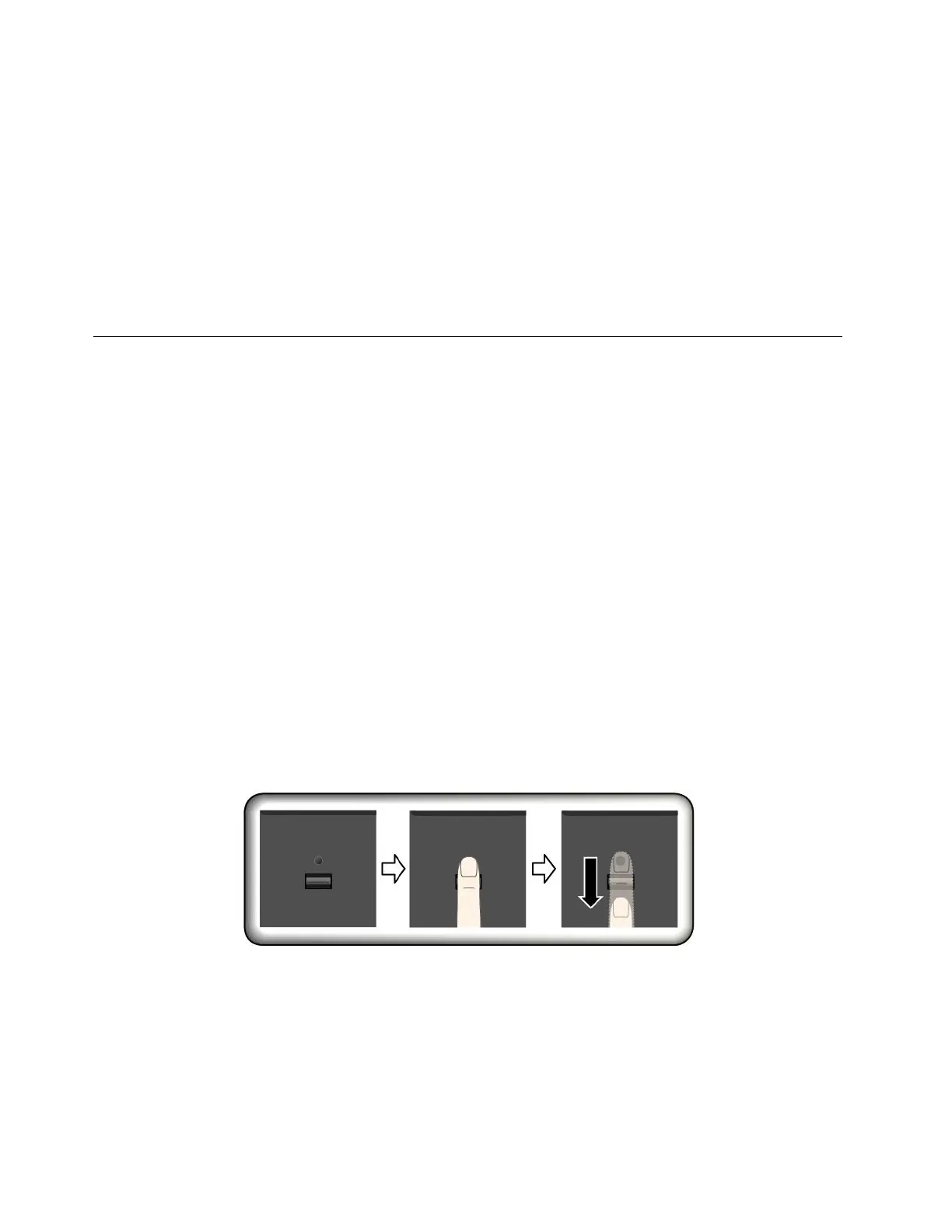
Swipingyourfingeroverthefingerprintreader
Toswipeyourfingeroverthereader,placethetopjointofyourfingeronthesensor.Thenapplylight
pressureandswipeyourfingertowardyouacrossthereaderinonesmoothmotion.Donotliftyourfinger
whenyouareswipingit.
Maintainingthefingerprintreader
Thefollowingactionscoulddamagethefingerprintreaderorcauseitnottoworkproperly:
•Scratchingthesurfaceofthereaderwithahard,pointedobject.
•Scrapingthesurfaceofthereaderwithyourfingernailoranythinghard.
•Usingortouchingthereaderwithadirtyfinger.
40E470,E470c,andE475UserGuide



 To Next Page