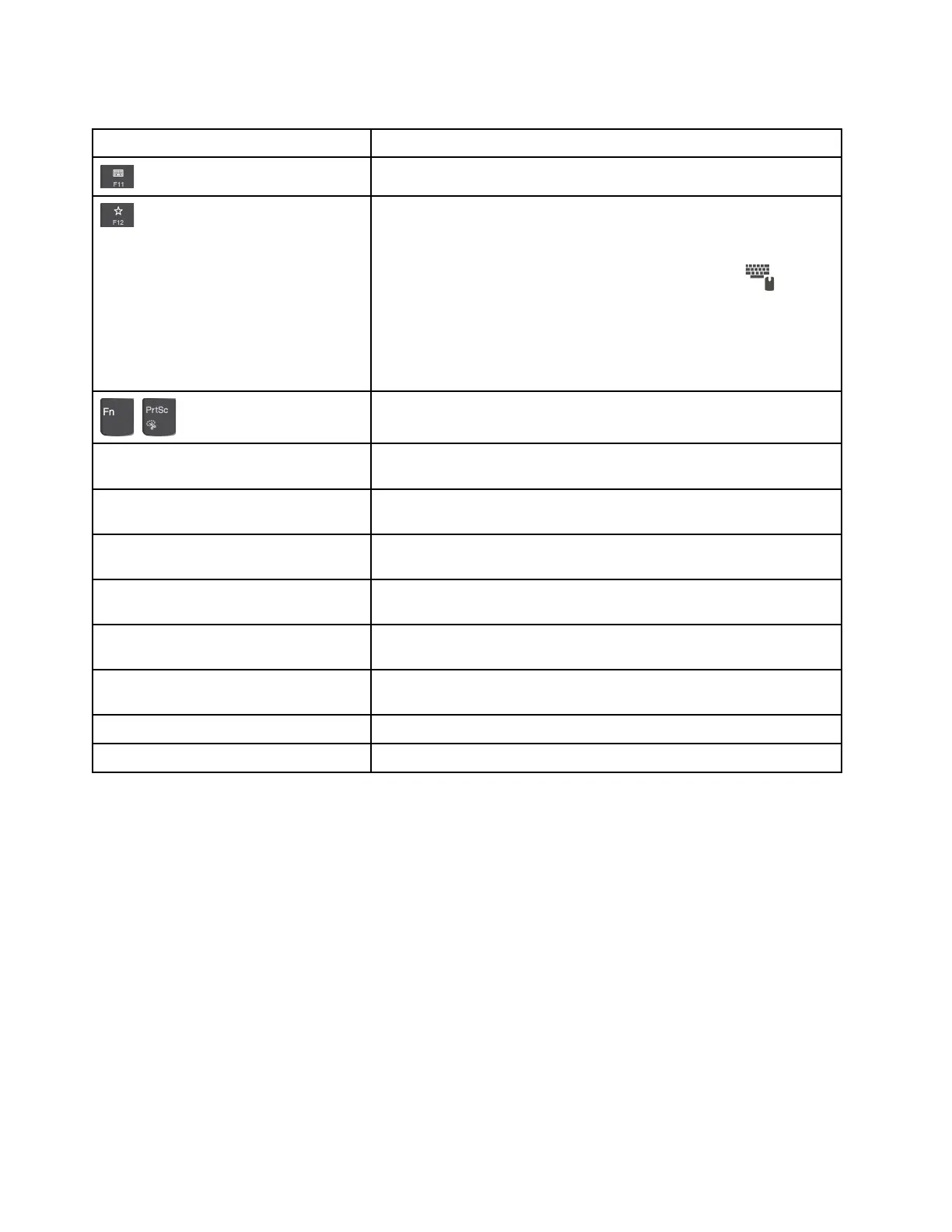
Table 5. Function keys (continued)
Function key and key combination Description
Open a keyboard setting page.
Invoke the function defined by yourself. To define or change the action
for the F12 key, do the following:
1. Open Lenovo Companion.
2. Click Hardware Settings and then click the input icon
.
3. Locate the Keyboard: User-defined Key section and follow the
instructions on the screen to complete the setting.
On the Input page, you can also define different functions for the key
combinations with F12, such as Shift+F12, Alt+F12, or Ctrl+F12.
+
Open the Snipping Tool program.
Fn+Spacebar If your computer supports keyboard backlight, press Fn+Spacebar to
switch between the different keyboard backlight status.
Fn+B This key combination has the same function as the Break key on a
conventional external keyboard.
Fn+P This key combination has the same function as the Pause key on a
conventional external keyboard.
Fn+S This key combination has the same function as the SysRq key on a
conventional external keyboard.
Fn+K
This key combination has the same function as the ScrLK or Scroll Lock
key on a conventional external keyboard.
Fn+4 Press Fn+4 to put the computer to sleep mode. To wake up the
computer, press the Fn key or the power button.
Fn+Left arrow key This key combination has the same function as the Home key.
Fn+Right arrow key This key combination has the same function as the End key.
42 T480s Hardware Maintenance Manual



 To Next Page