Table 6. Status indicators
Indicator Meaning
1 Caps Lock indicator On: You can type uppercase letters by directly pressing the letter keys.
2 Fn Lock indicator This indicator shows the status of Fn Lock function. For more information, see
Chapter 5 “Function keys” on page 41.
3 Speaker-mute indicator On: The speakers are muted.
4 Microphone-mute indicator
On: The microphones are muted.
5 Camera status indicator On: The camera is in use.
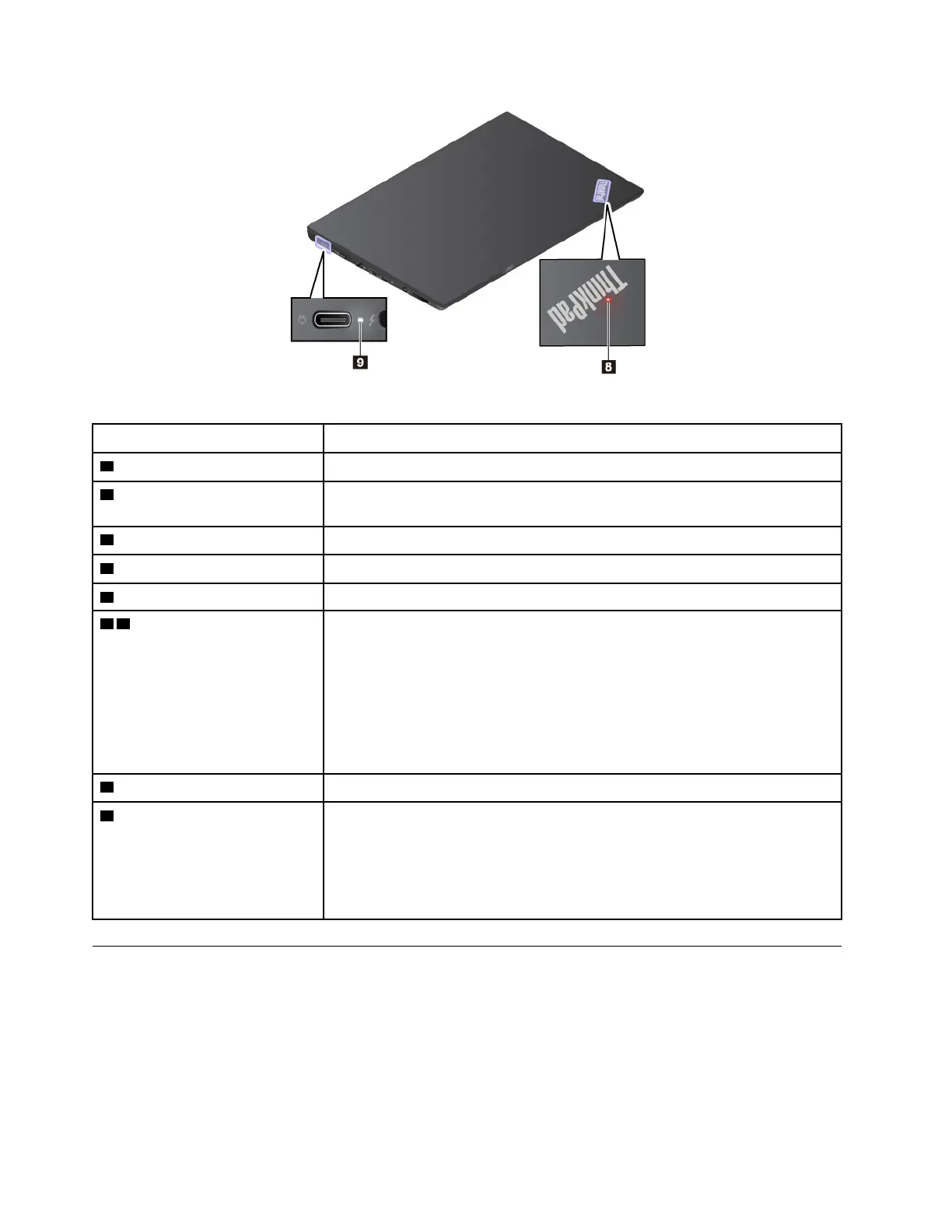
6 8 System status indicators The indicator in the ThinkPad logo on the computer lid and the indicator in the
power button show the system status of your computer.
• Blinks for three times: The computer is initially connected to power.
• On: The computer is on (in normal mode).
• Off: The computer is off or in hibernation mode.
• Blinks rapidly: The computer is entering sleep or hibernation mode.
• Blinks slowly: The computer is in sleep mode.
7 Fingerprint reader indicator This indicator shows the status of fingerprint reader.
9 ac power status indicator This indicator shows the battery power status of the computer when ac power is
connected.
• White: connected to ac power (battery power 90%–100%)
• Amber: connected to ac power (battery power 0%–90%)
• Off: not connected to ac power
Locating FRUs and CRUs
This topic introduces the following service parts:
• “Major FRUs” on page 48
• “LCD FRUs” on page 51
46
T480s Hardware Maintenance Manual



 To Next Page