Using the mobile viewer
23
4.1.2 Connecting the product to a smartphone on Android 9 or later and on iOS
Before connecting the product to your smartphone,
• on an Android smartphone, open the Google Play Store, download and install THINKWARE CLOUD
application.
• on an iOS smartphone, open the Apple App Store, download and install THINKWARE CLOUD application.
Connecting via Wi-Fi
1
On your smartphone, open the THINKWARE CLOUD application.
2
At the bottom of the screen, tap Dash cam connection is required.
3
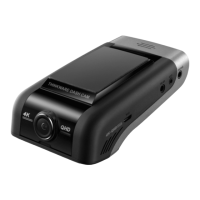
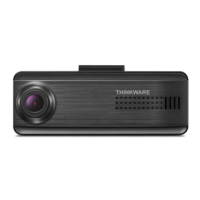
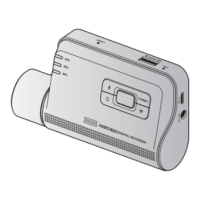
Select a dash cam model to connect to your smartphone.
4
Tap Connect in the Wi-Fi connection area at the top of the screen, and on the Wi-Fi activating screen,
tap Next.
5
Press the Wi-Fi ( ) button on the product. And then,
• on an Android smartphone, go to Connections
>
Wi-Fi.
• on an iOS smartphone, go to Settings
>
Wi-Fi.
6
From the network list, select the Wi-Fi network starting with “Thinkware” and enter “123456789” in
the password field. For security purposes, change the Wi-Fi password after connecting to the Wi-Fi
network.
7
Return to the THINKWARE CLOUD application and check Connected via Wi-Fi – dash cam model name
at the bottom of the main screen. The product is now connected to the application.







 To Next Page