Using the mobile viewer
26
4.3 Playing recorded videos on the mobile viewer
Follow the instructions to play recorded videos.
The recording and the Advanced Driver Assistance System (ADAS) features of the product are disabled
while checking the video file list or playing a video on the mobile viewer.
1
On your smartphone, open the THINKWARE CLOUD application and connect the product to your
smartphone.
2
From the home screen of the mobile viewer, tap File List. The categories will be displayed.
3
Tap the desired category. The video file list will appear.
4
If necessary, tap All, Front, or Rear to filter the video file list by camera.
5
Select the desired video file to play.
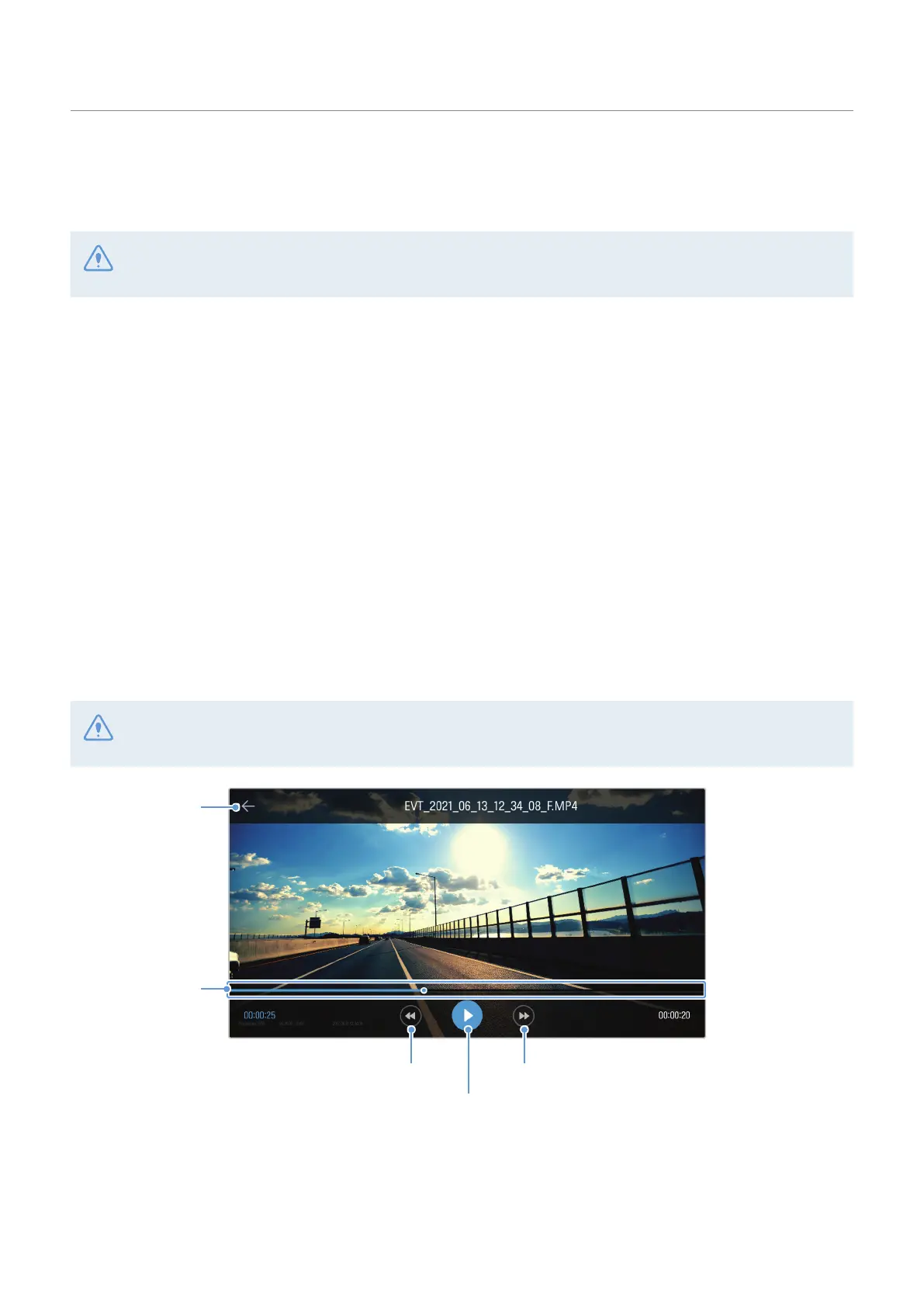
4.4 Video control menu overview
The following provides brief information about the mobile viewer’s video control menu.
The recording and the Advanced Driver Assistance System (ADAS) features of the product are disabled
while checking the video file list or playing a video on the mobile viewer.
Play or pause the video.
Play the next file.Play the previous file.
Displays the
playback status.
Move to the file list
screen.








 To Next Page