ThurayaIP Satellite Modem User Guide
5
S
TEP
5:
P
OINTING TO
T
HE
S
ATELLITE
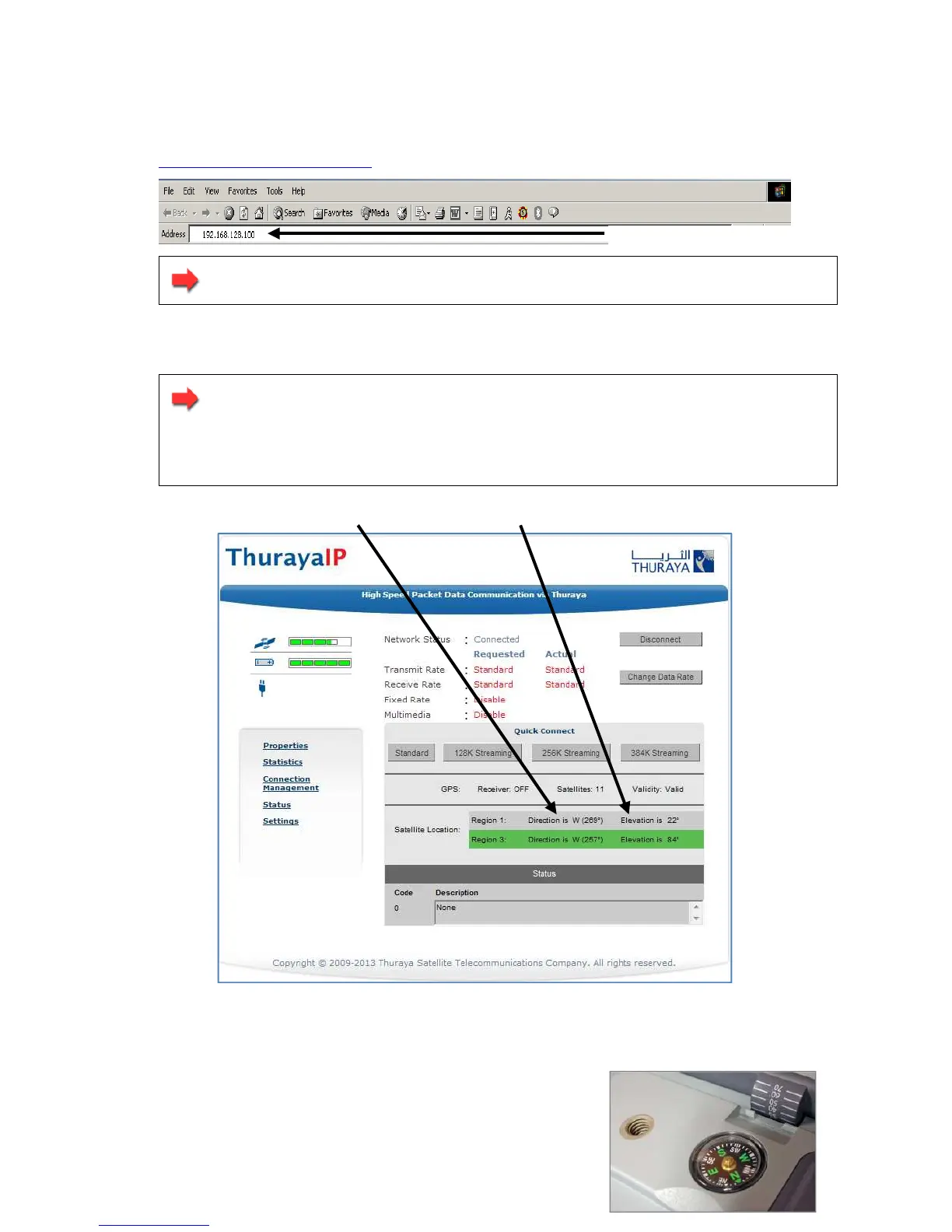
1. ThurayaIP is controlled through a web browser interface (wMMI). To
activate the wMMI, open the browser on your laptop. Enter
http://192.168.128.100 in the browser URL address field.
Note: You may want to store this URL as a browser bookmark.
2. If you have PIN security enabled on your SIM, you will be prompted
to enter your PIN before proceeding.
Note: You must have a valid GPS location for the compass
direction and Antenna Angle to be displayed. If the GPS is
not valid, go back to step 3 and allow ThurayaIP to obtain a
GPS fix.
Home Page Satellite Location Display
3. Look at the wMMI home page display and note the compass
bearings and elevations for both ThurayaIP
satellites in the “Satellite Location” section.
The recommended satellite for your
URL address field



 To Next Page