ThurayaIP Satellite Modem User Guide
25
A
DVANCED
S
ETTINGS
S
CREEN
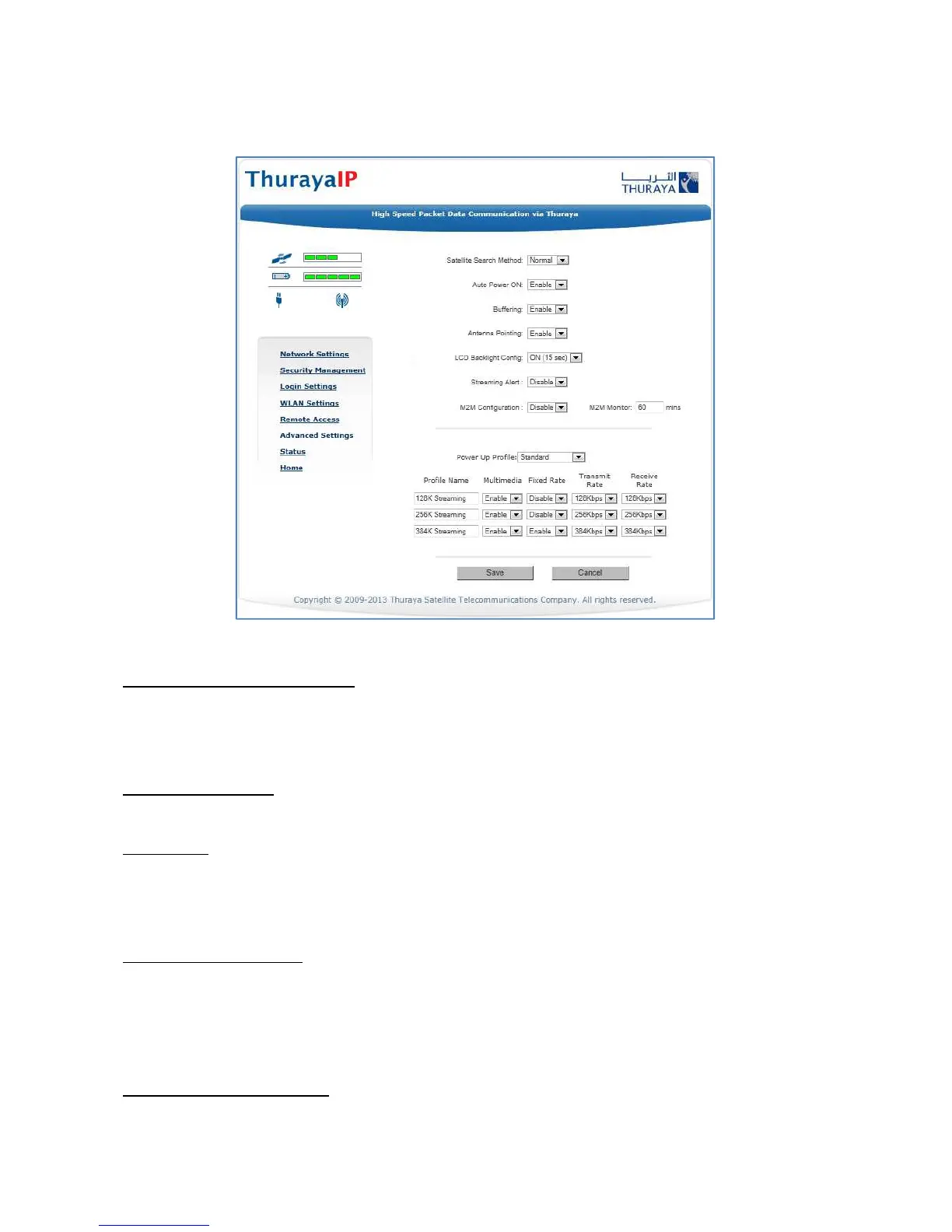
The advanced settings screen allows you to modify several key
operating parameters in the unit.
Advanced Settings Screen
Satellite Search Method: Normal is the default method to use unless your
Service Provider specifies the Full Method. The Full method takes longer
and utilizes more resources since it will search all possible frequencies for
ThurayaIP service. This full search can take up to 20 minutes.
Auto Power ON: When Enabled, the terminal will automatically power
up when external DC is present.
Buffering: When buffering is enabled the ThurayaIP can store more data
to handle bursts of IP traffic from connected devices. When buffering is
disabled, only the minimum of traffic is stored to reduce latency. Disable
buffering for low latency traffic such as voice or video.
Antenna Pointing: This drop-down menu determines whether the
Pointing Display comes up each time ThurayaIP is powered up or
restarts. The factory default for this setting is Disabled to bypass the
pointing state upon power up. However, antenna pointing can be
Enabled to provide pointing information prior to going online.
LCD Backlight Config: LCD backlighting can be On (15 sec), Off, or
Auto (off after 15 seconds of inactivity unless external DC present).



 To Next Page