28
ThurayaIP Satellite Modem User Guide
bar is simply a digital representation of the bar. The orange peak-hold
bar at the end of the blue bar identifies the highest signal strength
measured during antenna pointing and will help you optimise the
pointing direction. Use this display when fine tuning ThurayaIP’s
orientation to the satellite. Signal strength is only a relative measure of
the satellite signal strength and may vary from location to location.
Exit Pointing: Select this button to leave the screen after optimum signal
strength has been achieved. This action will take you to the Home
screen on the wMMI.
Status: Status codes (see end of guide for a list).
R
EMOTE
A
CCESS
S
CREEN
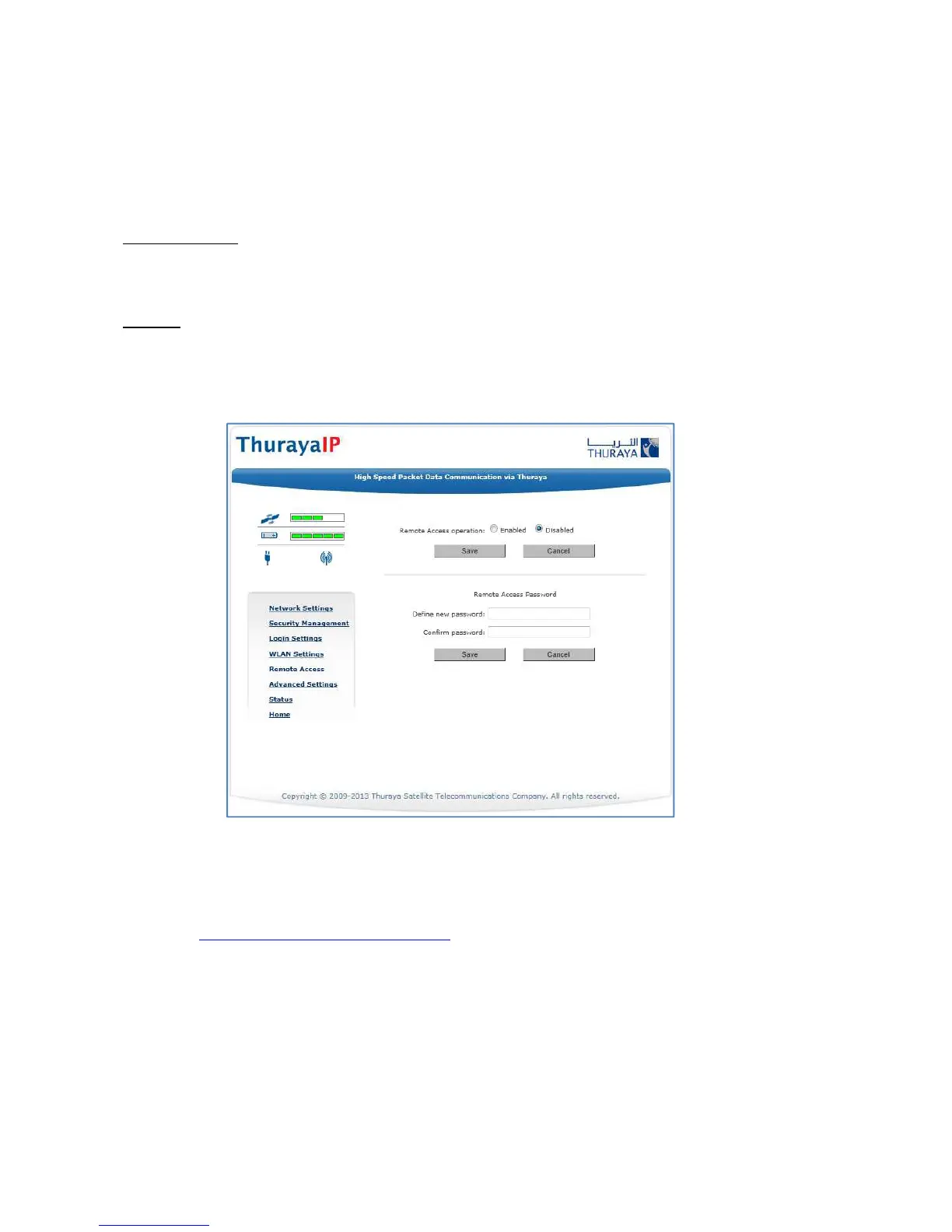
The Remote Access Screen enables wMMI access from the satellite side
of the terminal. To use the feature, select the Enabled option, type in a
password and select Save. Obtain the Network IP Address from the
Properties Screen and use that in the browser on the remote PC as
follows: http://85.115.85.117:45380 (85.115.85.117 is an example, your
terminal address will be different and can change with each PDP
session). You will need the remote access password to log into the
terminal prior to gaining access to the wMMI. For security reasons you
should use the Logout button on the wMMI once you have finished the
session. Note that remote access does use satellite data that will be
billed to the account on the user terminal. If you forget the remote
access password simply enter a new one to overwrite the old one.



 To Next Page