ThurayaIP Satellite Modem User Guide
3
Setting Up the Modem
There are five basic steps to getting your
Modem up and running:
Step 1: SIM insertion
Step 2: Power Connection and
Battery Charging
Step 3: Obtain Initial GPS Fix using the ThurayaIP
Step 4: Data Connections
Step 5: Pointing to the Satellite
S
TEP
1:
SIM
I
NSERTION
1. Unpack the modem and accessories. Your service provider will have
provided you with a SIM card.
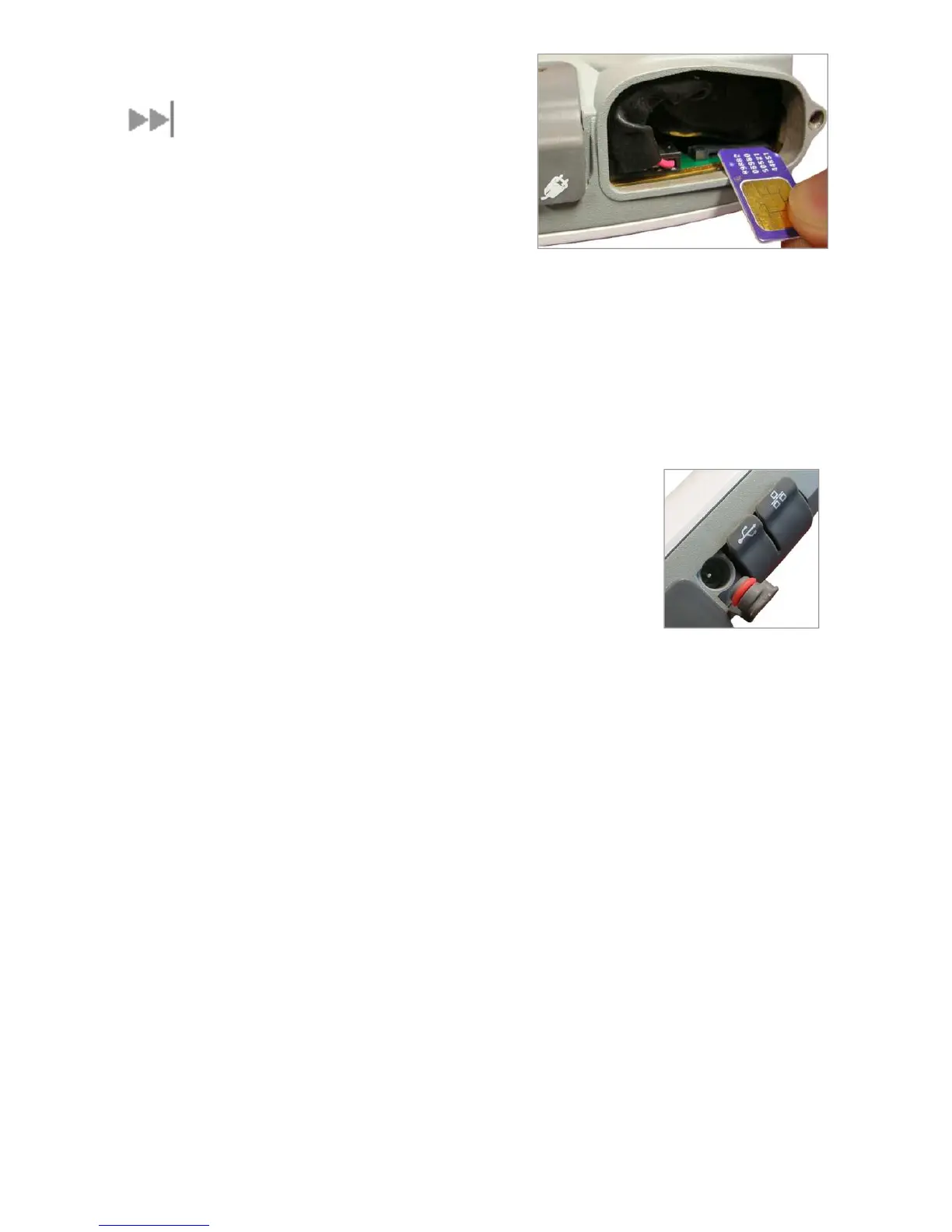
2. Insert SIM provided by your Service Provider into
the SIM holder inside the battery compartment as
shown. SIM Insertion Orientation
3. To close the battery door, hook the battery door
tab under the edge of the large opening in the
enclosure near the data connector ports. Firmly
press the battery door into the opening. The seal around the battery
door should snugly fit between the door and the enclosure with no
pinch points visible. Once a good seal has been made, screw the
retaining fastener into the enclosure until hand tight.
S
TEP
2:
P
OWER
C
ONNECTION AND
B
ATTERY
C
HARGING
1. The ThurayaIP ships with the battery preinstalled; however, if
needed, install the battery in the compartment pictured in Step 1.
2. Plug in Power cable and charge the battery for at least three hours.
DC Power Jack
S
TEP
3:
O
BTAIN
I
NITIAL
GPS
U
SING
T
HE
ThurayaIP
1. Put the ThurayaIP outside on a flat surface with a clear view of the
sky away from building, trees and other obstructions.
2. Power up Satellite Modem by pressing the Power button.
3. Once powered up, ThurayaIP will automatically attempt to locate
itself using GPS. This may take up to five minutes. The small GPS
satellite icons on the display (shaded area in the picture below)



 To Next Page