22
User
Manual
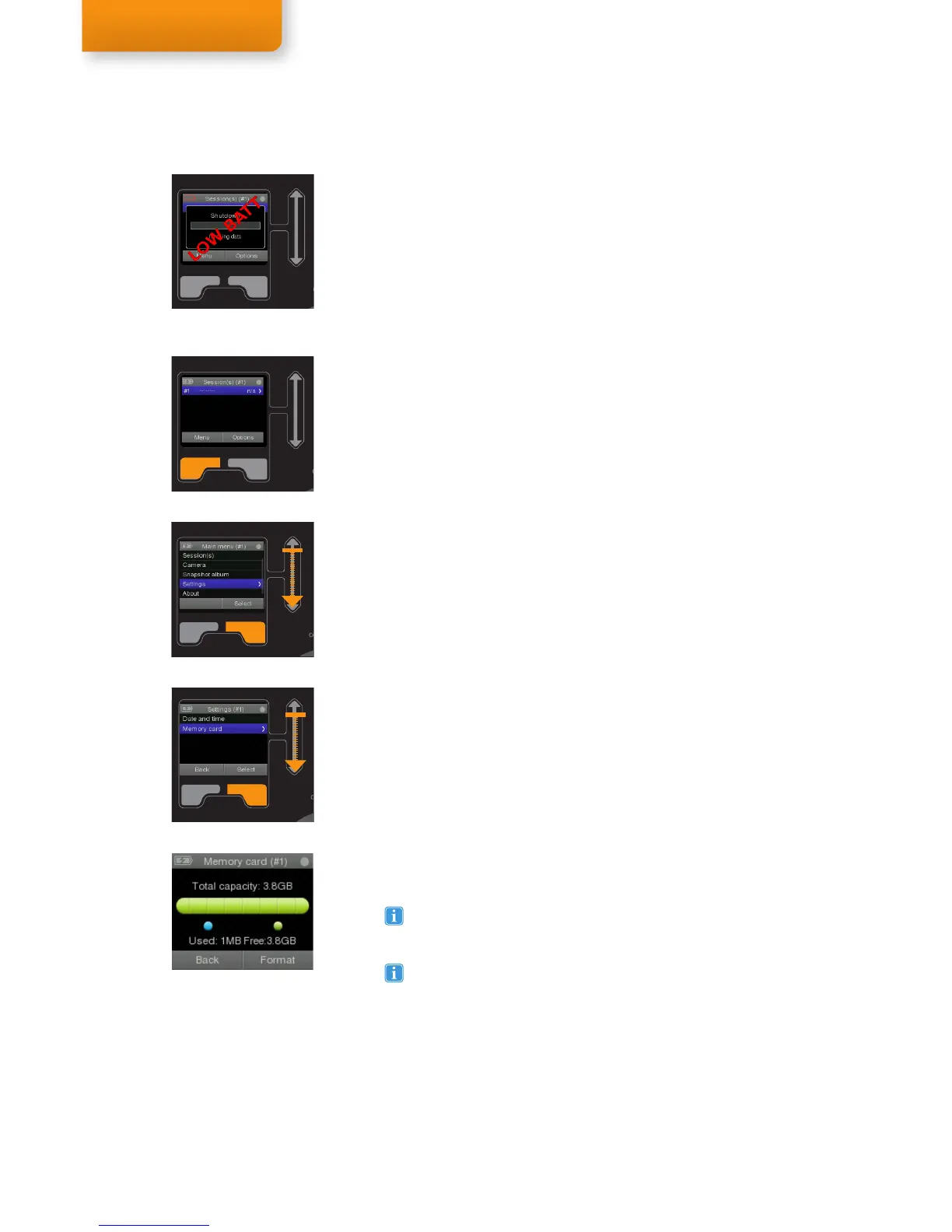
The battery indicator is located in the top left corner of the display.
Charge the battery or connect the Recording Assistant to the power
supply if the battery icon indicates a low battery level.
A memory indicator is located in the top right corner of the display, it
indicates the memory status as a pie chart e.g. a full circle indicates an
empty memory card.
To see a more detailed memory status:
1. Select Menu or Back until you reach the Main menu.
2. Scroll through the Main menu items until you reach Settings. Then
choose Select to open the Settings menu.
3. Scroll to highlight the Memory card option and push Select.
4. On the Memory card screen, you can see information about the
total memory capacity of the card and the amount of free space
remaining.
5. Push Back twice to return to the main menu.
Formatting the memory card
Format the memory card, for example, when starting a new study. This
will erase all stored data and reset session numbering to #1. Read about
Numbering below.
To format the memory card:
5. Follow steps 1-4 above to get to the Memory card screen.
6. Select Format.
7. When asked if you want to Continue formatting the media, select
Erase all. (Push Cancel if you do not want to format the memory
card.)
5 Recording with Tobii Glasses
Checking the Status
Step 4
Low battery indication
When a session is removed it will also delete the recording and
calibration data. Non-calibrated recordings will not show any gaze
data in Tobii Studio.
Numbering
The maximum amount of sessions is 100 per memory card. The Sessions
numbering is continuous. When a session is removed, it will leave a gap in
the numbering and continue where it left off to ensure that each session
has a unique number for later reference or to be included in your study
log.
Changing the Memory card or formatting the Memory card keeps
the numbering of the recording sessions continuously.
Checking the battery and memory status


 To Next Page