19
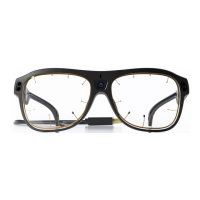
Tobii Glasses Eye Tracker
Before using the Tobii Glasses for the first time, please read this information carefully:
Some notes and warnings when using Glasses:
Never remove the battery or memory card without first turning the device completely off.
Always keep the lenses clean. The IR reflective glass is very sensitive to smudges, dirt and scratches. Eye tracking
quality could decrease significantly when the lenses are not clean.
Only use the supplied micro-fiber cloth to clean the glasses.
The touch buttons on the Recording Assistant are only meant to respond to the touch of human skin. These buttons
will not respond when touching them when, for example, wearing gloves. However, they may still function when they
are covered by, for example, a thin layer of plastic such as a protective foil.
It is recommended to always keep a charged battery in the Recording Assistant to avoid draining the clock battery.
When using IR Markers:
Switching modes between Calibration mode and IR Marker Holder mode (and vice versa) will not take place after
placing or removing an IR Marker from an IR Marker Holder if a pair of active glasses is present (switched on and in
range of the IR Markers). To make an IR Marker switch to a different mode while active glasses are present, cover
the IR Marker or the IR Marker Sensor on the glasses for a few seconds to allow the IR Marker to switch between
modes. Cover the IR Marker sensor or store the glasses in their case in between recordings when conducting a
study with the IR Markers mounted close to your setup for receiving and preparing participants.
Firmware
Tobii Glasses are always shipped with the most current firmware (essential software installed on the Recording
Assistant) at the time of shipping, but new versions may be available when using the Tobii Glasses for the first time.
Firmware updates can add new features, fix newly found bugs or improve performance.
To make sure you know what firmware you are using, on the Recording Assistant go to Main Menu>About to check
your firmware version.
To upgrade to a new firmware you have received or downloaded:
1. Turn the Recording Assistant off.
2. Copy the new firmware to the memory card using your PC (using the supplied card reader or any internal SD
card reader).
3. Connect the power adapter to the Recording Assistant and insert the memory card.
4. Turn the Recording Assistant on and wait for the upgrade to start and complete. Do not interrupt this process!
5. Before continuing, format the memory card on the Recording Assistant or remove the firmware from the
memory card using a PC. Read about Formatting the memory card on page 22.
First time use


 To Next Page