56
User
Manual
Glasses Data Viewer
The Glasses Data Viewer can be used to do the following: Do a frame
by frame analysis of your recording and gaze position; view all Glasses
data such as Gaze coordinates per frame including frame number; see
any detected IR Markers overlaid on the video and individual IR Marker
coordinates for a more in-depth qualitative analysis of the data. The
Glasses Data Viewer includes easy controls and short keys for replaying
and pausing the recording, frame by frame steps, or for example, skipping
forward or backward in steps of 1, 5 or 60 seconds.
The Glasses Data Viewer also offers a text export of all IR Markers
(including a marker used for calibration, without any IR Marker holder,
indicated as #0) detected during the selected recording (per frame).
With the possibility to export IR Marker data also comes the possibility to
recognize events marked by IR Markers in a recording even when only
a single IR Marker was in view, whereas the analysis of AOAs needs at
least 4 IR Markers.
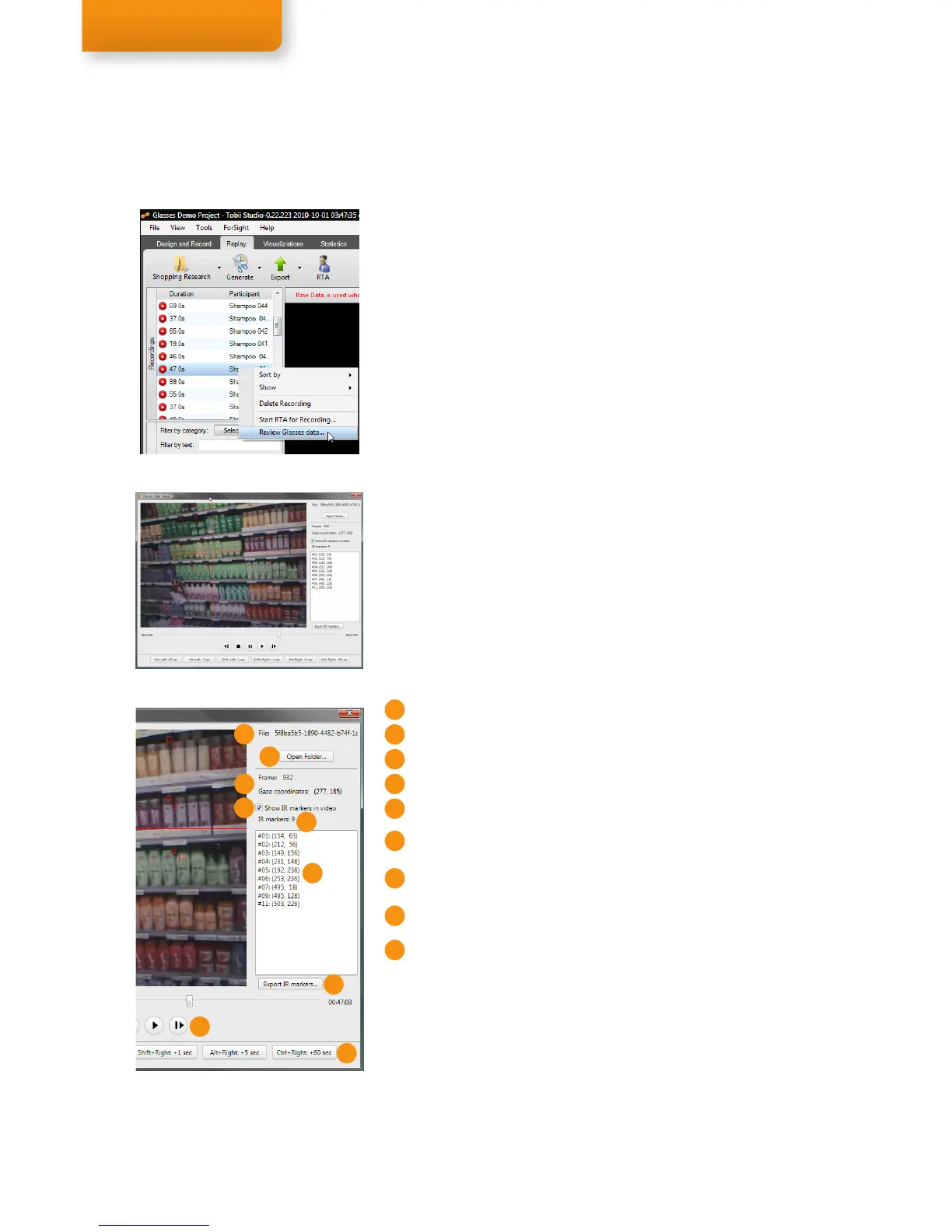
To open the Glasses Data Viewer for a specific recording:
1. Open your Project in Tobii Studio and go to the Replay tab.
2. From the list of Recordings, right-click on the recording you would
like to view the data of.
3. Select Review Glasses data.
Close the Glasses Data Viewer, and repeat the steps above to view data
from a different recording.
Step 3
The Coordinates (Gaze and IR Markers) shown in the Glasses Data
Viewer relate to the position in pixels on the scene camera video, which
has a resolution of 640X480 pixels. IR Markers can also be detected
outside of the scene camera, since the IR Markers sensor is a separate
sensor which has a slightly different field of view as the scene camera,
coordinates located outside of the scene camera range may therefore
be shown with negative values. You will not be able to use any other
elements of Tobii Studio until the Glasses Data Viewer is closed. The
Glasses Data Viewer does not replay any sound recorded by the Tobii
Glasses, use the normal Replay to hear the recorded sound.
Controls & Features
Reviewing Glasses Data in Tobii Studio
Glasses Data Viewer
A
B
C
E
D
I
H
G
F
Export a tab separated text file (.tsv format) with the detected IR
Marker coordinates per video frame
G
A
File Name
B
Open original video folder
C
Frame number & Gaze coordinates
D
Select to highlight IR Markers in the scene video
E
Number of IR Markers detected
F
List of IR Markers detected including their coordinates in the scene
video
I
Shortcut keys for playback
H
Video playback controls, using your keyboard: press Space to play or
pause, Arrow keys to step a frame forward or backward


 To Next Page