35
Tobii Glasses Eye Tracker
35
Tobii Glasses Eye Tracker
Tobii Glasses Workflow
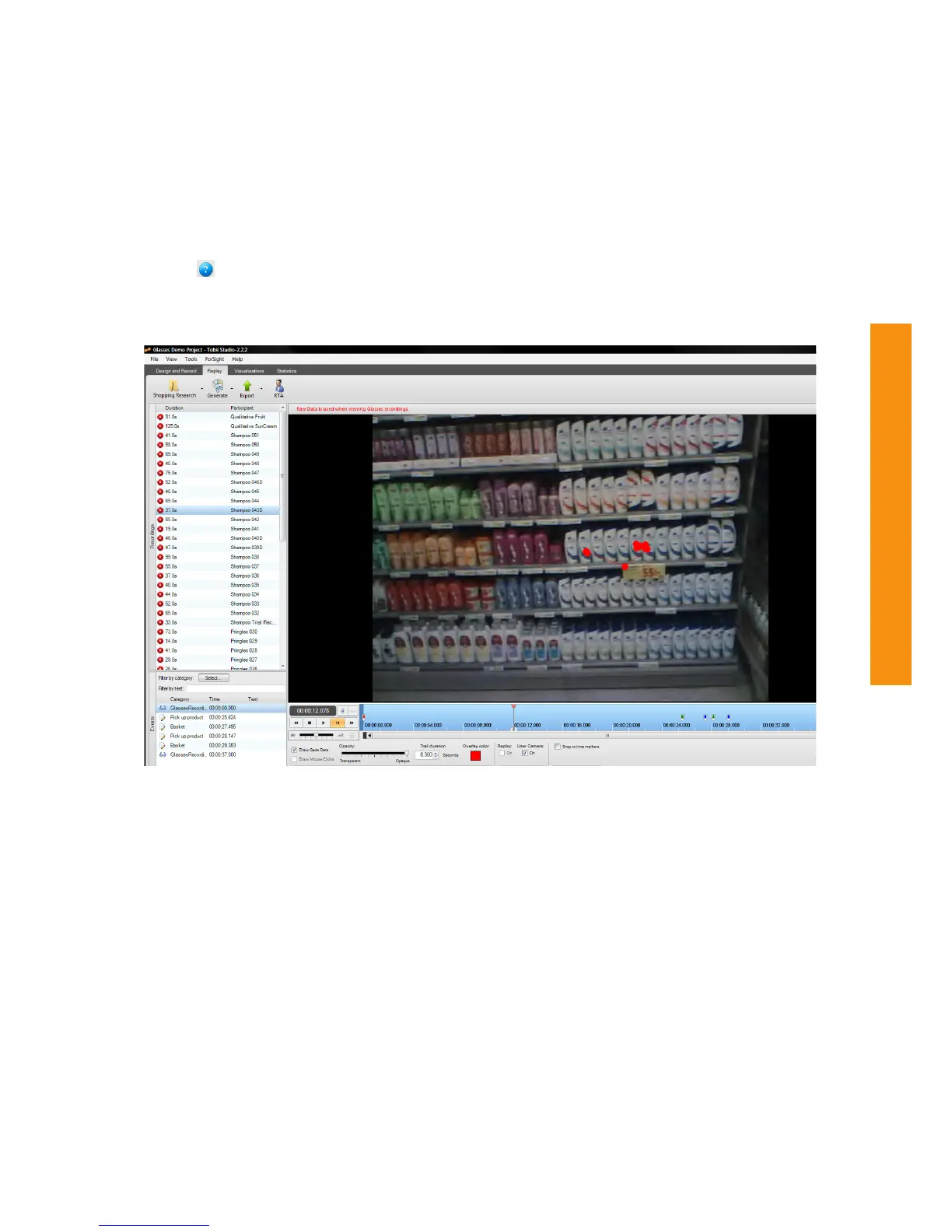
Viewing a Recording in Tobii Studio
The Tobii Glasses recordings can be used in the same way as a regular Tobii Studio recording can be used. You can
playback the recording showing the gaze data, create segments and scenes (although not applicable in dynamic
video), export the recording as a movie, and insert events using a Coding Scheme.
The Tobii Studio manual contains information about general Tobii Studio functionality. Alternatively, you can also use
the Help button to find more information, this button is always located top right in Tobii Studio.
View a recording by opening the Tobii Studio Replay tab, and selecting a recording from the Recordings list.
Replaying the Recording
As data from head mounted eye trackers can include so called smooth pursuit eye movements, current fixation filters
cannot handle this type of eye movement to calculate so called fixations. Therefore, only the Raw Fixation Filter can
be used to view the glasses data, meaning the gaze overlay will show all Raw gaze data captured by the eye tracker,
without any filtering, at a 30Hz sampling rate.
All current fixation filters do not fully support smooth pursuit eye movements (when the eye follows a moving object
or when the body is moving and looking at a stationary object). When replaying Tobii Glasses recordings in the
Replay tab, the fixation filter will be switched automatically to Raw Data. When creating visualizations or making
statistics, Raw Data should be selected from the fixation filter settings (Tools>Settings>Fixation Filters) if smooth
pursuit eye movements are present in the data. Raw Data will not show fixations (group of gaze samples in the
same place, displayed as a single fixation in that area). Instead all raw data samples (30Hz, max. 30 per second) are
shown.
Select the Settings button under the timeline, to access settings such as changing the Color and Opacity of the
Gaze overlay or setting the Trail duration of the gaze data. Recommended setting for trail duration is 0.200 seconds,
showing about 6 gaze points at a time 0.050 is the lowest setting and will only show about 2 gaze points at a time.
For more detailed frame by frame analysis of all Glasses Data, use the Glasses Data Viewer (see page 37).


 To Next Page