54
User
Manual
Viewing a Recording in Tobii Studio
The Tobii Glasses recordings can be used in the same way as a regular Tobii Studio recording can be used. You can
playback the recording showing the gaze data, create segments and scenes (although not applicable in dynamic
video), export the recording as a movie, and insert events using a Coding Scheme.
The Tobii Studio manual contains information about general Tobii Studio functionality. Alternatively, you can also use
the Help button to find more information, this button is always located top right in Tobii Studio.
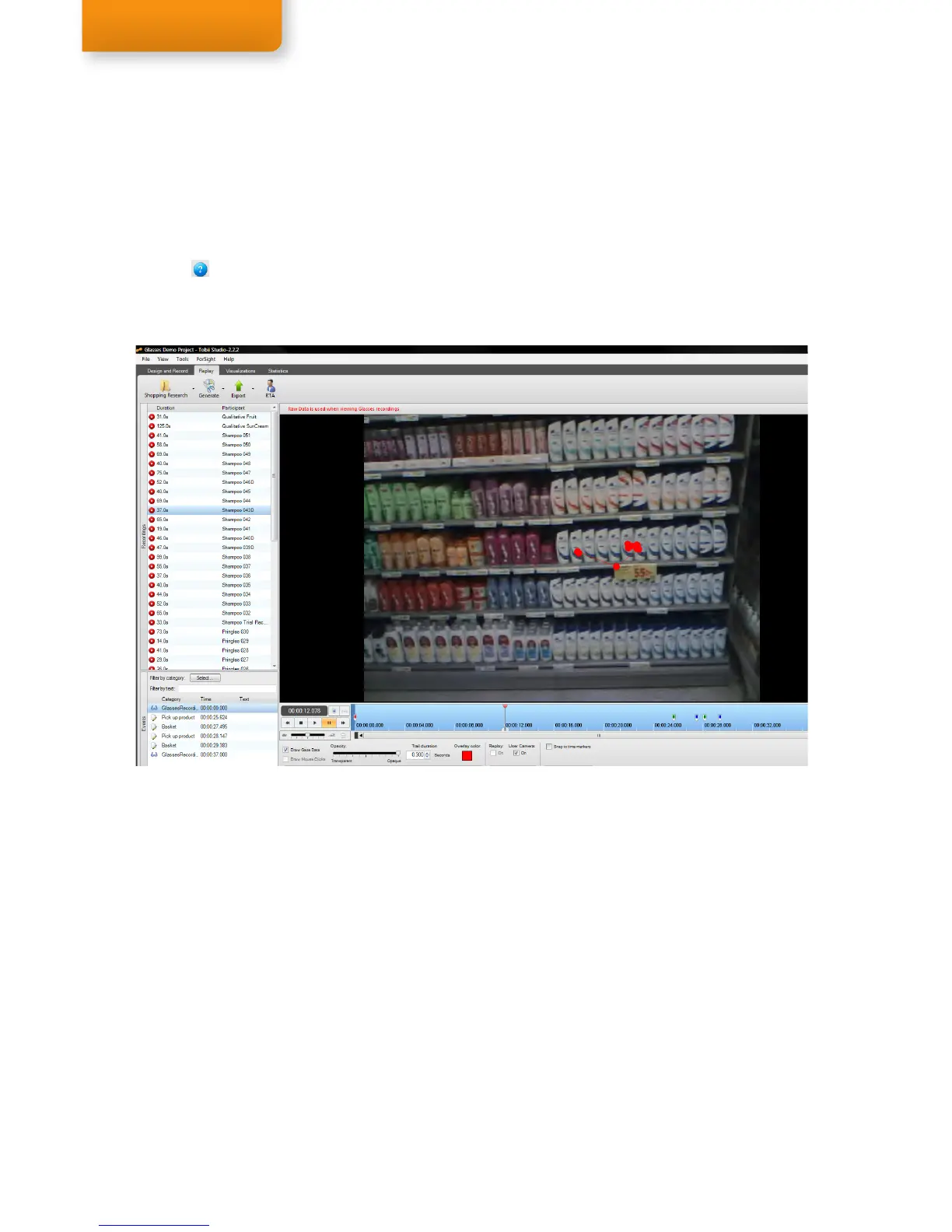
View a recording by opening the Tobii Studio Replay tab, and selecting a recording from the Recordings list.
Replaying Recordings
As data from head-mounted eye trackers can include so-called smooth pursuit eye movements, current fixation
filters cannot handle this type of eye movement to calculate fixations. Therefore, only the Raw Data will be shown
view the glasses data. Using Raw data means the gaze overlay will show all raw gaze data captured by the eye
tracker, without any fixation filtering, at the eye tracker (30Hz) sampling rate. The points shown on the screen are
therefore not fixations, they are all the collected samples (of eye tracking data). These points all have the same
length (33 milliseconds), which a fixation filter typically groups into fixations.
All current fixation filters do not fully support smooth pursuit eye movements (when the eye follows a moving
object or when the body is moving and looking at a stationary object). When replaying Tobii Glasses recordings
in the Replay tab, the fixation filter will be switched automatically to Raw Data. When creating visualizations or
making statistics, Raw Data should be selected from the fixation filter settings (Tools>Settings>Fixation Filters) if
smooth pursuit eye movements are present in the data. Raw Data will not show fixations (group of gaze samples
in the same place, displayed as a single fixation in that area), instead all raw data samples (30Hz, max. 30 per
second) are shown.
Select the Settings button under the timeline, to access settings such as changing the Color and Opacity of
the Gaze overlay or setting the Trail duration of the gaze data. Recommended setting for trail duration is 0.200
seconds, showing about 6 gaze points at a time 0.050 is the lowest setting and will only show about 2 gaze
points at a time. For more detailed frame by frame analysis of all Glasses Data, use the Glasses Data Viewer as
described on page 56.


 To Next Page