33
Tobii Glasses Eye Tracker
33
Tobii Glasses Eye Tracker
Tobii Glasses Workflow
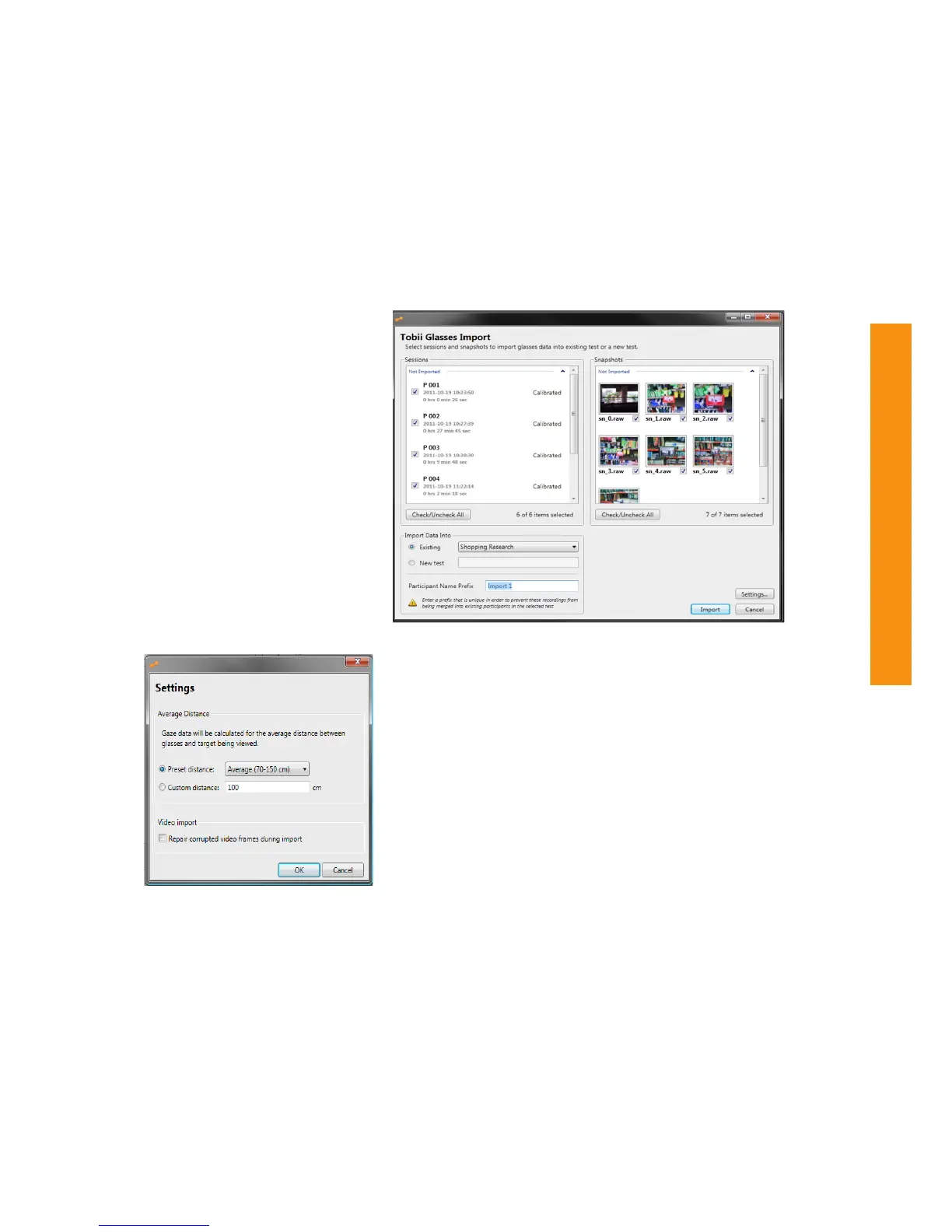
8. Select the Recordings you wish to import by checking or
unchecking the respective check boxes, or by pressing the
Check/Uncheck All button located below the list to select or
deselect all the recordings.
9. Import Data Into: Select if you wish to import the recordings into
an Existing test or a New test. Select the option Existing and use
the drop down list to choose an existing test, or select New test
and enter a test name in the text box.
10. To correct for parallax: Click the Settings button to set the
Average Distance between the glasses and the target being
viewed. This distance is used for calculating and mapping the
gaze data accurately on the scene camera video. The selected
setting will be applied to all selected Sessions on import. Read
about the Parallax Correction Tool on page 38.
11.
The Participant Name Prefix feature allows you to add a prefix
to the Participant Name during import of recordings from the
Tobii Glasses. Sessions created on the Recording Assistant are
normally converted into Recordings with a Participant Name that
corresponds to the Session number on the Recording Assistant,
e.g.: Session #01 becomes Recording: Rec 01, Participant: P001.
Each SD card used in the Recording Assistant will start the
naming of Sessions in the same order: Session #1, #2, #3 etc.
If multiple SD cards are used during a test there is a risk that the
imported Sessions will be saved as multiple recordings with the
same Participant Name in Tobii Studio. If different recordings have
the same Participant Name, it will be impossible to filter the data
based on participants or Independent Variables (such as Age or
Gender) since there is no indication that these recordings are in
fact different participants from different SD cards. To avoid this
potential issue always insert a unique prefix in the Participant
Name Prefix text entry field every time you import an additional
SD card in a Tobii Studio Test. This feature will append the chosen
prefix to the participant name, effectively creating a unique name
and avoiding recordings being merged into existing participants.
12.
When you are finished press the Import button to import the
selected recordings. Tobii Studio will then import each Tobii
Glasses Session as a Tobii Studio Recording. The Participant
Name included in each recording is equal to the session number
from the Recording Assistant.
Step 8 & 9
Step 10


 To Next Page