39
Tobii Glasses Eye Tracker
39
Tobii Glasses Eye Tracker
Tobii Glasses Workflow
To change or remove a specific section of the recording:
1. With the fullscreen Parallax Correction Tool open,
2. Right-click the section you want to make a change to.
3. Select which change you would like to make (Set time, Set
Distance, Clear, Clear all). Sections made changes to, turn green
and state the new distance, and cleared sections return to the
Default Distance.
4. Follow the onscreen prompts.
To specify a new section with a new distance:
1. Open the fullscreen Parallax Correction Tool.
2. In the timeline, select the time you want to set a distance
for. Do so by dragging the timeline marker to the start of the
desired interval and then dragging the right handle to the end
of the interval. For setting a more precise interval, right-click the
estimated selection, click Set Time for Selection..., enter the exact
start and end times, and click OK.
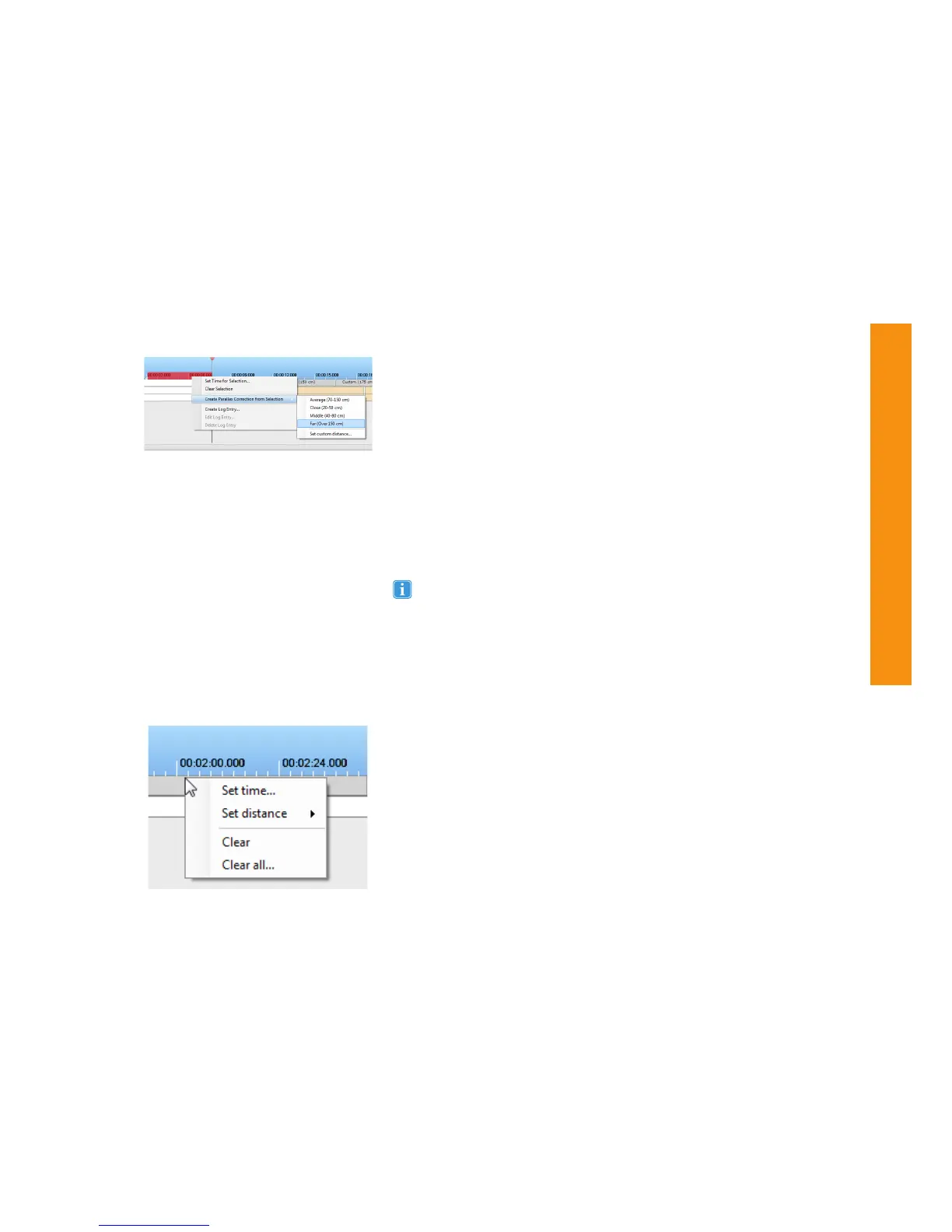
3. Right-click the selection and move the mouse over Create
Parallax Correction from Selection...
4. Select a predetermined range or Set custom distance... . If setting
a custom distance, type the desired distance in centimeters and
click OK. The selected interval is added to the Distance timeline in
green.
5. Click Save changes in the top right section of the tool when
finished making alterations. This will take you back to the Replay
screen.
6. Click the Glasses Tools button at the bottom and notice the gray
interval with the distance you selected
Multiple corrections can be made before clicking the Save changes
button.
If creating a new parallax correction that covers any part of another
correction, you will be prompted whether you want to continue
with overwriting the previous distance.
Step 4
Step 3


 To Next Page