Entering Sensor Information
3-6
P/N: 7010-1006
Machine Setup and Configuration
Step 2: Designate each sensor to its corresponding implement.
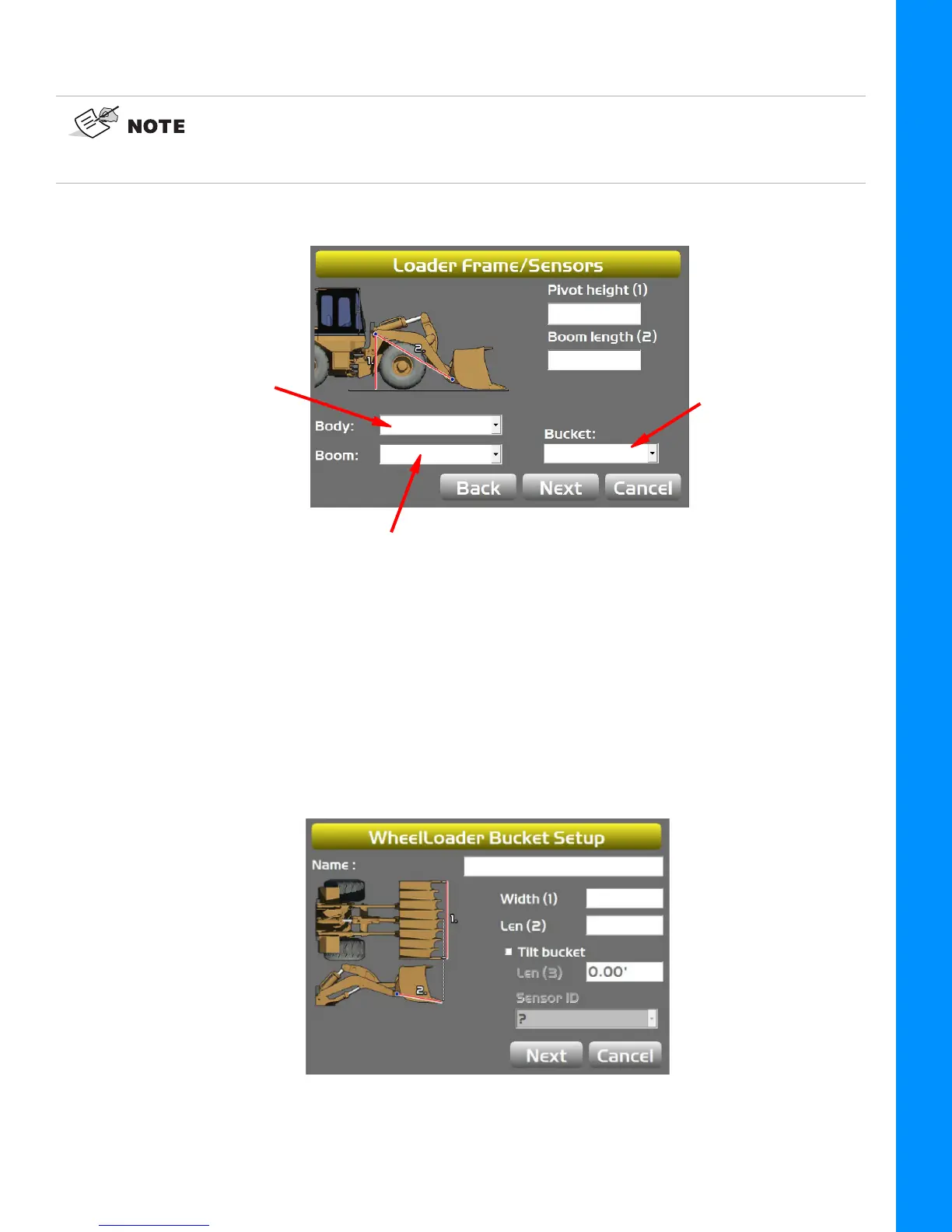
1. Tap Next to navigate to the Loader Frame/Sensor screen (Figure 3-7).
Figure 3-7: Wheel Loader Frame/Sensors
2. Tap the appropriate Body Sensor ID, Boom Sensor ID, or Bucket Sensor ID box and select
the serial number (last two digits) of the sensor corresponding to the machine element that you
are working on.
3. Enter the appropriate measurement values.
4. Tap Next on the Loader Frame/Sensors screen (Figure 3-7)—the WheelLoader Bucket
Setup screen appears (Figure 3-8)
Figure 3-8: Wheel Loader Bucket Setup
a. Enter or select the appropriate data as needed (Figure 3-8).
For the Body, Boom, and Attachment/Bucket sensors, tap the appropriate Sensor ID
box and select the serial number (last two digits) of the sensor corresponding to the
machine element. Refer to your notes from installation to select the correct sensor ID
from the drop-down menu.
Body Sensor ID
Boom Sensor ID
Bucket Sensor ID



 To Next Page