20 Preference Settings
4.6 Options for on-screen display
To set the options for the on-screen display (OSD),
select the Settings > OSD menu.
To adjust the transparency level of the OSD, set the OSD Transparency
option as you desire. Its available range is 0 to 50 percent.
To adjust the display time of the information box, set the Info Box Dis-
play Time option as you desire. Its available range is 1 to 30 seconds.
If you set this option to No Info Box, the information box will not be
displayed when you switch services.
However, pressing the button will display the information box. If
you set this option to Never Hide, the information box will always be
displayed. For the information box, see §5.2.3.
If any service’s name is too long to fit the width of the service name
column on the services list screen, you can get it to scroll by setting
the Text Scroll option to anything other than Disable. With the choice
of Full Scroll, it will be fully scrolled until its end disappears; with the
choice of Part Scroll, it will be scrolled only to its end.
4.7 Options for the front display
To set the options for the front display, select the Settings > Front
Display menu.
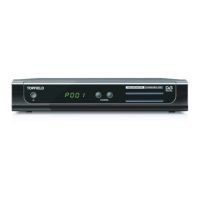
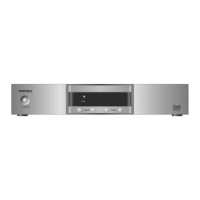
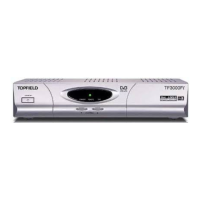
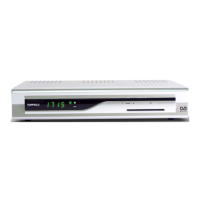
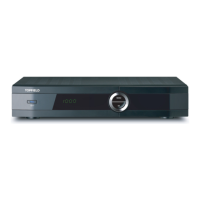
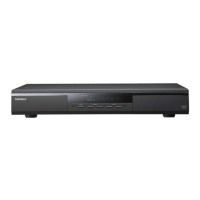
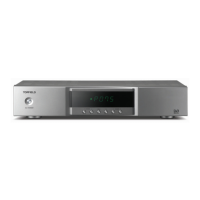
The front display shows the currently viewed service’s number and
name. If any service’s name is too long to fit the width of the ser-
vice name column, you can get it to scroll by setting the Main Display
Scrolling option to anything other than Disable. With the choice of Un-
limited, it will be repeatedly scrolled; with the choice of Once, it will
be scrolled only once.




 To Next Page