50 Topfield Application Program
1. Press the button and then the
F3 or
F4 button to display
the program files list.
2. Insert the USB with the TAP file into your unit.
3. On the remote, press the
SAT button. Press the
OK on top of
the name of your external hard disk.
4. Use the navigation keys to highlight the TAP file.
5. Press the yellow button on top of the file.
6. It will prompt you that the file will be moved into the program
files folder. Press
OK .
NOTE
If you would like the TAP to start when the unit starts up, move the
TAP file into the Auto Start folder in the Program Files menu.
To run a TAP in the digital receiver, take the following steps:
1. Press the button and then the
F3 or
F4 button to display
the program files list.
2. Place the highlight bar on a program file you want to run, and
press the
OK button to start it up.
3. If it is a running-in-the-background program, its entry in the
list gets marked in green when it starts. You may have several
programs run in the background at a time.
4. To stop a program running in the background, place the high-
light bar on its entry in the list, and press the
OK button; other-
wise you can stop it with the
EXIT button.
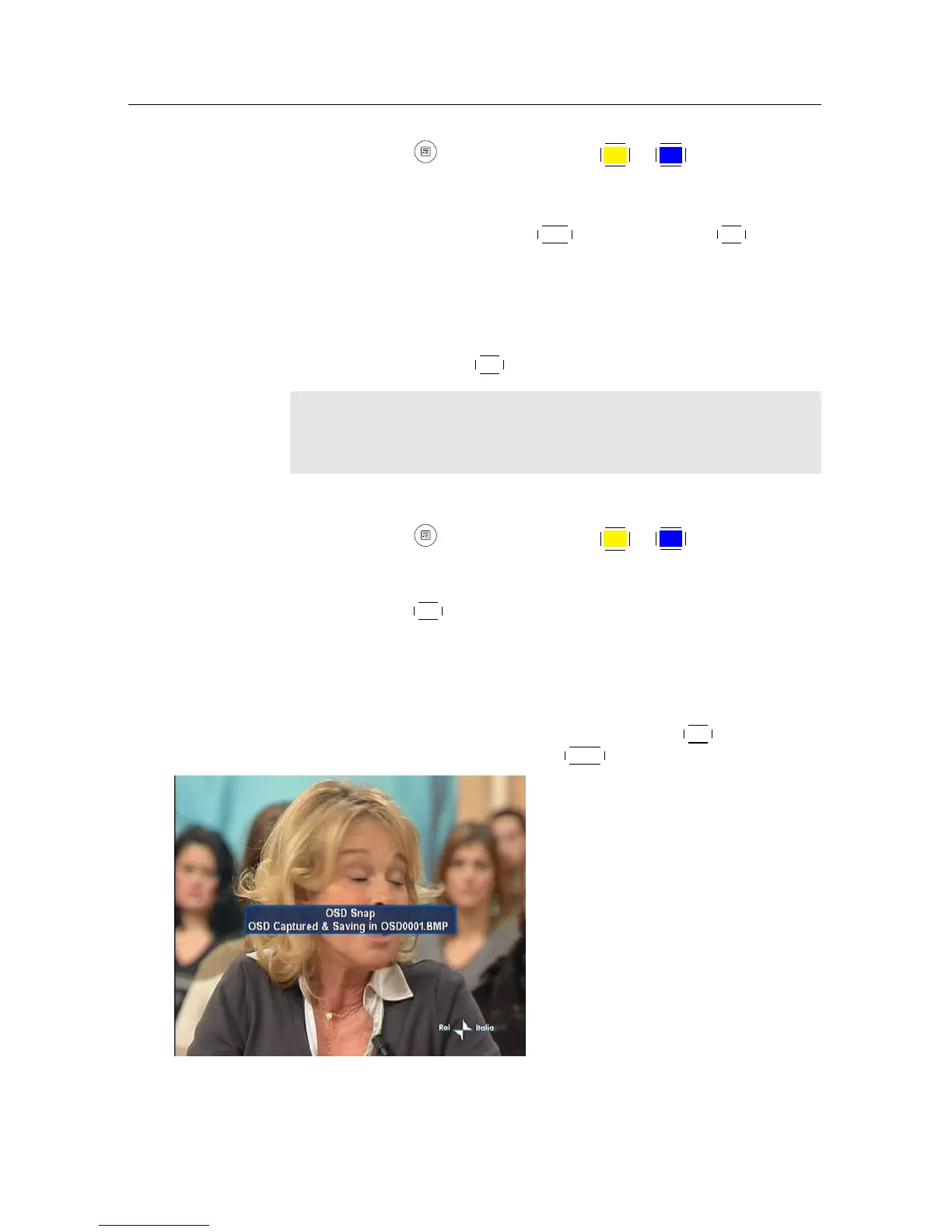
The figure on the left is a screen-
shot of ScreenCapture.tap, with which
you can capture screen in bmp format
from the digital receiver. Not only
this TAP but a lot of sample TAPs are
available in the TAP API.
By the way, the digital receiver will not show the list of the screenshots
saved by the ScreenCapture.tap because bmp files are supposed to be




 To Next Page