24
Using the TV’s features (General)
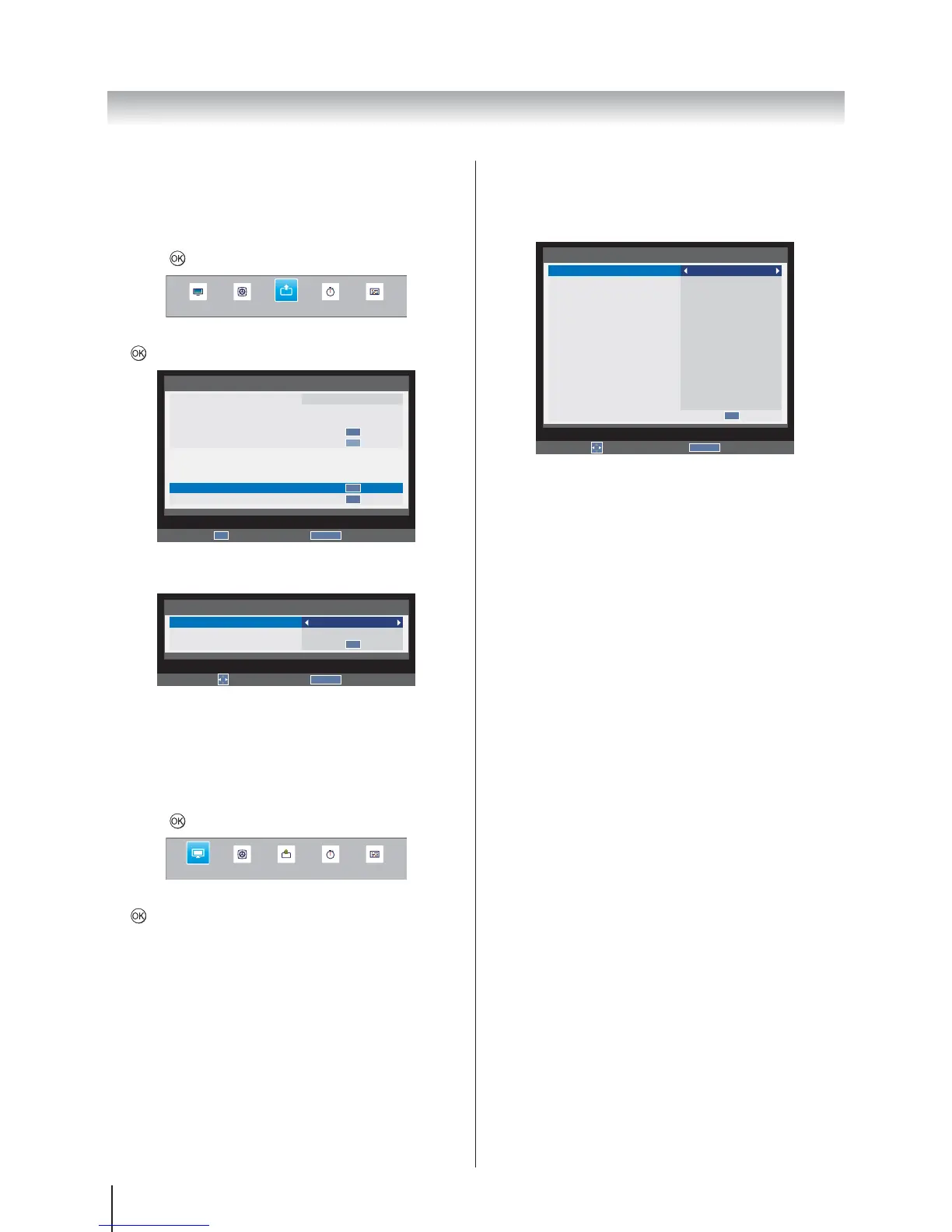
Picture Position
The Picture Position may now be adjusted to suit
personal preference.
1. Press MENUSETUP and
press
to enter the submenu.
SOUND APPLICATIONS PREFERENCESPICTURE
SETUP
2. Picture Position and press
to enter the submenu.
RETURN
Back
SETUP 1/2
Language
Country
Tuner Mode
Auto tuning
ATV Manual Tuning
DTV Manual Tuning
DTV Settings
AV connection
Picture Position
Quick Setup
English
Australia
Antenna
OK
OK
OK
OK
OK
Enter
3.
Edit
RETURN
Back
Picture Position
Horizontal position
Vertical position
Reset
0
0
OK
Picture Mode
You can adjust the picture appearance by selecting the
preset value in picture mode based on the programme
category.
1. Press MENUPICTURE and
press
to enter the submenu.
SOUND APPLICATIONS PREFERENCES
PICTURE
SETUP
2. Picture Settings and press
to enter the submenu.
3. Picture Mode
Dynamic, Standard, Mild, Movie,
Game or User.
Note: Game is not available for the TV input mode.
Edit
RETURN
Back
Picture Settings
Picture Mode
Active Backlight Control
Auto Brightness Sensor
Back Light
Contrast
Brightness
Colour
Tint
Sharpness
Black/White Level
Cinema Mode
Colour Temperature
Static Gamma
Reset
Standard
High
On
70
95
50
50
0
50
Middle
On
Medium
0
OK
Picture Preferences
You can customise current picture mode settings while
selecting User.
1. In the Picture Settings
select Back Light, Contrast, Brightness, Colour,
Tint, Sharpness.
2.
Black/White Level
This function increases the strength of dark areas of the
picture, which improves picture definition.
1. In the Picture Settings
select Black/White Level.
2. Off, Low,
Middle or High. The effect depends on the
broadcast and is most noticeable on dark colours.
Cinema Mode
A movie film’s picture runs at 24 frames a second,
whereas movie software such as DVD, etc., that you enjoy
watching on television at home runs at 30 (NTSC) or 25
(PAL) frames a second. To convert this signal to reproduce
a smooth motion and picture quality, select the Cinema
Mode.
1. In the Picture Settings
select Cinema Mode.
2. On or Off.



 To Next Page