42
Using the TV’s features (General)
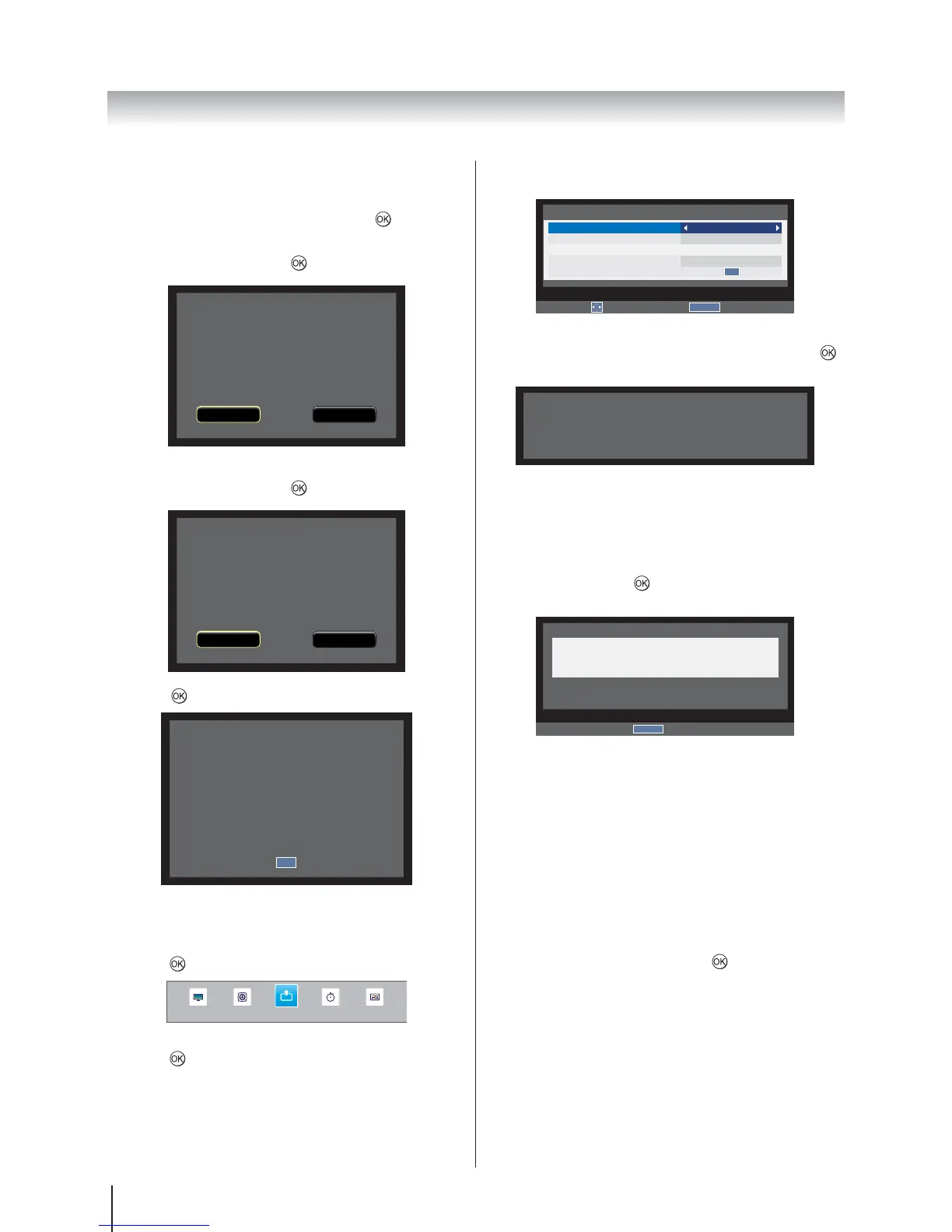
DivX Deregistration
1. In the PREFERENCES
select DivX Deregistration and press
.
2. OK to confirm or select
Cancel to exit and press
.
Your device is already registered.
Are you sure you wish to
deregister?
OK Cancel
3. OK to confirm or select
Cancel to exit and press
.
Deregistration code:
XXXXXXXX
Deregister at
http://vod.divx.com
Continue with registration?
OK Cancel
4. Press to exit.
You must register your device to
play DivX® protected videos.
Registration code:
XXXXXXXXXX
Register at
http://vod.divx.com
OK
System Upgrade
1. Press MENUSETUP and
press
to enter the submenu.
SOUND APPLICATIONS PREFERENCESPICTURE
SETUP
2. SoftwareUpgrade and
press
to enter the submenu.
3. Auto Upgrade
On or Off.
RETURN
Back
Software Upgrade
Auto Upgrade
Auto Install
Manual OAD
USB Detection
USB Upgrade
On
Off
On
OK
Edit
4. Insert a USB storage device.
USB Upgrade and press
to start upgrading the firmware.
USB Upgrade
0 %
Note: Firmware upgrading is suggested to be done by
the professional service personnel.
System Information
In the SETUPSystem
Information and press
to display the model
information and firmware version.
RETURN
Back
System Information
TOSHIBA
2013
Nov 9 2012, 17:48:06, FW: v0.08 (SR)
Subtitle and Audio
You can choose the Subtitle Type or Audio Type from
Normal or Hearing Impaired. If the Hearing Impaired is
selected, it provides subtitle services to deaf and hard of
hearing viewers with additional descriptions.
Subtitle Language or Audio Language allow a
programme or film to be viewed with a choice of
soundtrack language, provided they are currently being
broadcast.
1. In the DTV Settings
Subtitle And Audio, and press
to enter the
submenu.
2. Subtitle Display and press
On or Off.
3. Subtitle Type or Audio
TypeNormal or
Hearing Impaired.
4. Digital Subtitle Language,
Digital Subtitle Language 2nd, Audio Language
or Audio Language 2nd
select your preferred language.



 To Next Page