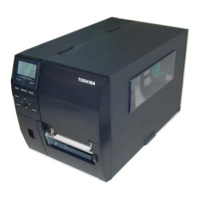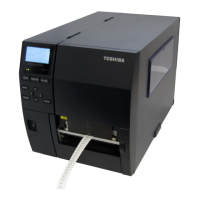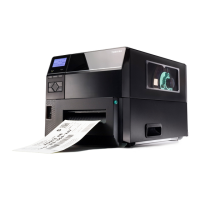
What does 'Head Error' mean on my Toshiba B-EX4T1 Barcode Reader?
- AAmy VargasSep 12, 2025
If your Toshiba Barcode Reader displays 'HEAD ERROR', it indicates that there is a problem with the Print Head. Replace the Print Head.

What does 'Head Error' mean on my Toshiba B-EX4T1 Barcode Reader?
If your Toshiba Barcode Reader displays 'HEAD ERROR', it indicates that there is a problem with the Print Head. Replace the Print Head.
What to do if my Toshiba Barcode Reader displays 'Format Error'?
If your Toshiba Barcode Reader displays a 'FORMAT ERROR', it means that an error has occurred in formatting the flash ROM/USB memory. Turn the printer off, and then on again.
What to check if my Toshiba B-EX4T1 Barcode Reader displays 'Power Failure'?
If your Toshiba Barcode Reader displays 'POWER FAILURE', a momentary power failure has occurred. Check the power source which supplies power to the printer. If the rating is not correct, or if the printer shares the same power outlet with other electrical appliances that consume large amounts of power, change the outlet.
What does 'Memory Full' mean on my Toshiba B-EX4T1 Barcode Reader?
If your Toshiba Barcode Reader displays 'MEMORY FULL', it means that saving failed because of an insufficient capacity of the flash ROM/USB memory. Turn the printer off, and then on again.
What should I do if my Toshiba B-EX4T1 Barcode Reader displays 'Rewind Full'?
If your Toshiba Barcode Reader displays 'REWIND FULL', it means that the Built-in Rewinder Unit is full. Remove the backing paper from the Built-In Rewinder Unit and then press the [RESTART] key.
What to do if my Toshiba B-EX4T1 Barcode Reader has a paper jam?
If your Toshiba Barcode Reader is displaying a 'PAPER JAM' error, it could be due to several reasons. The media may be jammed or not feeding smoothly, or it might not be loaded properly. Remove any jammed media and clean the platen. Reload the media correctly. Ensure the correct media sensor is selected for the media you are using by turning the printer off and on, then selecting the appropriate sensor and resending the print job. Also, check if the black mark sensor is correctly aligned or if the loaded media size matches the programmed size. After performing any of these corrections, press the [RESTART] key. If the media sensor hasn't been properly calibrated, refer to Section 2.10 to set the threshold or call a TOSHIBA TEC authorised service representative.
What to do if my Toshiba B-EX4T1 Barcode Reader shows 'Excess Head Temp'?
If your Toshiba Barcode Reader displays 'EXCESS HEAD TEMP', it indicates that the Print Head has overheated. Turn off the printer and allow it to cool down for about 3 minutes. If the problem persists, contact a TOSHIBA TEC authorised service representative.
What does 'Memory Write Error' mean on my Toshiba B-EX4T1 Barcode Reader?
If your Toshiba Barcode Reader displays a 'MEMORY WRITE ERR.', it indicates that an error has occurred in writing to the flash ROM/USB memory. Turn the printer off, and then on again.
What does 'Head Open' mean on my Toshiba Barcode Reader?
If your Toshiba Barcode Reader displays 'HEAD OPEN', it indicates that the Print Head Block is opened in Online mode. Close the Print Head Block.
What should I do if the media is not feeding in my Toshiba Barcode Reader?
If the media is not feeding in your Toshiba Barcode Reader, it could be because the media is not loaded properly or the printer is in an error condition. Load the media properly. Solve the error in the message display. (See Section 5.1 for more detail.)
| Print Method | Thermal Transfer / Direct Thermal |
|---|---|
| Type | Industrial Barcode Printer |
| Operating Temperature | 5°C to 40°C |
| Resolution | 203 dpi |
| Print Width | 104 mm |
| Interfaces | USB, Ethernet |
| Optional Interfaces | Wireless LAN, Bluetooth |
| Supported Barcodes | UPC/EAN, Code 39, Code 93, Code 128, ITF, NW-7 |
| Storage Temperature | -20°C to 60°C |
| Humidity | 25% to 85% non-condensing |
Provides an introduction to the TOSHIBA B-EX4T1 series barcode printer and its manual.
Details the printer's features and the unpacking process, including notes on inspection.
Describes the printer's physical appearance, including dimensions and views of its parts.
Lists and describes various optional kits and modules available for the printer.
Covers printer installation, safety precautions, power cord connection, and cable setup.
Provides detailed steps for loading various types of media and ribbons into the printer.
Explains how to turn the printer on/off and navigate printer settings via the operation panel.
Details various advanced settings including LAN/WLAN, BASIC, Z-Mode, calibration, logging, etc.
Guides users through the process of installing printer drivers on different Windows versions.
Covers performing print tests and fine-tuning print position, tone, and sensor settings.
Explains the functions of the operation panel keys and the LCD display information.
Illustrates common printer operations and responses to events like errors or pauses.
Provides detailed instructions for cleaning the print head, platen, sensors, covers, and cutter.
Lists common error messages, their probable causes, and initial troubleshooting steps.
Addresses potential problems like no print, blurred image, cutter issues, and media jams.
Details physical, power, resolution, and printing speed specifications for the printer models.
Lists supported barcode types, fonts, rotations, and interface options.
Describes media types, dimensions, detection areas, RFID tag usage, and cautions.
Details ribbon specifications, recommended media/ribbon types, and care instructions.
Provides a comprehensive list of LCD messages and their corresponding LED indications.
Details USB, LAN, Serial, Parallel, Expansion I/O, Wireless LAN, and RFID interfaces.
Illustrates various font styles and barcode types supported by the printer.
Defines key terms and concepts related to the printer's operation and features.