EasyManua.ls Logo

Toshiba B-EX4T2 SERIES - User Manual

Toshiba B-EX4T2 SERIES
136 pages
Print Icon
To Next Page IconTo Next Page
Loading...
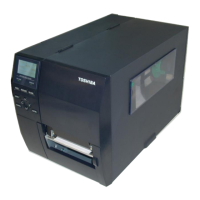
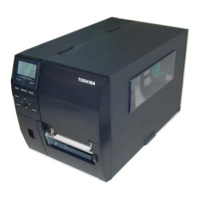
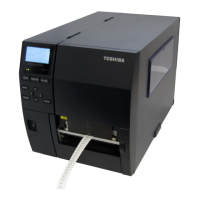
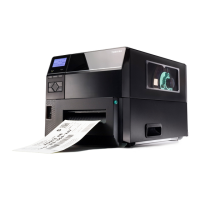
TOSHIBA Barcode Printer
B-EX4T2 SERIES
Owner’s Manual
Mode d’emploi
Bedienungsanleitung
Manual de instrucciones
Gebruikershandleiding
Manuale Utente
Manual do Utilizador

Table of Contents

Other manuals for Toshiba B-EX4T2 SERIES

Questions and Answers

  • C
    Christopher WebbSep 8, 2025
    Why is my Toshiba Barcode Reader cutter not cutting?
    • L
      Lisa StantonSep 8, 2025
      If the cutter on your Toshiba Barcode Reader isn't cutting, make sure the Cutter Cover is properly attached. Also, check for any media jammed in the cutter and remove it. Clean the cutter blade if it is dirty.
  • S
    Sheila PatrickAug 25, 2025
    How to troubleshoot a RIBBON ERROR on a Toshiba Barcode Reader?
    • A
      Alan ReedAug 26, 2025
      If your Toshiba Barcode Reader displays a RIBBON ERROR, the ribbon may not be feeding properly, or it might not be loaded. Remove the ribbon and check its status, replacing it if necessary. If the problem persists, contact a TOSHIBA TEC authorized service representative. Ensure a ribbon is loaded, if it is missing. The ribbon sensor could also have a problem; in this case, contact a TOSHIBA TEC authorized service representative.
  • M
    Misty CannonAug 26, 2025
    What does SYNTAX ERROR mean on my Toshiba B-EX4T2?
    • S
      sara21Aug 26, 2025
      If your Toshiba Barcode Reader displays a SYNTAX ERROR, it means that while the printer was in Download mode for upgrading the firmware, it received an improper command. Turn the printer off, and then on again.
  • D
    daviskevinSep 18, 2025
    What should I do if my Toshiba Barcode Reader shows POWER FAILURE?
    • A
      Albert RussellSep 18, 2025
      If your Toshiba Barcode Reader experiences a POWER FAILURE, check that the power source supplying the printer is of the correct rating. If the printer shares the same power outlet with other electrical appliances that consume large amounts of power, use a different outlet.
  • R
    robert96Nov 23, 2025
    What to do if my Toshiba Barcode Reader says PAPER JAM?
    • W
      William MeyerNov 23, 2025
      If your Toshiba Barcode Reader displays a 'PAPER JAM' error, it could be due to several reasons. The media may be jammed or not feeding smoothly, in which case you should remove the jammed media, clean the platen, and reload the media correctly, then press the [RESTART] key. Alternatively, the media might not be loaded properly, so try reloading it correctly and then press the [RESTART] key. Another reason may be that the wrong media sensor is selected, so turn the printer off and then on, select the correct media sensor, and resend the print job. The Black Mark Sensor may also be misaligned, so adjust its position and press the [RESTART] key. If the loaded media size doesn't match the programmed size, replace it with matching media, press the [RESTART] key, or turn the printer off and on,...
  • M
    Martha ValenciaSep 13, 2025
    Why is the printed image blurred on my Toshiba Barcode Reader?
    • J
      Jason DavisSep 13, 2025
      If the printed image from your Toshiba Barcode Reader is blurred, it might be due to an incorrect combination of ribbon and media; select an appropriate ribbon for the media type being used. Alternatively, the Print Head might be dirty; clean it using the Print Head Cleaner or a cotton swab slightly moistened with ethyl alcohol.
  • C
    Cameron ReyesSep 3, 2025
    What does MEMORY FULL mean on Toshiba B-EX4T2?
    • D
      David PrinceSep 3, 2025
      If your Toshiba Barcode Reader displays 'MEMORY FULL', saving failed because of insufficient storage space in the flash ROM/USB memory. Turn the printer off, and then on again.
  • C
    Christopher EdwardsSep 4, 2025
    What does EEPROM ERROR mean on Toshiba B-EX4T2 Barcode Reader?
    • K
      karenwilliamsSep 4, 2025
      If your Toshiba Barcode Reader displays 'EEPROM ERROR', data cannot be properly read from or written to a backup EEPROM. Turn the printer off, and then on again.
  • R
    roger06Sep 23, 2025
    Why does pressing the FEED key result in an error on my Toshiba B-EX4T2?
    • V
      vincent63Sep 23, 2025
      If pressing the [FEED] key on your Toshiba Barcode Reader results in an error, it's likely due to a feed attempt that doesn't match the default conditions: a feed gap sensor type, thermal transfer printing method, and a 76.2 mm media pitch. Change the print condition using the printer driver or a print command to match your printing conditions. Clear the error by pressing the [RESTART] key.
  • E
    Elizabeth McclainAug 29, 2025
    Why won't my Toshiba Barcode Reader media feed?
    • W
      William SchroederAug 30, 2025
      If the media isn't feeding in your Toshiba Barcode Reader, ensure that the media is loaded properly. Also, check for any error messages on the display and resolve them.

Summary

Product Overview

Introduction

Introduces the TOSHIBA B-EX4T2 series barcode printer and its owner's manual.

Features

Highlights the printer's key features, including print head design and network capabilities.

Unpacking

Provides instructions and notes for unpacking the printer safely and correctly.

Accessories

Lists the standard accessories included with the printer.

Appearance

Details the printer's physical dimensions and views of its front and rear panels.

Options

Lists and describes various optional modules and kits for the printer.

Printer Setup

Installation

Covers essential precautions and steps for installing the printer in its operating environment.

Connecting the Power Cord

Explains the procedure for connecting the printer to a power source.

Loading Supplies

Provides instructions and safety warnings for loading media and ribbons.

Connecting Cables

Details methods for connecting the printer to a host computer via various interfaces.

Printer ON;OFF

Describes the correct procedure for powering the printer on and off.

Printer Setting

Guides users on configuring printer parameters for optimal operation.

Installing Printer Drivers

Details the process of installing printer drivers on Windows operating systems.

Print Test

Explains how to perform a print test to verify settings and print quality.

Position & Tone Adjustment

Covers fine adjustments for print position, tone, and ribbon motor torque.

Threshold Setting

Explains how to set and adjust media sensor thresholds for consistent print positioning.

Sensor Setting

Guides on registering media voltage levels with sensors to resolve paper jam errors.

Online Mode

Key Functions

Explains the usage of the printer's operation panel keys in Online mode.

LCD Display

Describes the information shown on the printer's LCD in various operational states.

Operation Example

Illustrates common printer operations, including error handling and job cancellation.

Power Save Function

Details how the printer enters and exits power saving mode to conserve energy.

Maintenance

Cleaning

Provides instructions for cleaning printer components like the print head, platen, and sensors.

Troubleshooting

Error Messages

Lists printer error messages, their causes, and solutions.

Possible Problems

Outlines common printer issues and their troubleshooting steps.

Removing Jammed Media

Provides detailed instructions for safely removing jammed media from the printer.

Printer Specifications

Supply Specifications

Media

Details the types, sizes, and shapes of media compatible with the printer.

Media Type

Describes the two types of media (label and tag) and their specifications.

Detection Area of Transmissive Sensor

Explains the detection area and position of the transmissive sensor.

Detection Area of Reflective Sensor

Explains the detection area and alignment for the reflective sensor.

Effective Print Area

Details the relationship between print head width, paper width, and effective print areas.

RFID Tags

Lists available RFID tag types and cautions for their use with the printer.

Ribbon

Specifies the shape, size, and handling requirements for approved printer ribbons.

Recommended Media and Ribbon Types

Lists recommended media and ribbon types with print tone adjustment values.

Care;Handling of Media and Ribbon

Provides guidelines for proper care and handling of media and ribbons.

Appendix 1 Messages and LEDs

Appendix 2 Interface

USB Interface (Standard)

Describes the specifications and connector details for the standard USB interface.

LAN Interface (Standard)

Details the specifications, connector, and LED status for the standard LAN interface.

Serial Interface (Option)

Outlines the specifications and connector pin assignments for the optional serial interface.

Parallel Interface (Option)

Describes the specifications and connector pin assignments for the optional parallel interface.

Wireless LAN Interface (Option)

Specifies the standards, protocols, and settings for the optional wireless LAN interface.

USB Host Interface (Option)

Details the specifications for the optional USB host interface.

Expansion I;O Interface (Option)

Explains the I/O signals and connectors for the optional expansion I/O interface.

RFID Interface (Option)

Lists available RFID modules, frequency, output, and compatible tag types.

Appendix 3 Print Samples

Font Samples

Displays examples of various fonts available for printing.

Bar Code Samples

Shows visual examples of different types of bar codes that the printer can produce.

Appendix 4 Glossaries

Glossary Terms

Defines key terms and concepts related to the printer, its functions, and technologies used.

Toshiba B-EX4T2 SERIES Specifications

General IconGeneral
Print MethodThermal transfer
Resolution203 dpi
Print Width104 mm
InterfacesUSB
Optional InterfacesWireless LAN
BarcodesCode 39, Code 128, UPC-A, UPC-E, EAN-8, EAN-13, ITF, Codabar, MSI
2D CodesData Matrix, PDF417, QR Code, Maxi Code
Operating Temperature5°C to 40°C
Storage Temperature-20°C to 60°C
Humidity25 - 85% RH (Non-condensing)

Related product manuals