Installing Your Walk-and-Talk Whiteboard 11
PolyVision
®
note:NOTE:
The Power/Status LED on the lower left corner of the WT board glows solid
yellow until the PolyVision driver on your computer is communicating with
the board, then it turns green. Refer to “LED and Status Messages on the
Walk-and-Talk Whiteboard” on page 12.
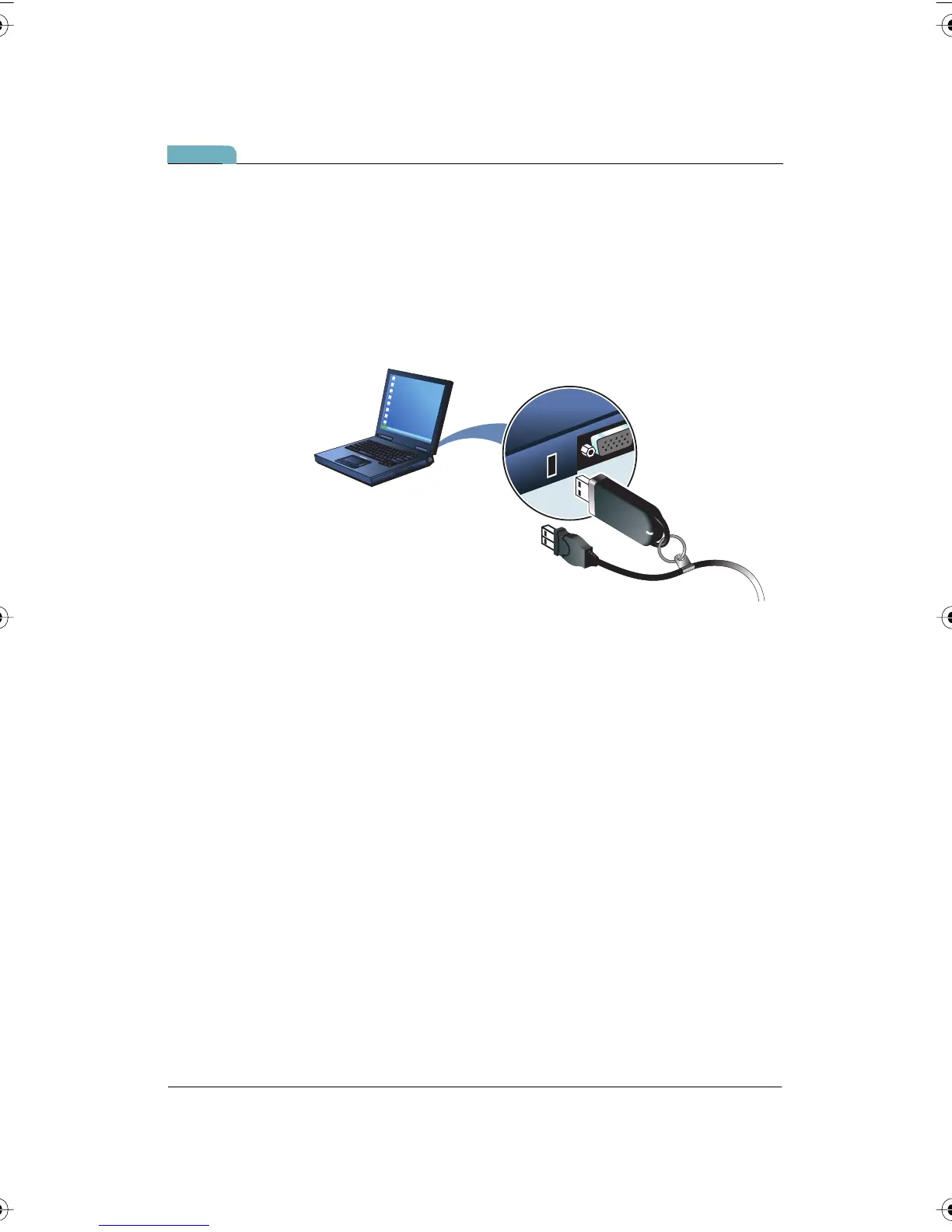
To install the PolyVision driver on your computer:
1 Locate the Walk-and-Talk USB cable.
2 Connect the PolyKey on the USB cable to your computer’s USB port.
3 Installation should begin automatically. If it does not:
Windows: double-click “My Computer” on your desktop and double-
click the removable disk named “PolyKey.” Installation begins.
Macintosh: double-click the PolyKey icon on your desktop, double-
click the “Macintosh” folder, and double-click “the PolyVision driver
Installer.” Installation begins.
4 Follow the prompts you see on the screen to complete the installation.
On a Macintosh, your system automatically reboots.
When installation is complete, a message appears on your computer
screen and the PolyVision driver icon appears in your system tray
PolyVision I&O.book Page 11 Thursday, October 16, 2008 4:18 PM



 To Next Page