50 Installation and Operation Guide
PolyVision
®
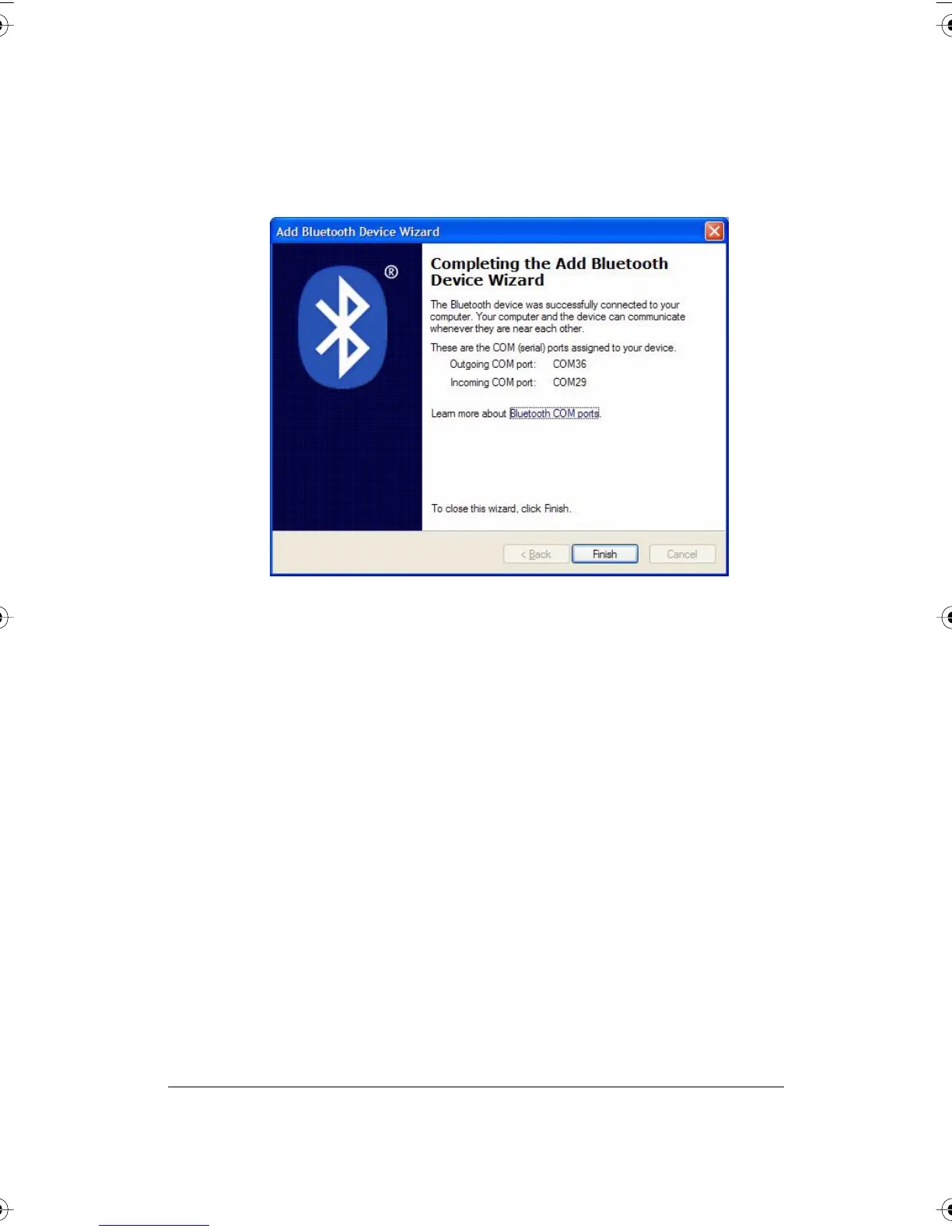
9 The software automatically finishes establishing the connection and
tells you the COM port where you can expect to find the whiteboard
connection. In the example below, the COM port is COM36.
10 Your whiteboard is now accessible via the Bluetooth connection.
11 This Bluetooth communication link appears in the list of active
connections on your computer and automatically reconnects in the
future.
12 To check or change this Bluetooth connection, choose “Open
Bluetooth Settings” from the menu that appears when you right click
the Bluetooth icon in your taskbar.
13 If the software asks you for a passkey, the factory default is “1234.”
14 Skip to “Confirming Bluetooth Registration” on page 55.
Registering the Whiteboard on a Macintosh
For each whiteboard that you want to share wireless communication with
your computer, you must register the whiteboard with your computer.
PolyVision I&O.book Page 50 Thursday, October 16, 2008 4:18 PM



 To Next Page