Installing the Wireless BT Option 55
PolyVision
®
Confirming Bluetooth Registration
To confirm wireless communication between your computer and the
whiteboard:
1 Click the PolyVision driver icon in your system menu (Windows) or
system menu bar (Macintosh). You see the PolyVision driver menu.
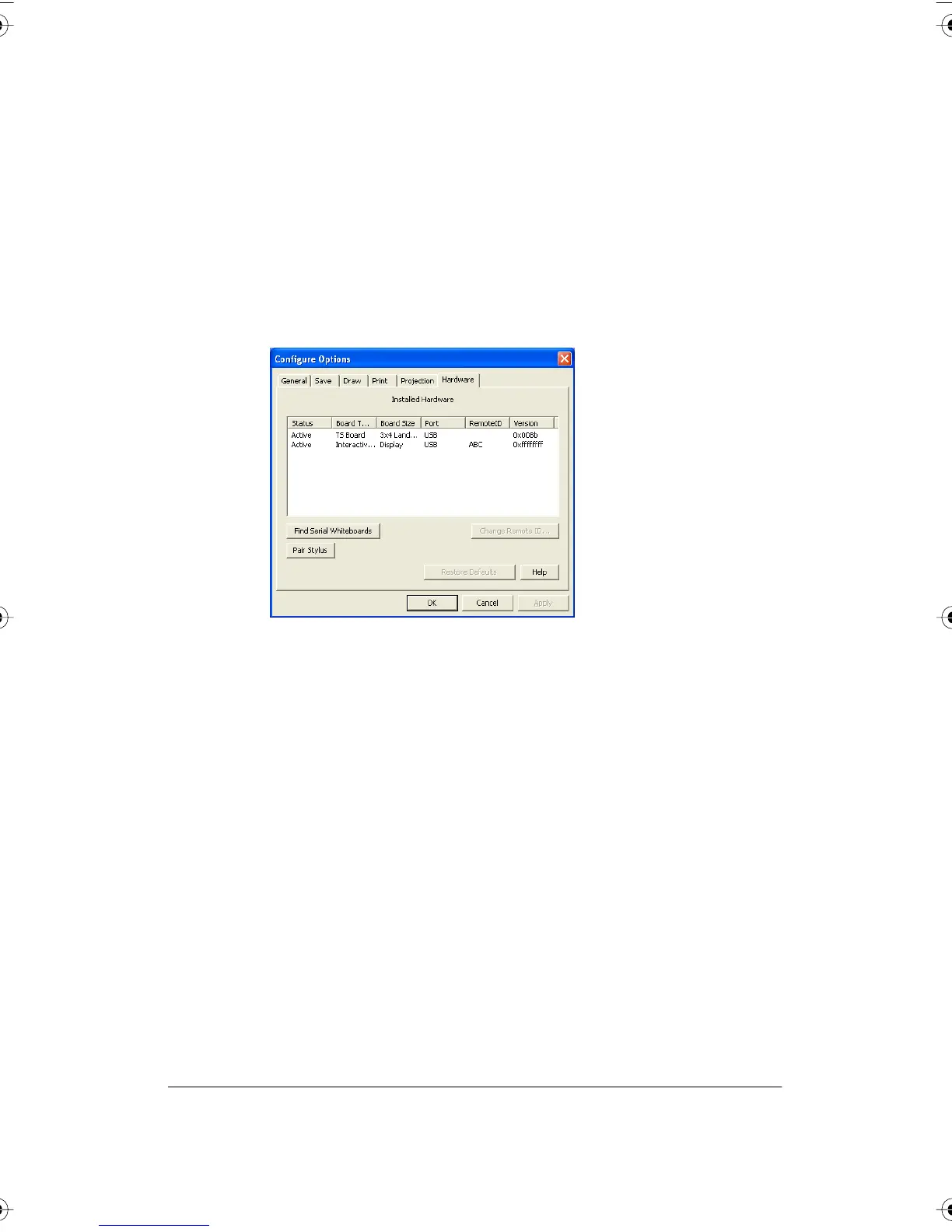
2 Choose “Configure the PolyVision driver” from the menu.
3 Click the “Hardware” tab. Your Bluetooth device appears in the list
using an identification number in the form “PV 10346” for example.
4 Some whiteboards may not be listed. If your device is not listed, click
“Find Serial Whiteboard." If your device is still not listed, there is a
problem with your Bluetooth registration.
5 Click “OK" to close.
6 Confirm that the whiteboard and your computer are communicating by
writing on the board saving a sample file (Press “Save” on the remote
control for WT or WTL or tap the “Save” icon on the whiteboard for TS
600). Check the file in your “My Documents” (Windows) or
“Documents” (Macintosh) folder. You are finished!
FCC Identification
The FCC identification number for this Bluetooth device is T9JRN41.
PolyVision I&O.book Page 55 Thursday, October 16, 2008 4:18 PM



 To Next Page