30 Installation and Operation Guide
PolyVision
®
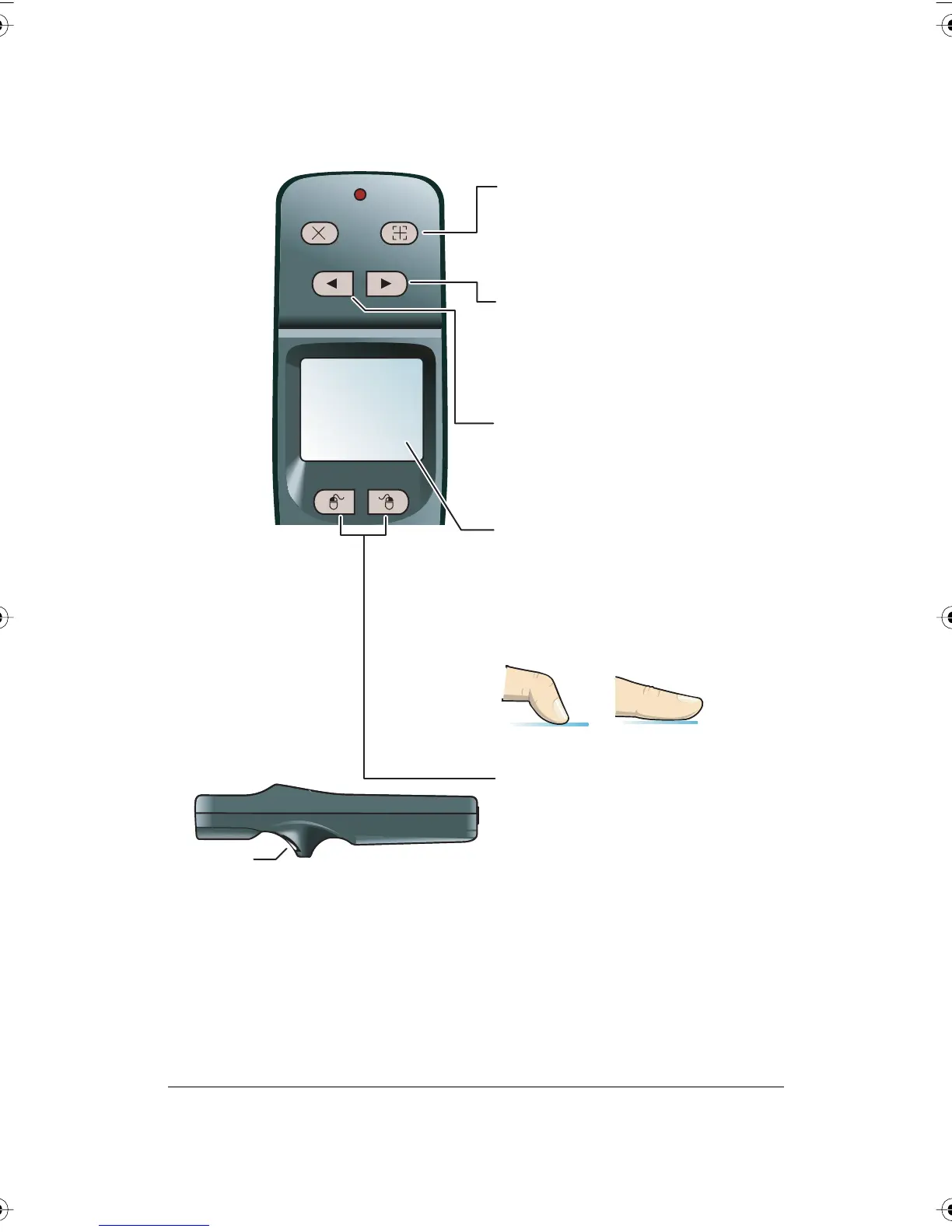
Erase All
Previous
L R
Next
Projection
Projection
When a projector is connected
to your computer and focused on
the board, press this button to
enter projection mode so you can
control the computer from the board.
Previous
When the cursor is active, press this
button to page up or move
to the previous slide or web page.
When the pen is active, press this button
to display a blank mark-up screen.
Next
When the cursor is active, press this
button to page down or move to
the next slide or web page.
When the pen is active, this button
returns to the computer mark-up screen.
Touch pad
In projection mode, use the touch pad
to control your computer cursor just as
you would on a laptop computer
touch pad. Tap once to click and twice
to double-click. Always use the tip of you
thumb or your forefinger. Never use the
flat of your thumb.
Click trigger
L and R
In projection mode, press L for
a left mouse click and R for a
right mouse click (Windows) or
control click (Macintosh). You
can also use the click trigger on
the bottom of the remote
control for a left mouse click or
double-click.
YES
NO
PolyVision I&O.book Page 30 Thursday, October 16, 2008 4:18 PM



 To Next Page