9
Chapter 2
Connect to the Internet
2. 2. Connect to the Internet
The Router provides three working modes: Wireless Router, Range Extender and Access
Point. You can choose the mode to better suit your network needs and follow the guide
to complete the configuration.
2. 2. 1. Wireless Router Mode
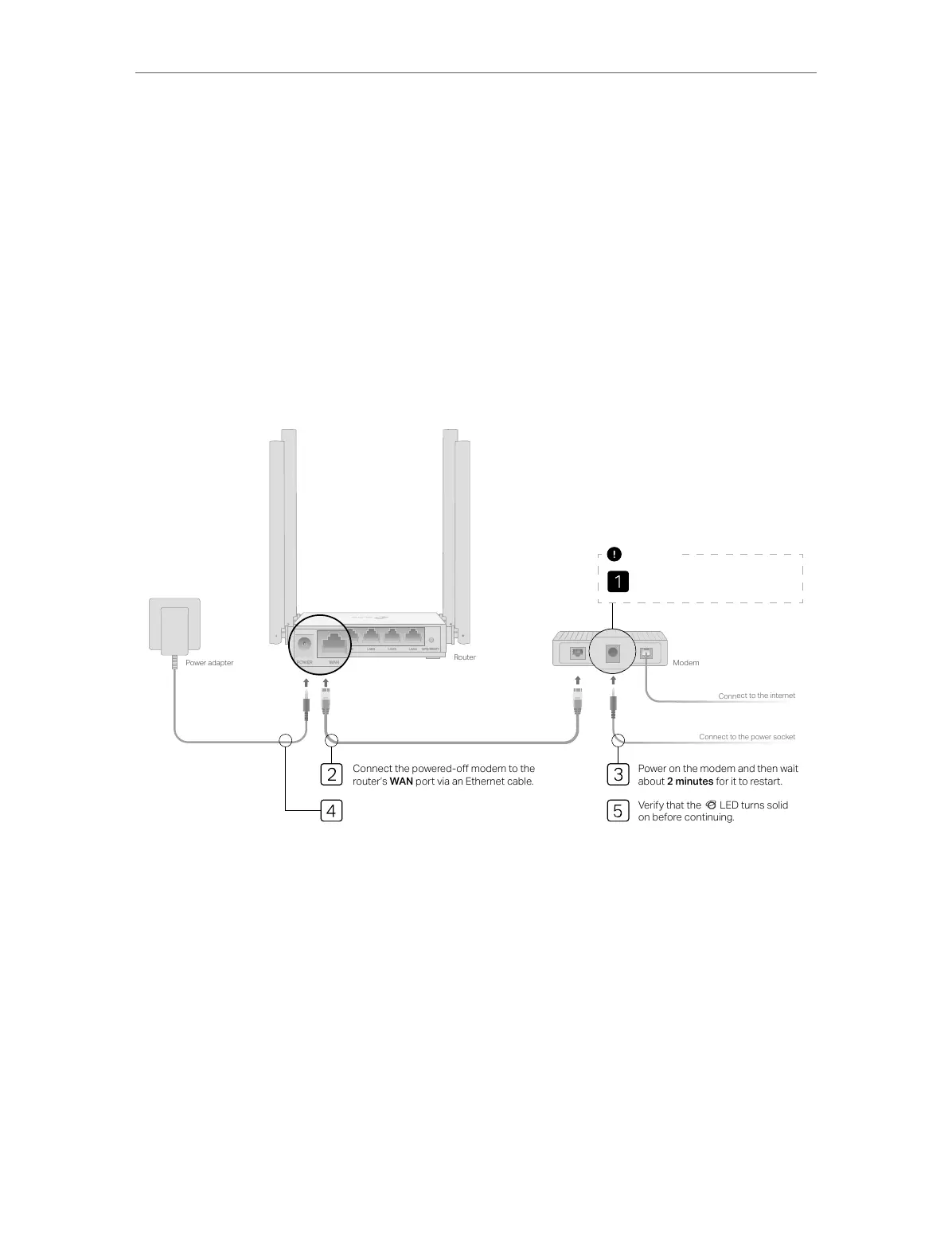
1. Follow the steps below to connect your router.
If your internet connection is through an Ethernet cable from the wall instead of through
a DSL / Cable / Satellite modem, connect the Ethernet cable directly to the router’s
WAN port, and then follow Step 4 and 5 to complete the hardware connection.
Modem
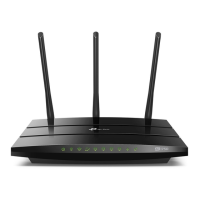
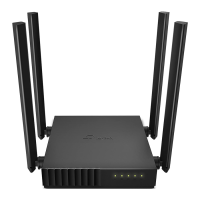
Router
Power adapter
Connect to the internet
Connect to the power socket
Power on the modem and then wait
about 2 minutes for it to restart.
Connect the powered-o modem to the
router’s WAN port via an Ethernet cable.
Verify that the LED turns solid
on before continuing.
Unplug your modem, and remove
the backup battery if it has one.
Important
Connect the power adapter to the router.
1 ) Power off the modem, and remove the backup battery if it has one.
2 ) Connect the powered-off modem to the router’s WAN port with an Ethernet
cable.
3 ) Turn on the modem, and then wait about 2 minutes for it to restart.
4 ) Connect the power adapter to the router.
5 ) Verify that the internet LED turns solid before continuing with the configuration.
2. Connect your computer to the router.
• Method 1: Wired
Turn off the Wi-Fi on your computer and connect your computer to the router’s
LAN port.






 To Next Page