5
Chapter 1
Get to Know About Your Router
LED Status Indication
(2.4GHz
Wireless)
On The 2.4GHz wireless band is enabled.
Off The 2.4GHz wireless band is disabled.
(5GHz
Wireless)
On The 5GHz wireless band is enabled.
Off The 5GHz wireless band is disabled.
(LAN)
On
At least one powered-on device is connected to the router’s LAN
port.
Off No powered-on device is connected to the router’s LAN port.
(Internet)
Green On
Router Mode: Internet is available.
Access Point Mode: The WAN port is connected.
Range Extender Mode: The router is connected to the host network.
Orange On The WAN port is connected, but internet is not available.
Off
Router Mode: The WAN port is not connected.
Access Point Mode: The WAN port is not connected.
Range Extender Mode: The router is not connected to the host
network.
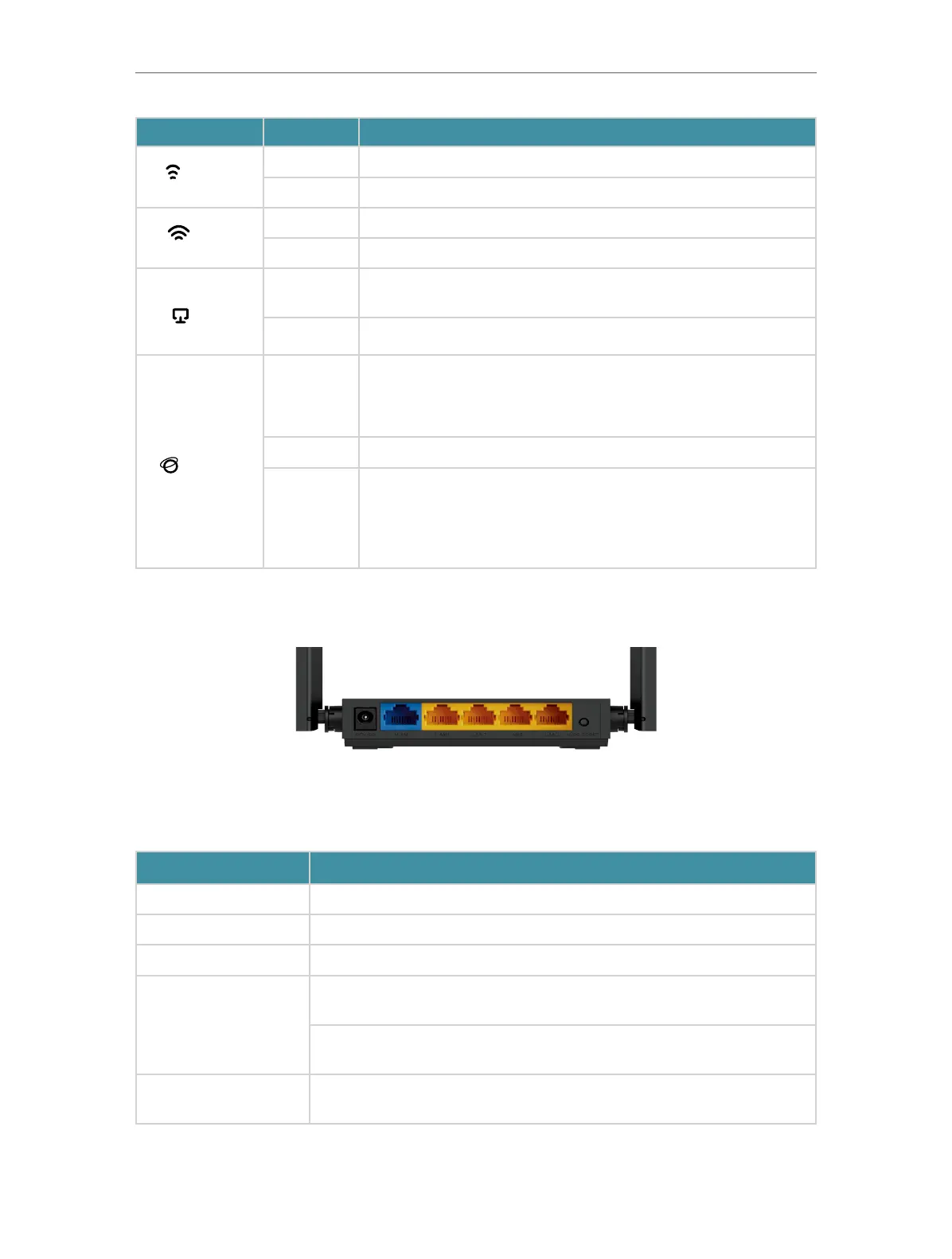
1. 2. 2. The Back Panel
The following parts (view from left to right) are located on the back panel.
Button and Port Explanation
Item Description
Power Port For connecting the router to a power socket via the provided power adapter.
WAN Port For connecting to a DSL/Cable modem, or an Ethernet jack.
LAN Ports (1/2/3/4) For connecting your PC or other wired devices to the router.
WPS/RESET Button
Press the button for 1 second, and immediately press the WPS button on
your client to start the WPS process.
Press and hold the button until all LEDs turn off to reset the router to its
factory default settings.
Antennas
Used for wireless operation and data transmit. Upright them for the best
Wi-Fi performance.






 To Next Page