56
Chapter 4
Configure the Router in Wireless Router Mode
4. 10. 3. Change Password
1. Visit http://tplinkwifi.net, and log in with the password you set for the router.
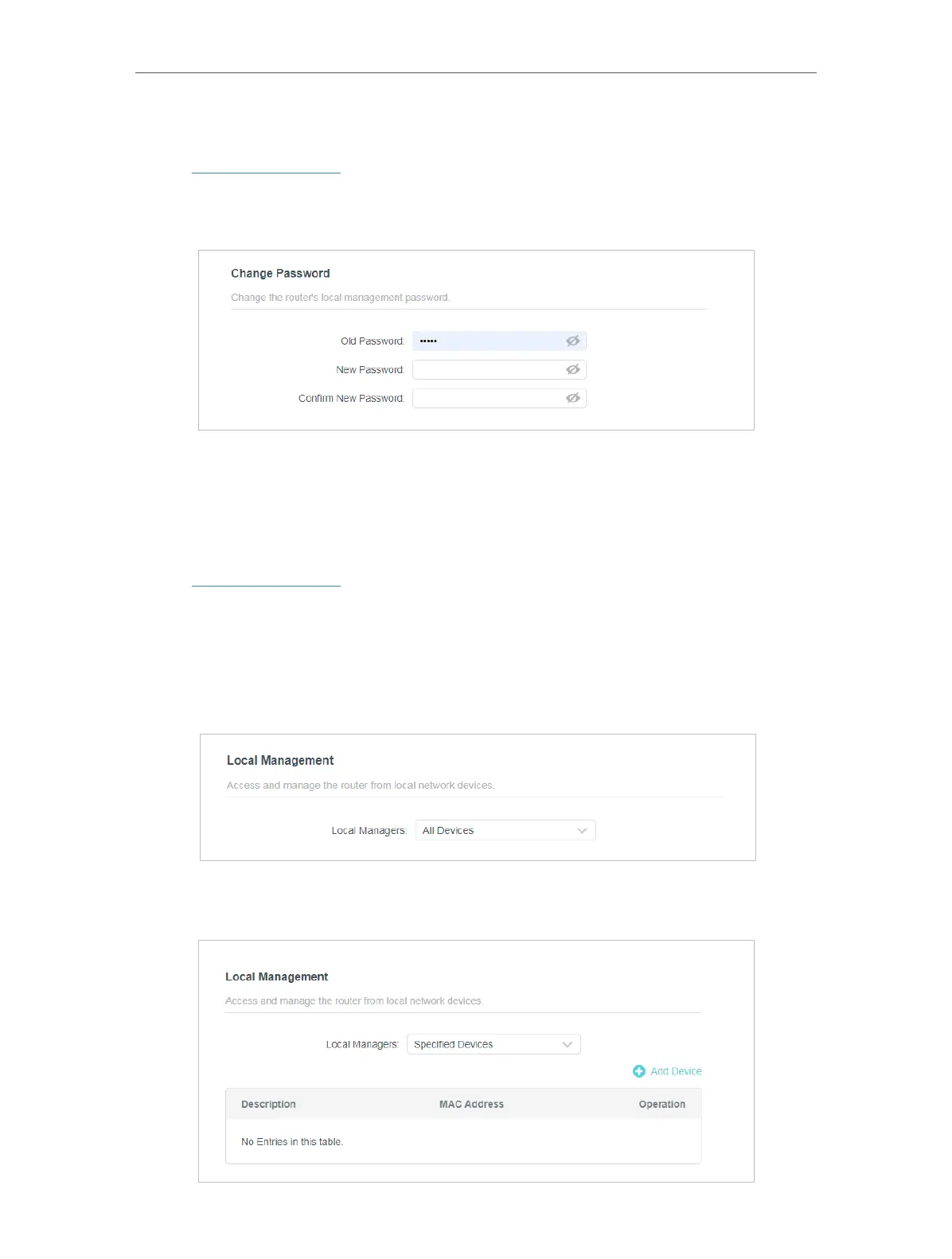
2. Go to Advanced > System > Administration, and focus on the Change Password
section.
3. Enter the old password, then a new password twice (both case-sensitive). Click SAVE .
4. Use the new password for future logins.
4. 10. 4. Local Management
1. Visit http://tplinkwifi.net, and log in with the password you set for the router.
2. Go to Advanced > System > Administration, and focus on the Local Management
section.
• Allow all LAN connected devices to manage the router:
Select All Devices for Local Managers.
• Allow specific devices to manage the router:
1. Select Specified Devices for Local Managers and click SAVE .






 To Next Page